Understanding the Dashboard
The dashboard is the first page you see after logging in and the one your team keeps open all day. This page explains every panel, what the numbers mean and where each link takes you.
The screenshot shows Northside Dental on a busy afternoon: three live calls, one caller waiting, three of six agents available.
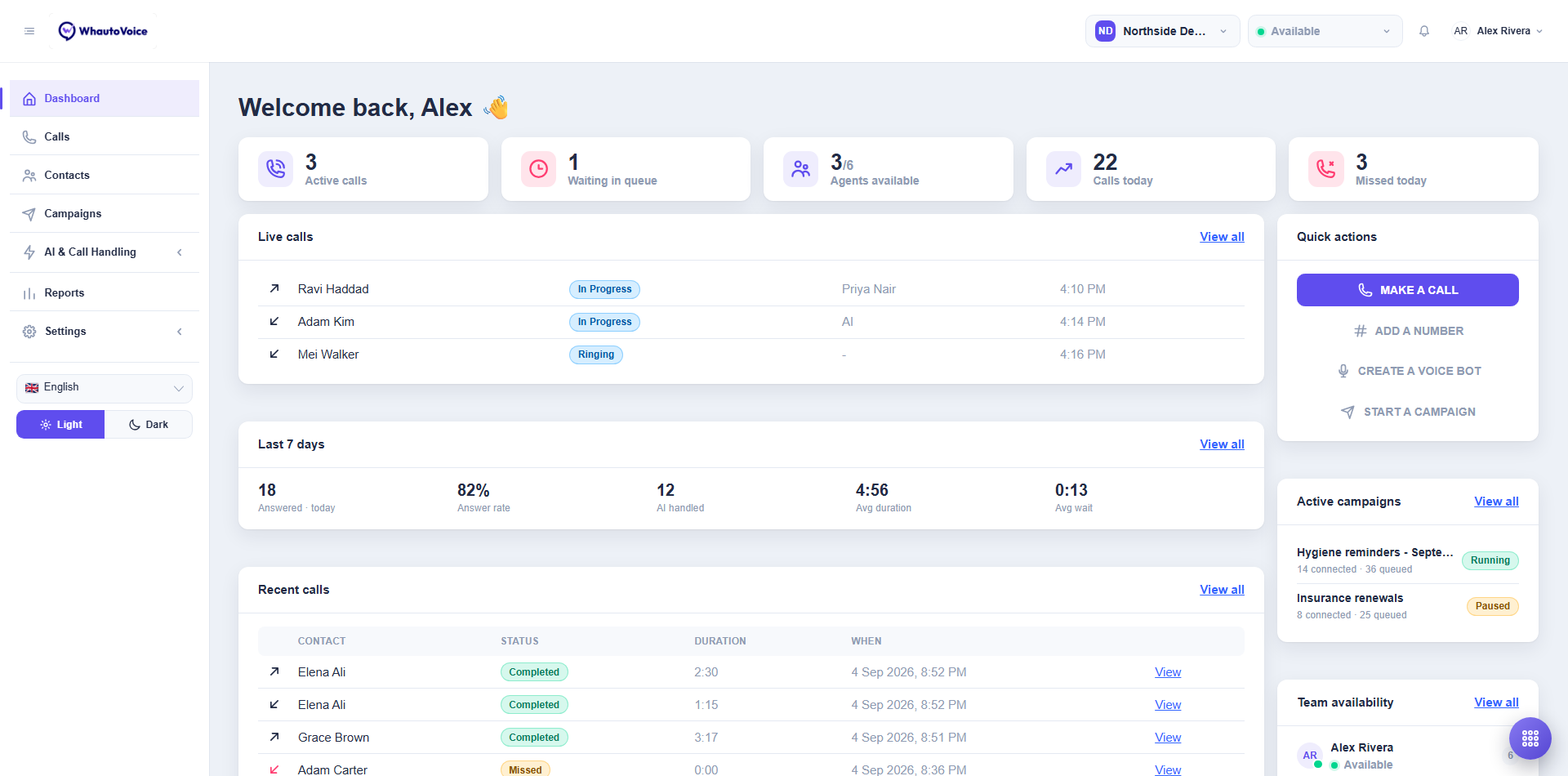
The header
From left to right across the top bar:
- Menu toggle. The three-line icon collapses the sidebar to icons and expands it again.
- Workspace switcher. The chip with your workspace's initials and name. Click it to see Switch workspace and New workspace. See Workspaces.
- Presence selector. The dot and label show your current status: Available, Busy, Wrap-up or Offline. Click it to change. Only Available agents are rung for incoming calls. While you are in Wrap-up after a call, the menu offers I'm back to take calls again straight away. See Presence and availability.
- Notification bell. A red badge counts unread notifications. Click it to open the Notifications panel with items such as Missed call, AI handed off a call and New voicemail. See Notifications and alerts.
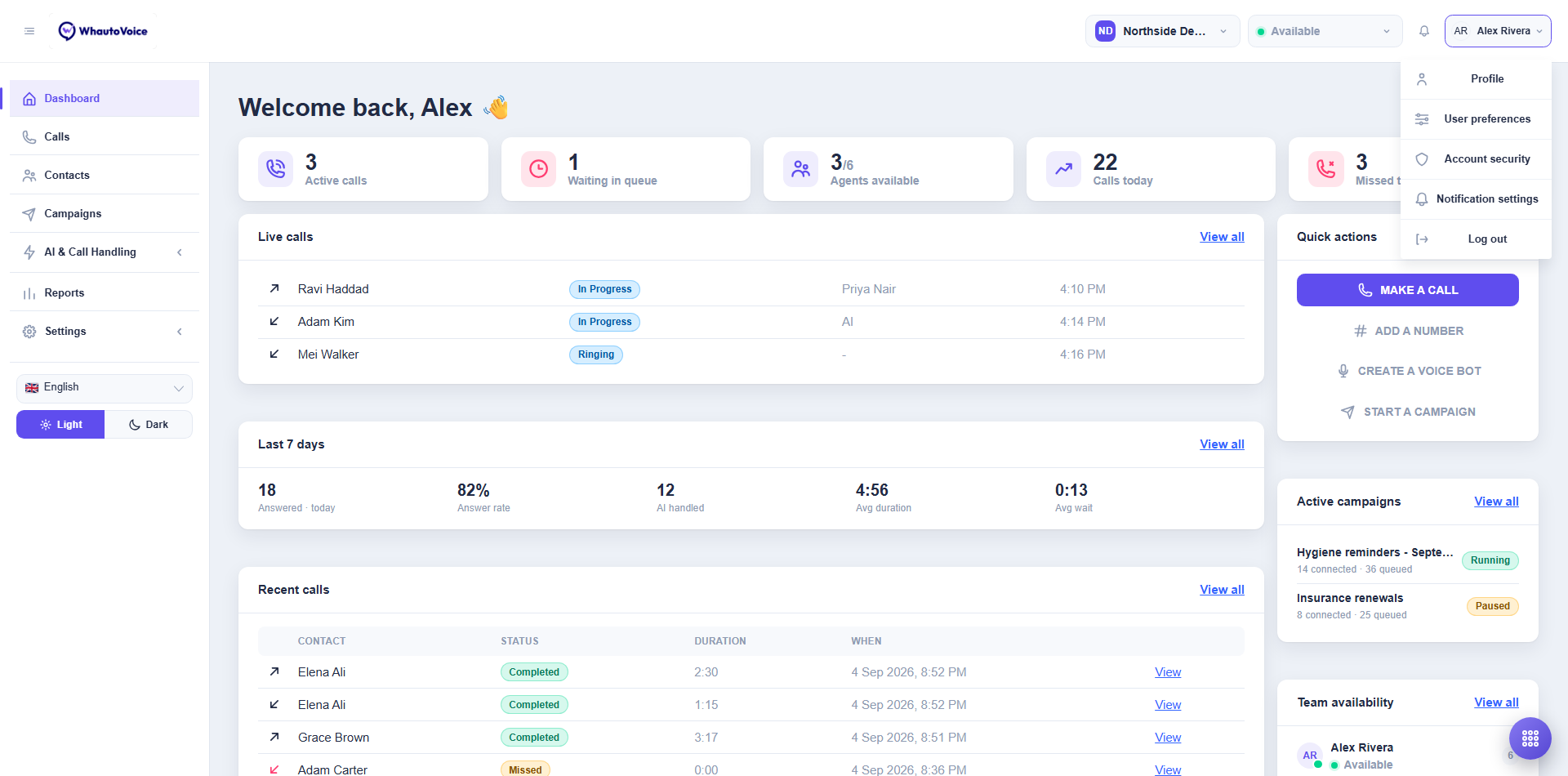
- User chip. Your initials and name. Click it for the user menu.
The user menu
- Profile. Your name, phone and avatar.
- User preferences. Time format, default calling number and similar per-user options.
- Account security. Change your password and set up two-factor authentication.
- Notification settings. Which events notify you and how they sound.
- Log out.
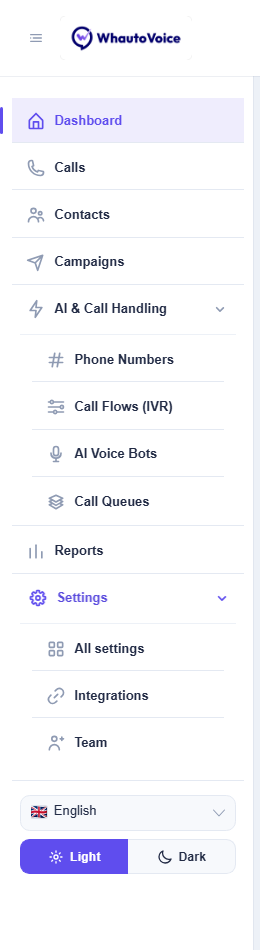
The sidebar
The sidebar is the main navigation. Two groups expand to show their children.
- Dashboard. This page.
- Getting started. Owners and administrators only. A checklist of the steps that set the account up: connect a provider, add a number, take and make a call, connect an AI engine, build an AI agent and a call flow, invite the team, choose a plan. Each step opens with short instructions, a link to the matching guide here, and a button to the screen where it happens. Steps the platform can see are ticked on their own; the rest have Mark as done.
- Calls. Every call, live and historical, with filters and export.
- Contacts. Your contact list and pipeline.
- Campaigns. Outbound calling campaigns and segments.
- AI & Call Handling. Expands to Phone Numbers, Call Flows (IVR), AI Voice Agents and Call Queues. Agents do not see Phone Numbers.
- Reports. Call volume, answer rate, agent and queue performance.
- Settings. Expands to All settings, Integrations and Team. Agents see only All settings.
At the bottom of the sidebar:
- Language selector. Switch the app between English, Arabic, Spanish, French, Malay, Portuguese (Brazil), Portuguese (Portugal) and Chinese. The choice is yours alone and does not affect teammates.
- Light / Dark. Toggle the theme.
While steps remain, a small Getting started pill sits in the bottom-left corner of every page with a ring showing how far along you are. Click it to see the list; click a step to open it on the Getting started page. Hide the checklist puts the pill away for you alone, and the page has a Show the checklist button to bring it back. It disappears by itself once every step is done.
Under Settings > Customise menu you can drag items into a different order, lift a page out of a section onto the top level, and untick the ones you never use. Unticked items move under More at the foot of the sidebar rather than disappearing. It applies to your sidebar only, and Restore default puts everything back.
The five KPI tiles
The tiles across the top are live counters and each one is a link to a filtered list.
| Tile | What it counts | Where it goes |
|---|---|---|
| Active calls | Calls in progress right now, whether an agent or an AI agent is on them | Calls filtered to Active |
| Waiting in queue | Callers holding for an agent. The icon turns red when anyone is waiting | Calls filtered to Waiting |
| Agents available | Available agents out of the whole team, for example 3/6 | Team availability |
| Calls today | Inbound and outbound calls since midnight | Calls filtered to Today |
| Missed today | Calls that rang out or were abandoned today | Calls filtered to Missed |
Live calls
Every call in progress, one per row: direction arrow, contact name, a status badge (Ringing or In Progress), who is handling it (an agent's name, AI for an AI agent, or a dash while it rings) and the start time. Click a row to open the call. View all takes you to the Calls page. When nothing is happening the panel says Nothing in progress right now.
Last 7 days
A one-line summary of the past week: Answered (with today's count beside it), Answer rate, AI handled, Avg duration and Avg wait. View all opens Reports. The line reads No reporting history yet. until your first full day of calls has been rolled up.
Recent calls
The latest calls in the workspace with Contact, Status (Completed, Missed, Voicemail and so on), Duration and When. Click View on a row to open the transcript, recording, timeline and notes. See Call details. Agents see only the calls assigned to them.
Quick actions
Four shortcuts in the right column:
- Make a call. Opens the dial pad.
- Add a number. Jumps to Phone Numbers with the add dialog open.
- Create an AI voice agent. Opens the AI agent template picker.
- Start a campaign. Opens the new campaign form.
Active campaigns
Campaigns that are Running or Paused, with their connected and queued counters. Click a campaign to open it, or View all for the campaign list. The panel only appears once a campaign exists. See Outbound campaigns.
Team availability
Every member of the workspace with their presence dot and label, and the number of calls they have handled today on the right. Availability updates the moment someone changes status. View all opens Team.
The floating dial button
The round keypad button in the bottom right corner is on every page, not just the dashboard. Click it to open the dial pad, type or paste a number and call. If you have more than one number, the Call from which number? dialog asks which to use; tick Always call from this number to skip the question next time. See Making outbound calls.
The waiting-caller alert
When a caller has been holding for an agent and you are Available, a red banner drops in across the top of the app and the browser tab title changes to Caller waiting. It rings if you have Ring for waiting callers switched on in your notification settings.
- Take call. Answers the caller immediately in your softphone. The button reads Connecting while the call is bridged.
- Open call. Opens the call record without answering.
- Dismiss. Hides the banner. It comes back if the caller is still waiting.
Related
Email us at hello@whautovoice.com and we will get you sorted.