Notifications and alerts
WhautoVoice tells you about the calls you were not on: the one that rang out, the voicemail that arrived, the AI agent that handed a caller to the team. Every event lands in the bell, and the ones that matter most can also chime, pop up on your desktop, or ring until someone acts.
The notification bell
The bell sits in the header between the presence selector and your user chip. A red badge on it counts the notifications you have not read yet. Click it to open the Notifications panel.
- Each entry shows the event as its title, a one-line message, and when it happened.
- Call notifications are deep links. Click one to open the call's detail page; the entry is marked read as you go.
- When there is nothing waiting the panel reads Nothing new right now.
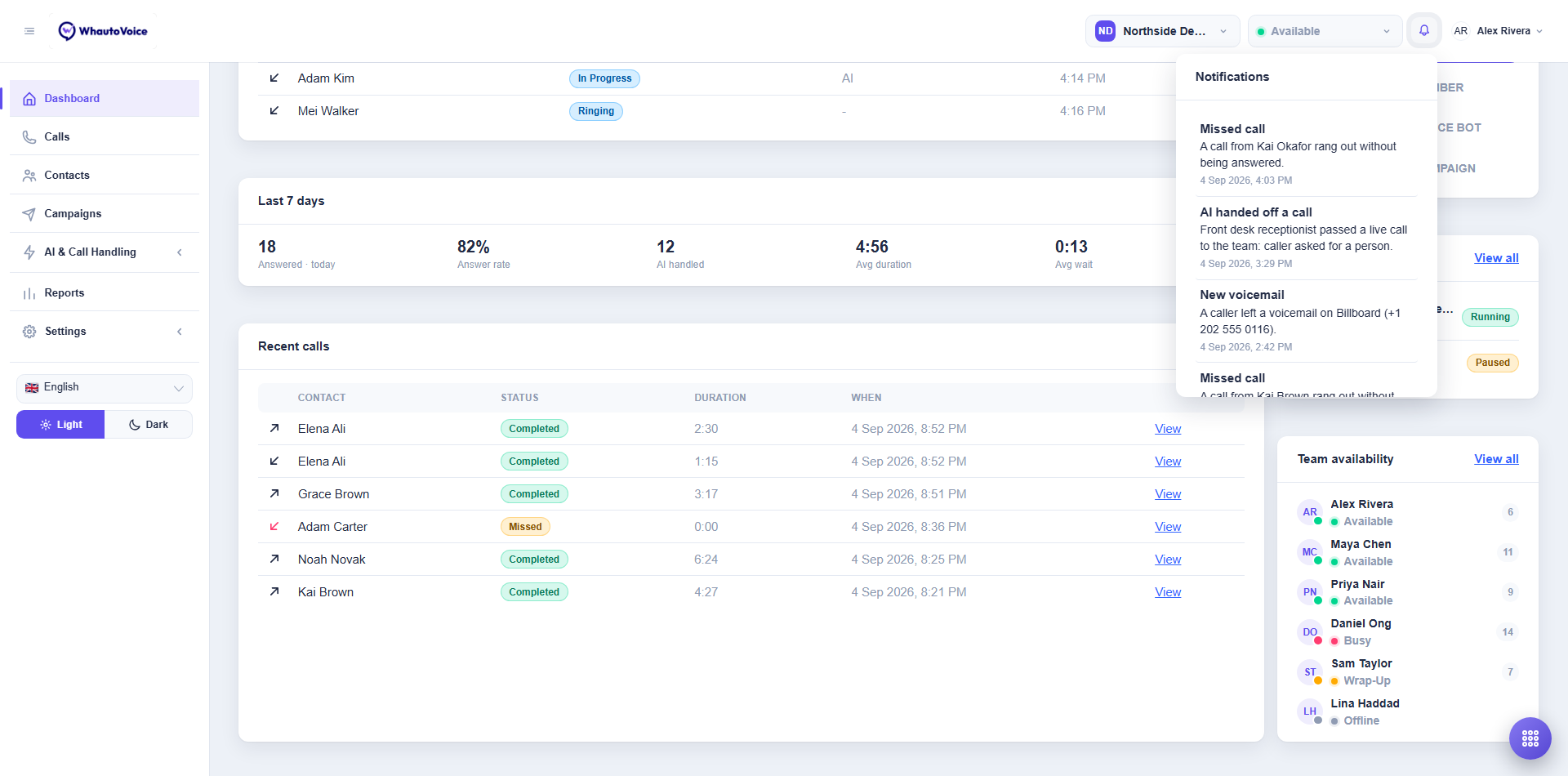
Alex at Northside Dental has three unread notifications: a missed call from Kai Okafor, a handoff from the Front desk receptionist AI agent, and a new voicemail on the Billboard number.
Choosing what reaches you
Open the user chip and choose Notification settings, or go to Settings > Notifications. The page notes that these settings apply to you in this workspace only, so each teammate tunes their own, and switching workspaces shows a different set.
Every event has a Web checkbox, which controls the bell, the sound and the desktop pop-up in the browser, and a Mobile checkbox for the agent app. The checkbox in each card header ticks or clears every row in that section at once. Click Save when you are done; the toast Notification settings saved confirms it.
| Event | Fires when | Who receives it | Default |
|---|---|---|---|
| Call routed to me | An inbound call was routed directly to you, by a number set to Specific agent or a Ring an agent step. | Only you | Web and Mobile |
| Missed call | A call rang out without being answered. | Everyone in the workspace, so somebody calls back | Web and Mobile |
| New voicemail | A caller left a voicemail. | Everyone in the workspace | Web and Mobile |
| AI handed off a call | An AI voice agent passed a live call to the team. | Everyone in the workspace | Web and Mobile |
| Caller waiting for an agent | A caller is holding and no agent was free to take them. | Everyone in the workspace | Web and Mobile |
| Caller flagged | An AI voice agent flagged a caller through caller screening. | Owners and Administrators only | Web |
| Campaign completed | An outbound campaign finished dialling its audience. | Owners and Administrators only | Web |
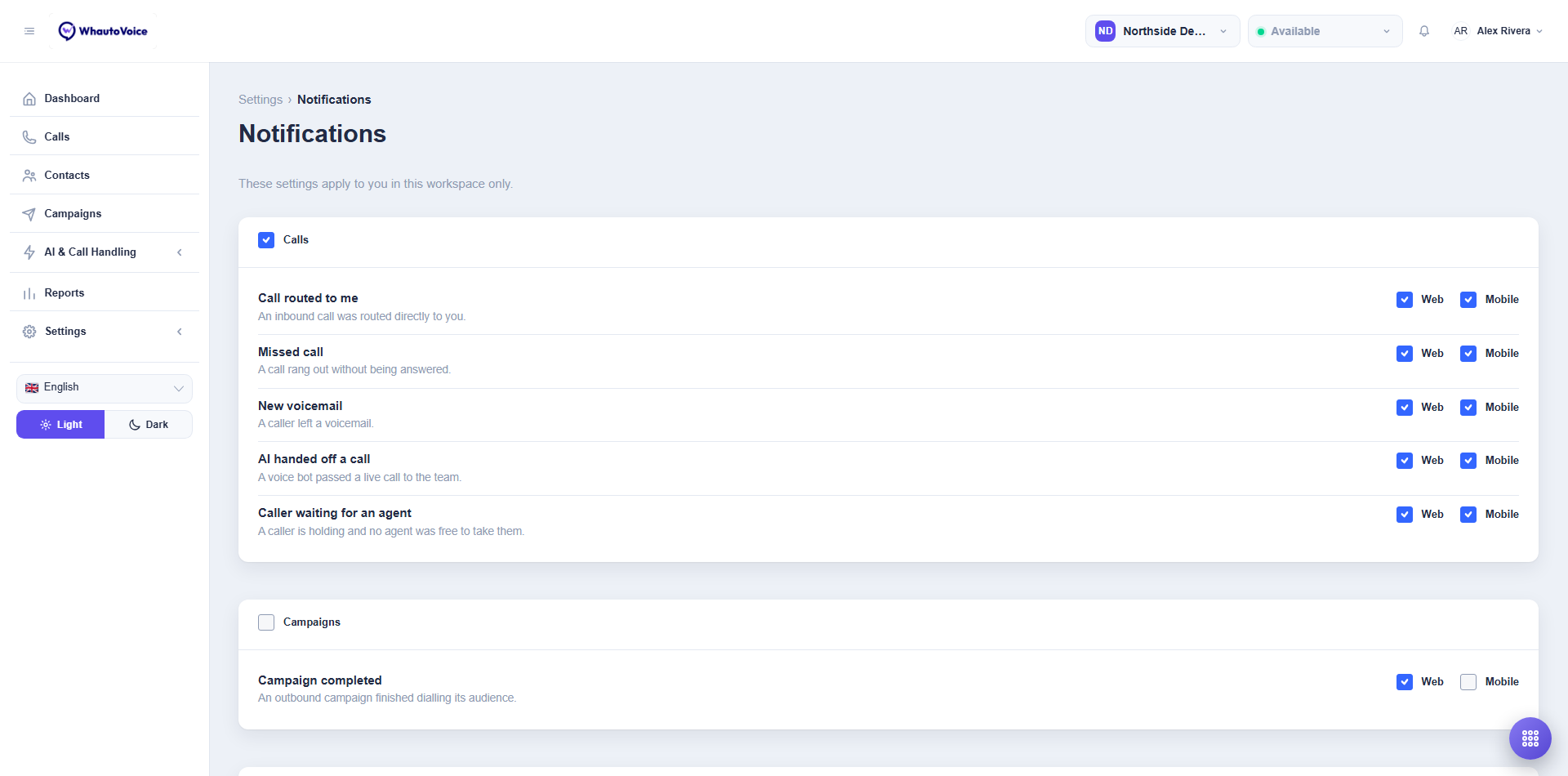
If you switch off Caller waiting for an agent, you will not be paged when an AI agent has a live caller and nobody free. Leave it on for everyone who takes calls, and use the sound settings below to make it quieter rather than silent.
Sound and alerts
Scroll below the Campaigns card to Sound and alerts. These settings live on this browser, not on your account, because the right volume and tone are facts about the room you are sitting in. Set them again on a second machine.
| Setting | What it does |
|---|---|
| Play a sound | Chime when a notification arrives. Untick it to keep the bell silent. |
| Notification sound | Which tone plays: Chime, Ping or Knock. Click Test to hear it. |
| Volume | A slider from 0 to 100 percent. It sets how loud alerts are next to call audio, so you can hear a chime without it drowning a caller. |
| Ring for waiting callers | Repeat the alert until someone takes the call. With it off, the waiting-caller alert chimes once and stays on screen silently. |
| Desktop notifications | Show a system notification when this tab is in the background. Ticking it makes the browser ask for permission; choose Allow. |
If the browser has refused permission the page says Your browser has blocked notifications for this site. Allow them in the address bar to switch this on. Click the padlock in the address bar, set Notifications to allowed, and tick the box again.
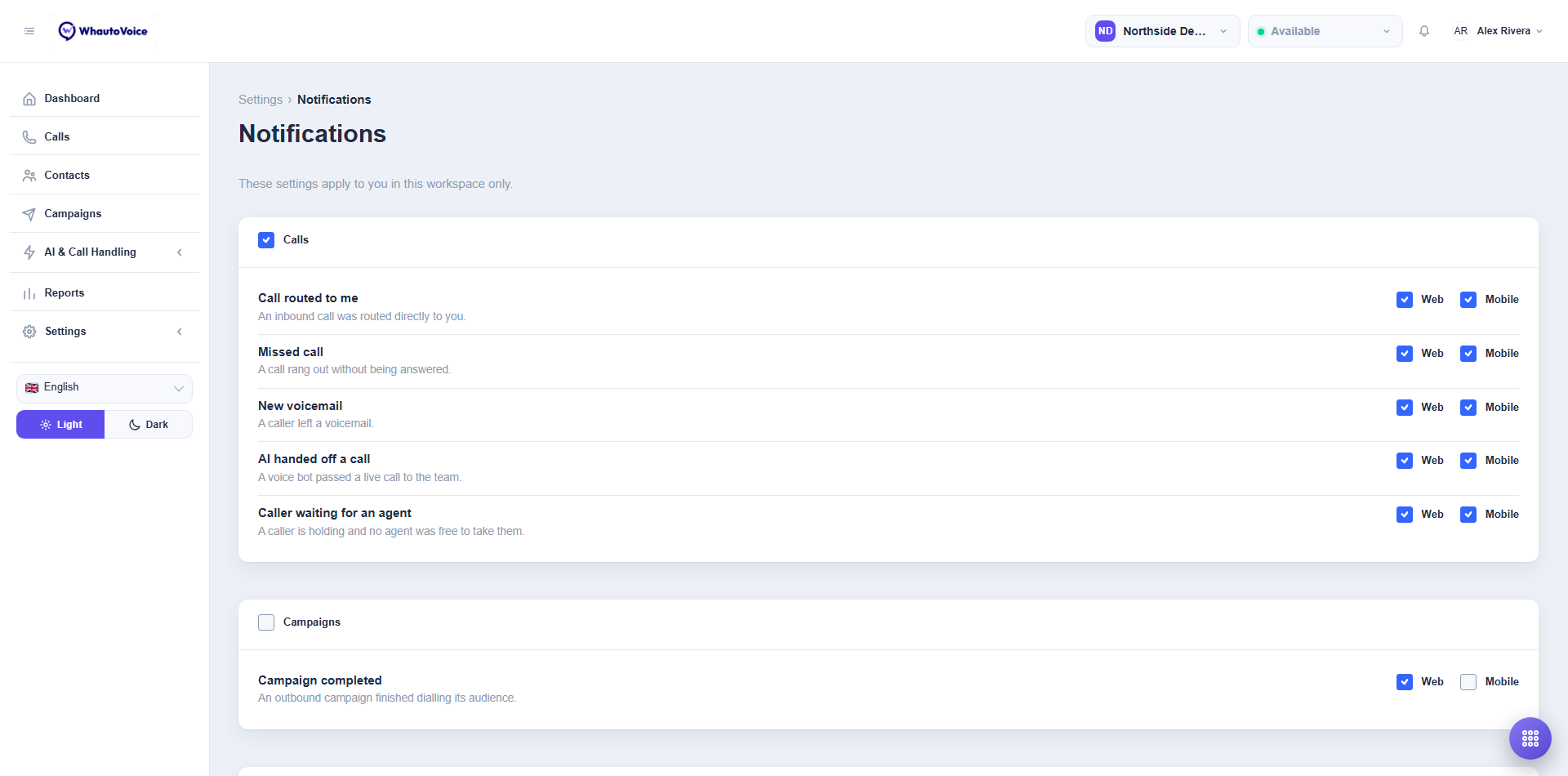
Click Test after choosing a tone and volume, then switch to another tab and have a teammate ring a number to check the desktop pop-up appears. It is much easier to fix before a caller is on the line.
The Caller waiting for an agent alert
Most notifications describe something that has already finished. This one has a person still on the line, so it behaves differently.
It appears when an AI voice agent tries to hand a caller to the team and nobody in the queue is Available or in Wrap-up, or when the agents it rang did not pick up. The caller is held with music while the workspace is paged.
- A red banner with a phone icon slides in at the top of every page, above everything else, headed Caller waiting for an agent with the AI agent's reason beneath it, for example AI agent requested a human agent but none was available.
- If Ring for waiting callers is on, the alert rings again and again until someone acts. The browser tab title changes to Caller waiting so you can spot it from another tab.
- It stays until an agent takes the call or dismisses it.
| Button | What it does |
|---|---|
| Take call | Pulls the caller to you. The button reads Connecting while the softphone rings, then you answer as usual. You can take the call from Available or Wrap-up; if you are Busy or Offline the banner tells you that you are not available right now. |
| Open call | Opens the call's detail page so you can read the transcript before deciding. The caller keeps holding. |
| Dismiss | Clears the banner on your screen only. The caller is still holding and the banner stays for everyone else. |
If nobody takes the call, the caller eventually falls through to the number's fallback, usually voicemail, and the team gets a Missed call or New voicemail notification instead.
Related
Email us at hello@whautovoice.com and we will get you sorted.