Create an AI voice agent
An AI voice agent answers a phone number, talks to the caller in a natural voice and hands over to your team when it should. This page walks through the AI agent list, the template picker and every field on the Basics tab, then shows how to put the AI agent on a number.
Before you start
- Connect at least one AI engine under Settings > Integrations. See Connect an AI engine.
- Create the call queue you want handoffs to land in, or check that your default queue has members.
The AI agent list
Open AI & Call Handling > AI Voice Agents. Northside Dental already has four AI agents here.
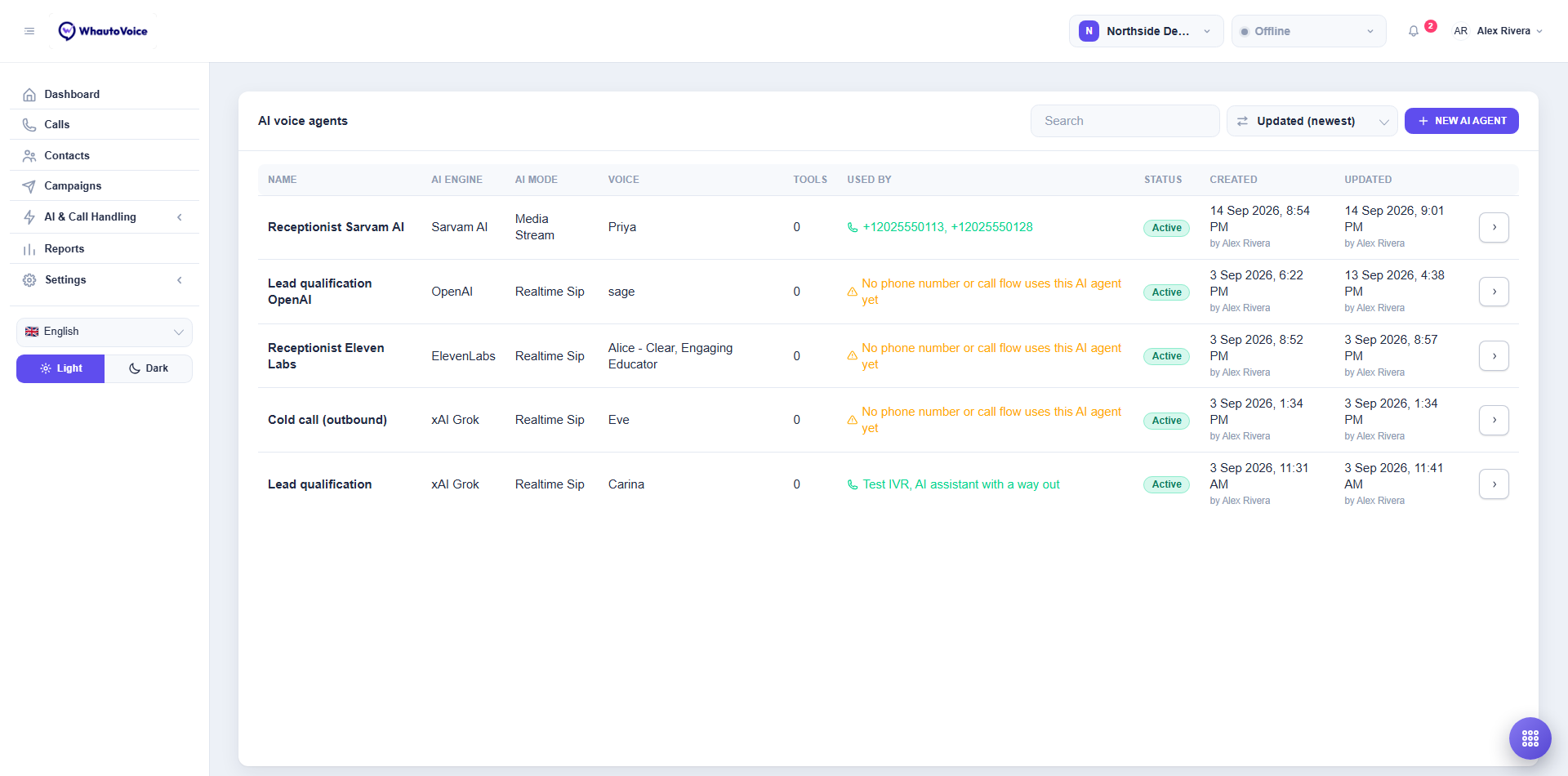
| Column | What it shows |
|---|---|
| Name | The AI agent's name. Click the arrow at the end of the row to open it. |
| AI engine | OpenAI, xAI Grok, ElevenLabs or Sarvam AI. |
| AI mode | Realtime Sip, or ConversationRelay for the fallback mode. |
| Voice | The voice the AI agent speaks with. |
| Tools | How many custom tools and MCP servers the AI agent has. |
| Used by | The phone numbers and call flows that send callers to this AI agent. An AI agent nobody routes to shows No phone number or call flow uses this AI agent yet in orange. |
| Status | Active or inactive. |
| Created and Updated | When, and by whom. |
Use Search to filter by name and the sort control (default Updated (newest)) to reorder the list.
The row actions let you delete an AI agent or open it. Delete is disabled while a phone number or call flow still uses the agent, and the tooltip names them. Point those elsewhere first. A campaign that has not finished, an automation rule that schedules a callback with this agent, or a callback already waiting to run also blocks the delete, and the error names which one. Deleting an agent frees a slot against your plan limit.
If no engine is connected the page shows a No AI engine connected banner: "AI agents route callers to voicemail until you connect an AI engine under Integrations", with a Connect an engine button. Fix that first, or the AI agent you build will never speak.
Start from a template
- Click New AI agent
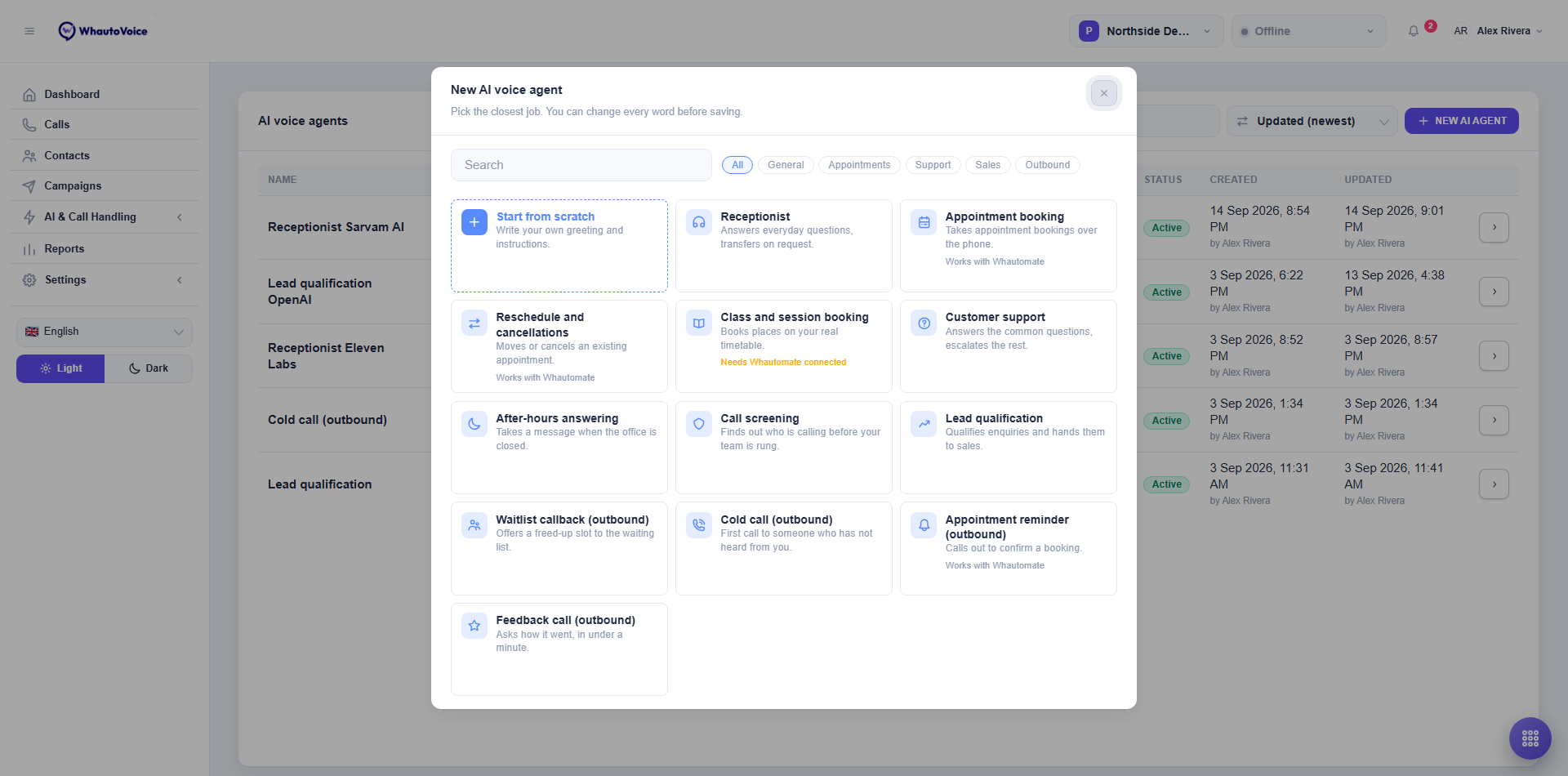
- The Start your AI voice agent from a template picker opens. Nothing is saved until you press Save, so every word of a template is still yours to change.
- Pick a template or start blank
- Start from scratch at the top gives you an empty AI agent. Below it, filter the cards with the category chips General, Appointments, Support, Sales and Outbound, or type in Search. Each card lists two things the template does well. Click a card to open the editor with the greeting, instructions and tools filled in.
See AI agent templates for what each template does and the blanks you need to fill in.
The Basics tab
The editor has two tabs, Basics and Tools. The number on the Tools tab is how many tools are switched on. This page covers Basics; tools are on AI agent tools.
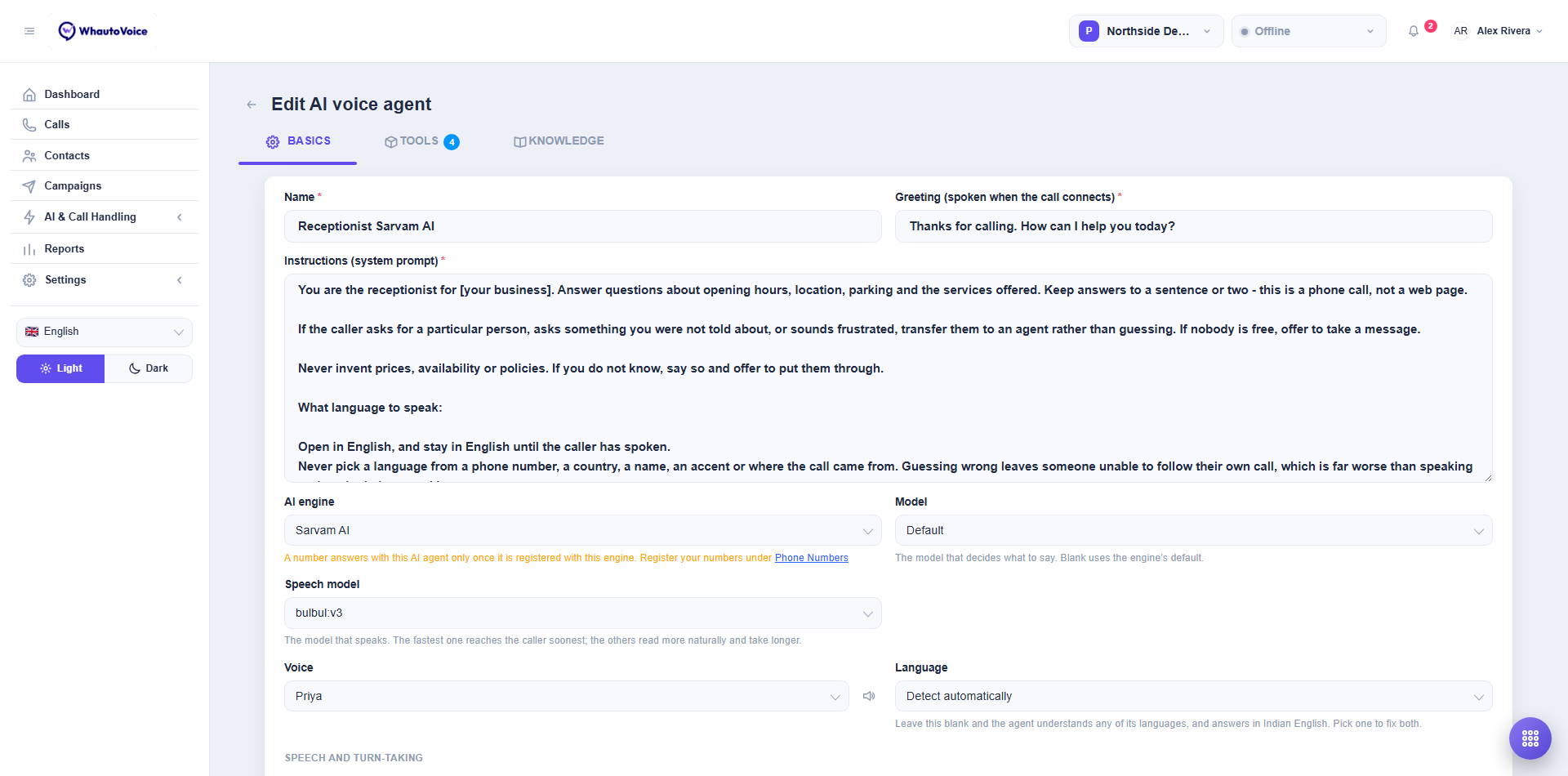
- Name
- What your team sees in the AI agent list, in routing dialogs and on call records. Callers never hear it.
- Greeting (spoken when the call connects)
- The first thing the caller hears, word for word. Keep it to one sentence and end with a question, for example "Thanks for calling. How can I help you today?"
- Instructions (system prompt)
- Who the AI agent is, what it may answer and what to do when it cannot. Templates fill this in and end with the shared rule blocks about language, phone manners, transfers and messages. Replace every square-bracket blank such as
[your business]before you save. Writing AI agent instructions has the full guide.
- Who the AI agent is, what it may answer and what to do when it cannot. Templates fill this in and end with the shared rule blocks about language, phone manners, transfers and messages. Replace every square-bracket blank such as
- AI engine
- Pick the engine this AI agent runs on. Two warnings can appear under the field:
- This engine is not connected yet. Calls route to voicemail until it is. Connect it under Settings > Integrations.
- A number answers with this AI agent only once it is registered with this engine. Register your numbers under Phone Numbers. Shown for every engine except OpenAI.
- For ElevenLabs a Synced to line lists the regions that hold a copy of this AI agent.
- Pick the engine this AI agent runs on. Two warnings can appear under the field:
- Model
- The model that decides what to say. For ElevenLabs the list is the LLMs your ElevenLabs workspace can run an agent on, and the choice is pushed to the agent on save. Leave it on Default unless you have a reason to change it.
- Voice model appears beside it on ElevenLabs and Sarvam AI. That is the model that speaks, which is a different thing. The fastest one reaches the caller soonest; the others read more naturally and take longer. On a phone call the fast one is usually the right trade.
- Language appears for ElevenLabs and Sarvam AI, as a list of what that engine can hold a call in. Sarvam can also work it out from the caller: see Connect an AI engine.
- Voice
- Choose from the list the engine provides. Click the speaker icon (Play a sample) to hear the chosen voice before you commit. If the engine returns no list, the field becomes Voice id and you paste an id from the provider console. If the engine is not connected you see Connect this engine to load its voices with a link to Integrations.
- Language
- Shown for ElevenLabs AI agents. Enter a language code such as
en,hiorta. This is the language the AI agent opens in.
- Shown for ElevenLabs AI agents. Enter a language code such as
- AI mode
- Shown for OpenAI agents only, because it is the one engine with two ways to carry the call.
- OpenAI Realtime over SIP (recommended): your telephony provider connects the caller straight to OpenAI. Lowest latency, and the conversation costs you nothing per turn.
- ConversationRelay (fallback, Twilio only): every sentence the caller speaks passes through the platform, so cost grows with call length. Use it only when SIP trunking is unavailable on your Twilio account.
- Shown for OpenAI agents only, because it is the one engine with two ways to carry the call.
- Human handoff queue
- The call queue that rings when the AI agent transfers to a person. Leave it on Default queue to use the workspace default. See Human handoff.
- Said as the call is handed over
- Appears only in ConversationRelay mode. The caller hears this line, then ringing. Leave it blank for the default "Putting you through now. One moment." A Realtime AI agent says its own handoff line in its own voice, so the field is hidden.
- Longest call (minutes) and Hang up after silence (seconds)
- Cap how long this AI agent stays on a call and how long it waits on a silent line. Leave them blank to use your business default. See Caller protection.
- Save
- Click Save at the bottom. An AI voice agent saved toast confirms it. For ElevenLabs the AI agent is also pushed to your ElevenLabs workspace; if that fails you see Could not update the agent at the provider and the previous version keeps answering.
Save the AI agent, route a spare number to it and call it yourself. Listen for any bracket text the AI agent reads out, then check the transcript on the call record.
Route a number to the AI agent
A saved AI agent does nothing until a phone number points at it.
- Open the number
- Go to AI & Call Handling > Phone Numbers and click Routing on the number.
- Route calls to the AI agent
- Set Route calls to to AI voice agent and pick the AI agent as the Target. Save. The full options, including business hours and recording, are on Call routing.
- Register the number with the engine if needed
- For xAI Grok, ElevenLabs and Sarvam AI agents, open AI engines on the same number and click Register next to the engine. The number row shows a registration needed warning until you do. OpenAI agents need no registration.
Back on the AI agent list, Used by now shows the number, and the AI agent answers the next call.
Related
Email us at hello@whautovoice.com and we will get you sorted.