Call flows (IVR) overview
A call flow is the menu a caller hears before they reach anyone: "For sales, press 1. For support, press 2." It can also check your opening hours, collect a callback number, run an automation and hand the caller to an AI voice agent, a call queue, one person or voicemail. You build it visually, activate it, and point a phone number at it.
When to use a call flow
Route a number straight to an AI agent or a queue when every caller should get the same thing. Use a call flow when:
- Callers need to choose a department or a language.
- You want different behaviour inside and outside opening hours.
- You want to offer the AI assistant on one key and a person on another, so nobody is stuck talking to a machine.
- You need to collect digits (an account number, a callback number) before the call goes anywhere.
- You want to tag the contact or notify the team as part of the call, without a person touching it.
A flow only runs when a phone number is routed to it. Until then it is just a draft.
The Call flows page
Open AI & Call Handling > Call Flows (IVR) in the sidebar.
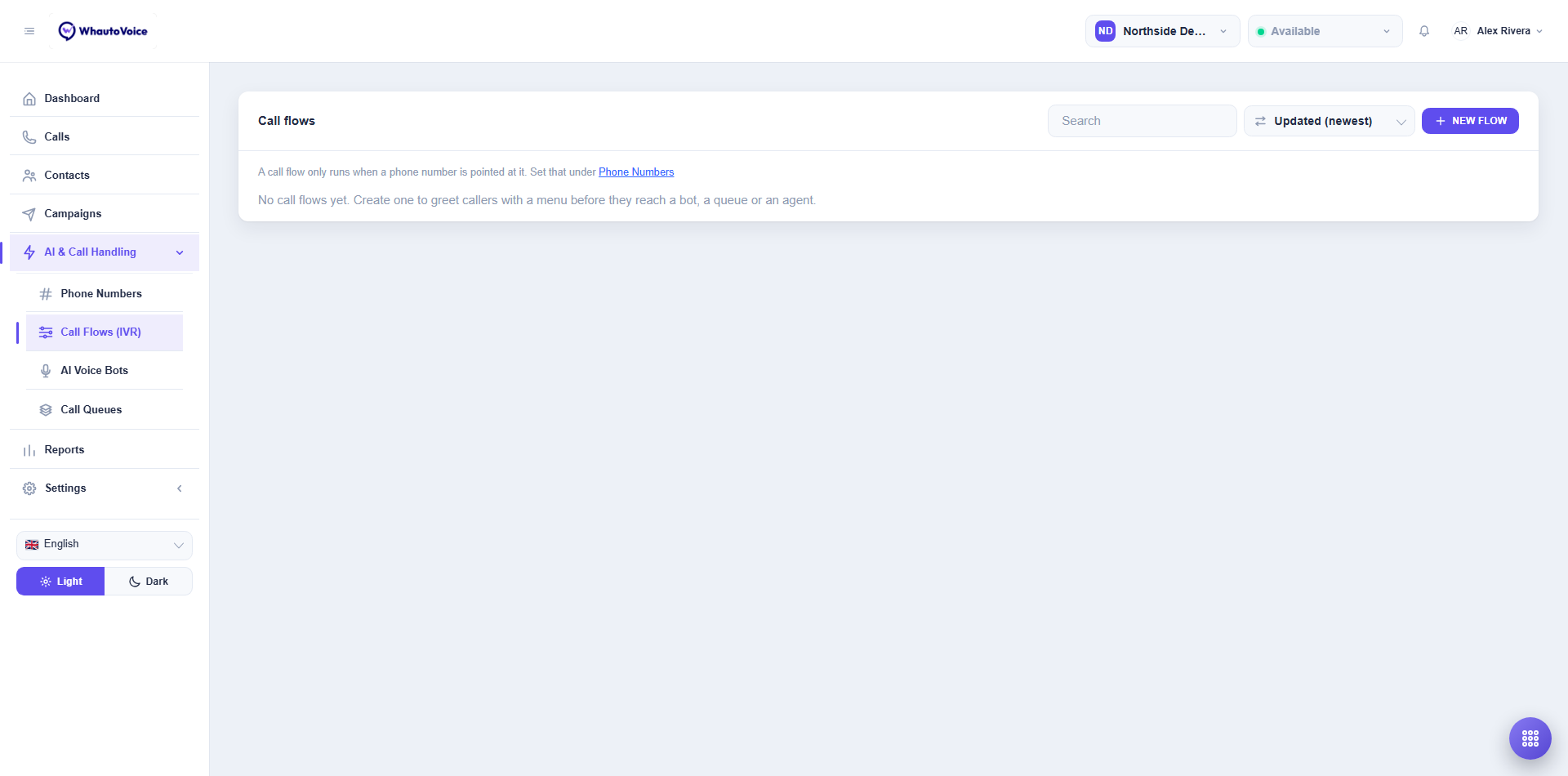
Each flow shows:
| Column | Meaning |
|---|---|
| Name | The flow name. Click the row to open the builder. |
| Steps | How many steps the flow has. |
| Answers | Which phone numbers point at this flow. "No phone number points at this flow yet - it will never run" means exactly that. |
| Status | Draft or Active. Only an active flow can answer calls. |
| Created and Updated | Who made the last change and when. |
The row actions let you delete a flow or open it. Activate and Move to draft live inside the builder.
Two notes sit above the list because they are the two things people forget:
- A call flow only runs when a phone number is pointed at it. Set that under Phone Numbers. See Call routing.
- A step that hands the caller to an AI voice agent also needs the phone number registered with that agent's AI engine. Do that under Phone Numbers > AI engines. See Phone numbers.
Start from a template
Click New flow and pick a template. Each one is created as a draft, so no caller reaches it until you activate it.
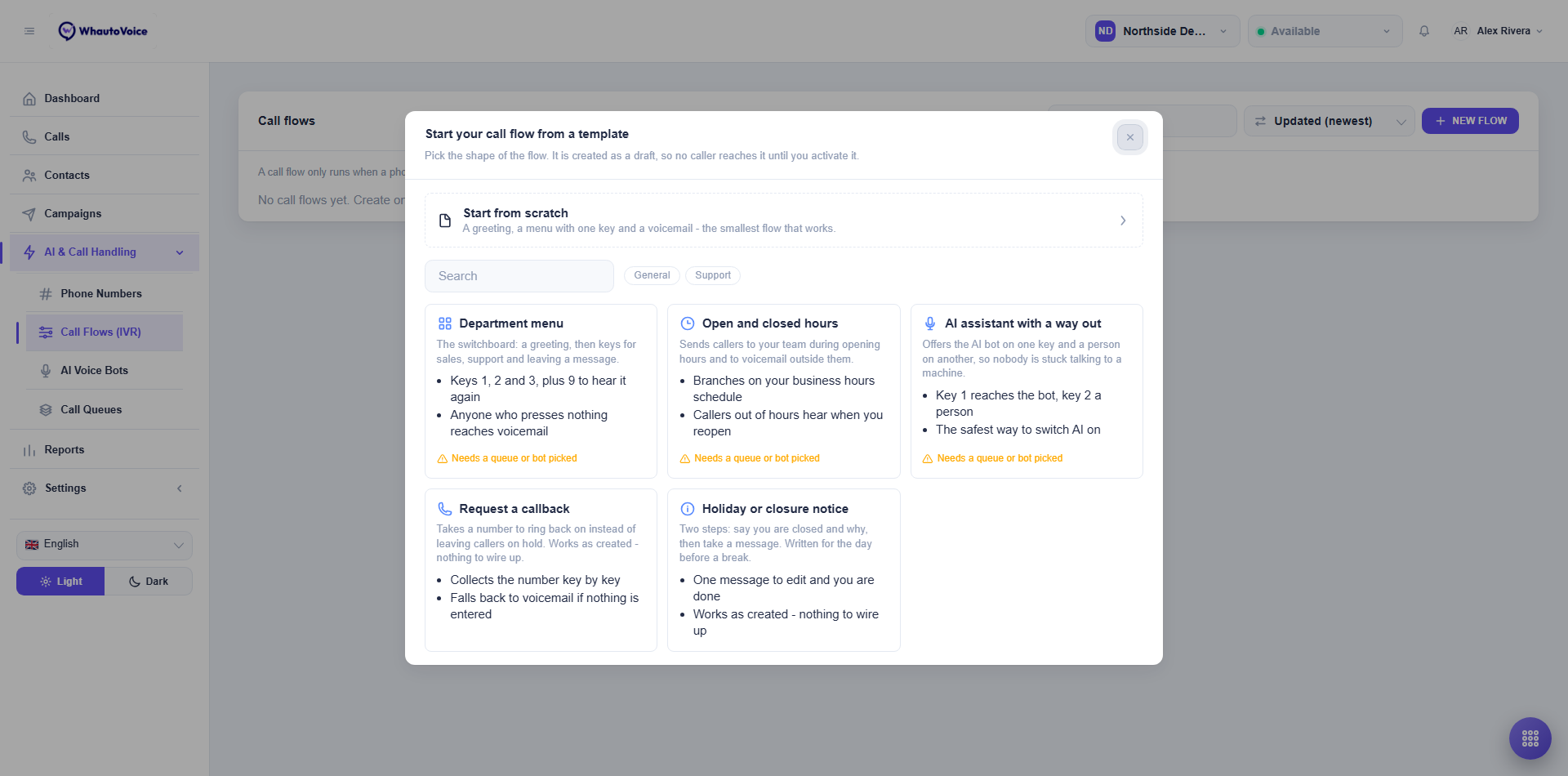
| Template | What it does | Needs wiring? |
|---|---|---|
| Start from scratch | A greeting, a menu with one key and a voicemail. The smallest flow that works. | No |
| Department menu | The switchboard: a greeting, then keys for sales, support and leaving a message, plus 9 to hear it again. Anyone who presses nothing reaches voicemail. | Yes, pick the queues |
| Open and closed hours | Branches on a business hours schedule. Open sends callers to your team, closed plays a notice and takes a message. | Yes, pick the schedule and the queue |
| AI assistant with a way out | Key 1 reaches the AI agent, key 2 a person. The safest way to switch AI on. | Yes, pick the AI agent and the queue |
| Request a callback | Collects a number to ring back on, key by key, and confirms it. Falls back to voicemail if nothing is entered. | No |
| Holiday or closure notice | Two steps: say you are closed and why, then take a message. Written for the day before a break. | No |
"Needs a queue or AI agent picked" means the template contains a step that has to point at something in your workspace. Open the highlighted steps and choose the queue, AI agent or schedule before you activate.
If you are switching an AI receptionist on for the first time, this template gives callers a person on key 2 from day one. You can remove the menu later once you trust the AI agent.
What happens next
- Build or adjust the flow. See Build a call flow.
- Click Activate. The builder lists anything that must be fixed first.
- Route a phone number to the flow under Phone Numbers > Routing > Call flow (IVR menu).
- Call the number and press through the menu yourself.
Related
Email us at hello@whautovoice.com and we will get you sorted.