Profile and preferences
Everything personal lives under Settings. This page walks through the settings hub, your profile, your display preferences and the sidebar layout.
The Settings hub
Click Settings in the sidebar (or All settings). Cards are grouped into four sections. Some are only shown to Owners and Administrators.
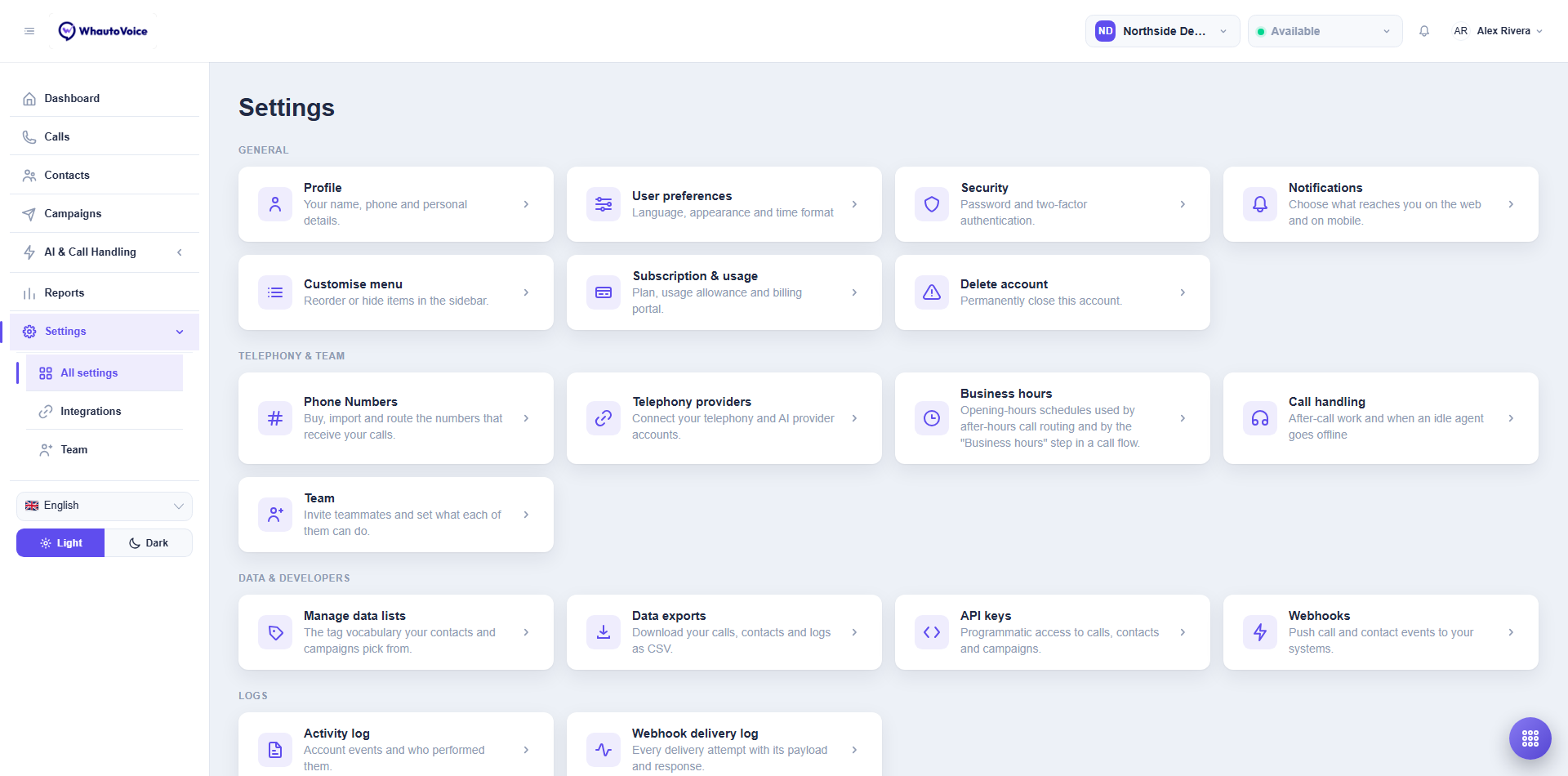
| Section | Card | Who sees it |
|---|---|---|
| General | Profile | Everyone |
| General | User preferences | Everyone |
| General | Security | Everyone |
| General | Notifications | Everyone |
| General | Customise menu | Everyone |
| General | Subscription & usage | Owner, Administrator |
| General | Delete account | Owner |
| Telephony & team | Phone Numbers, Telephony providers, Business hours, Call handling, Team | Owner, Administrator |
| Data & developers | Manage data lists, Data exports | Everyone |
| Data & developers | API keys, Webhooks | Owner, Administrator |
| Logs | Activity log | Owner, Administrator |
| Logs | Webhook delivery log | Owner, Administrator |
The same pages are one click away from the user chip at the top right: Profile, User preferences, Account security and Notification settings.
Profile
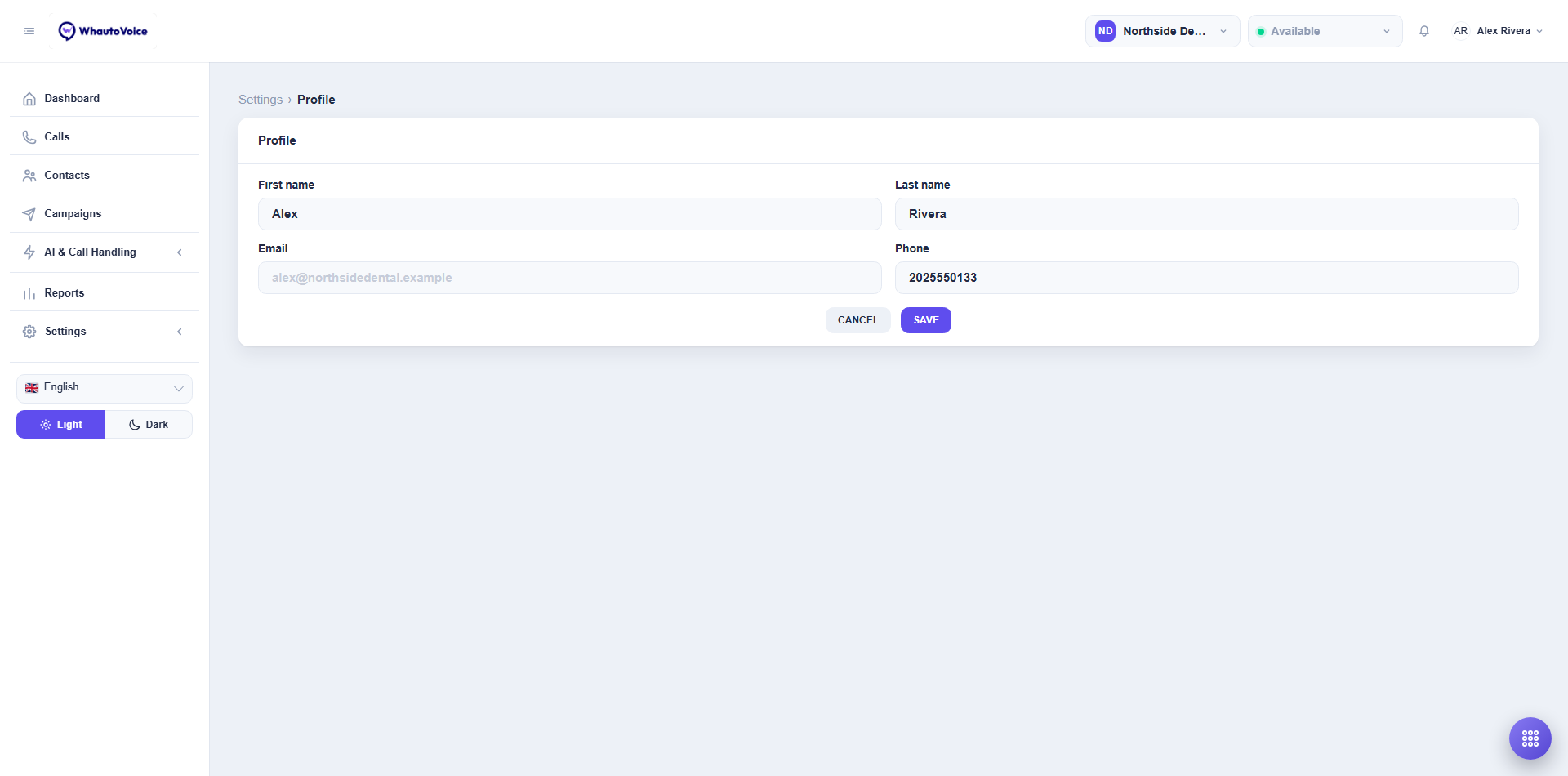
- Name, Country code, Phone and your other personal details. Click Save.
- Change password: enter Current password, then New password and confirm it. Passwords need at least 8 characters.
Your email address is your login and is shown for reference. Ask an Owner or Administrator if it needs to change.
User preferences
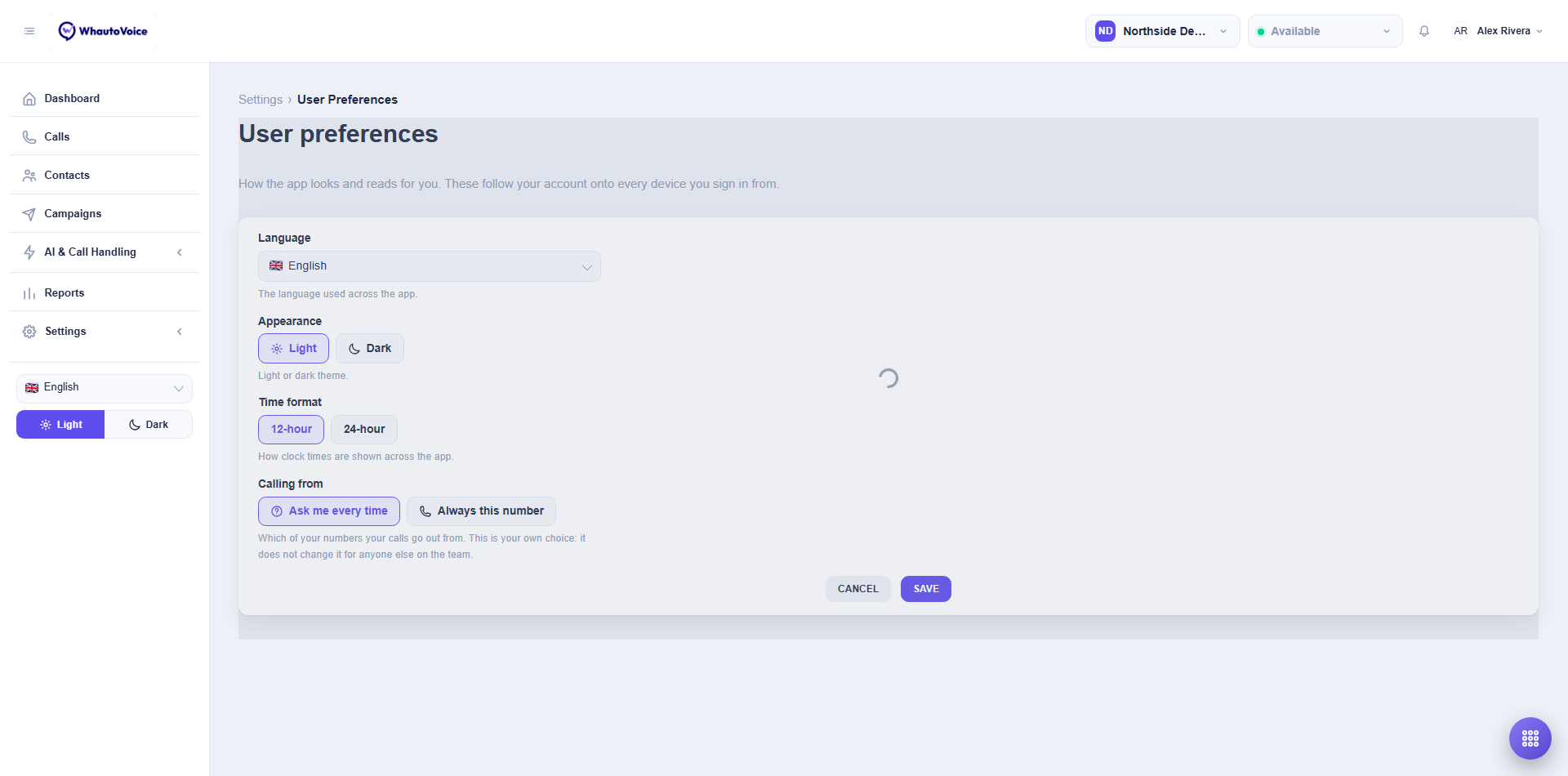
These follow your account onto every device you sign in from.
- Language: the language of the app. English, Arabic, Spanish, French, Malay, Portuguese (Brazil), Portuguese (Portugal) and Chinese. Arabic switches the layout to right to left.
- Appearance: Light or Dark. The toggle in the sidebar footer does the same thing.
- Time format: 12-hour or 24-hour for every clock time in the app.
- Calling from: which of your workspace's numbers your own calls go out from, or Ask me every time. This is your choice alone and does not change it for anyone else. See Making outbound calls.
Changes save as you make them; a Preferences saved message confirms.
Customise menu
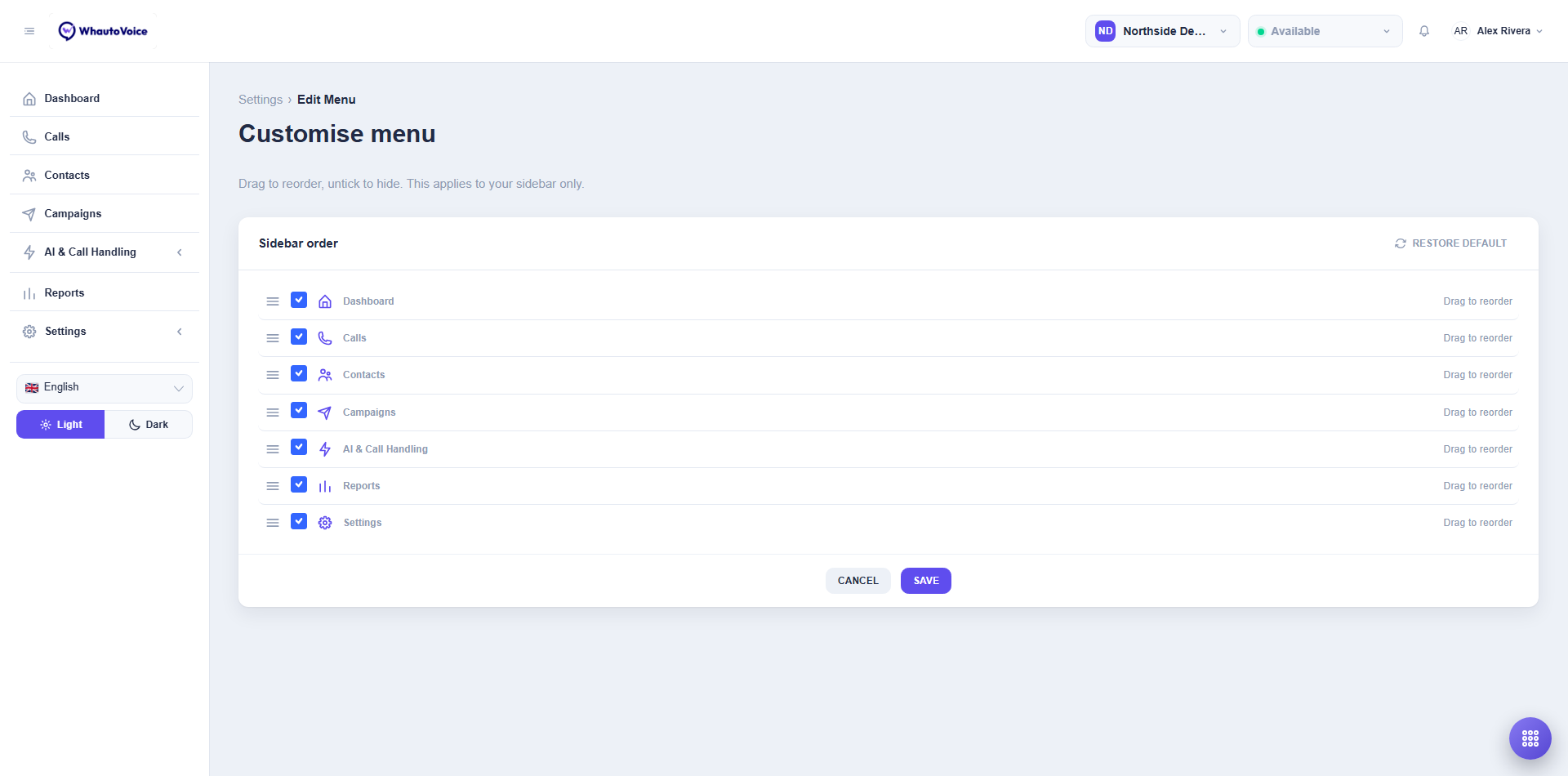
- Drag an item to reorder the sidebar.
- Drag a page out of a section to put it on the top level, or drop it back into any section. Sections such as AI & Call Handling keep their drop area even when you have emptied them.
- Untick an item to move it under More at the foot of the sidebar. Nothing is ever removed outright, so Settings is always one click away.
- Restore default puts everything back.
This applies to your sidebar only. Items you are not allowed to see (Phone Numbers for an Agent, for example) never appear regardless.
Related
Email us at hello@whautovoice.com and we will get you sorted.