Outbound campaigns
A campaign calls a list of contacts for you. An AI voice agent can hold every conversation, or WhautoVoice can call for your agents and pass each answered call to one of them. You decide when it starts and stops, the hours it may call in each contact's own time, and how often it tries someone who did not pick up.
Before you start
- A phone number to call from. See Phone numbers.
- For AI agent calls: an AI voice agent built for outbound work, for example from the Appointment reminder or Cold call template, and an AI engine connected. See AI agent templates.
- For the two agent modes: a call queue with your agents in it, and agents marked Available while the campaign runs.
- An audience: a tag, a segment or all contacts. See Tags and segments.
The three ways to call
| Mode | What happens |
|---|---|
| AI agent calls | Your AI voice agent rings each contact, has the conversation, tags and notes the contact, and transfers to a queue if asked. Connected time counts as processed minutes, and the AI usage is billed by your AI engine. |
| Auto-dial to agents | WhautoVoice dials for your team, one call for each agent who is free in the campaign's queue, and puts whoever answers through to the next free agent. Nobody waits on rings or voicemail. |
| Agents dial one by one | Each agent sees the next contact's name and number in the dialer first, then chooses Call, Skip or Do not call. Nothing rings until the agent decides. |
The Campaigns page
Open Campaigns. The page has two tabs: Outbound campaigns and Segments. The do-not-call list is under Contacts.
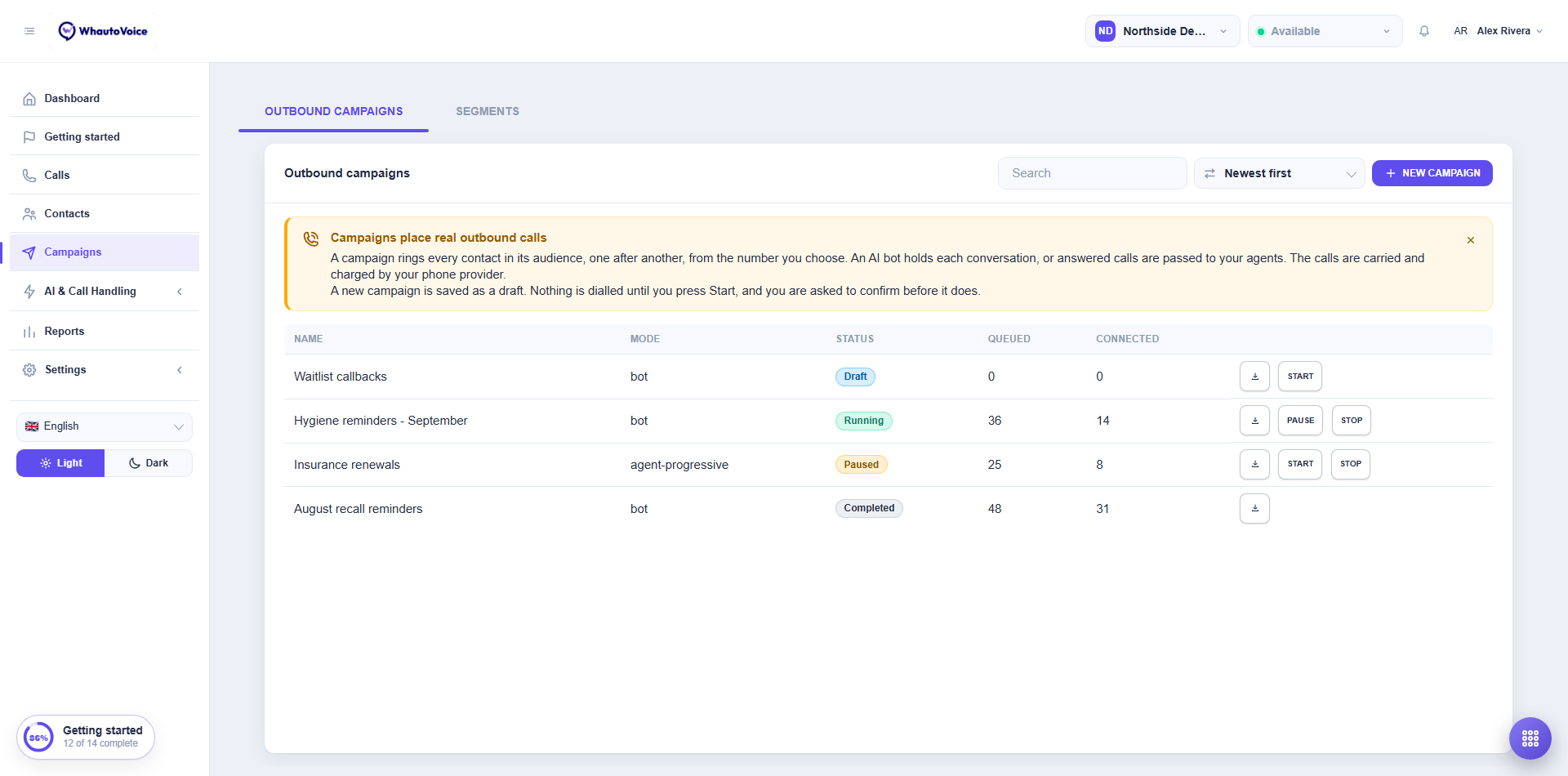
The Outbound campaigns tab lists every campaign with its mode, status and progress. A scheduled campaign shows the date it starts, and a running one that is waiting for calling hours shows when the next calls go out. Click a campaign's name to open it.
Create a campaign
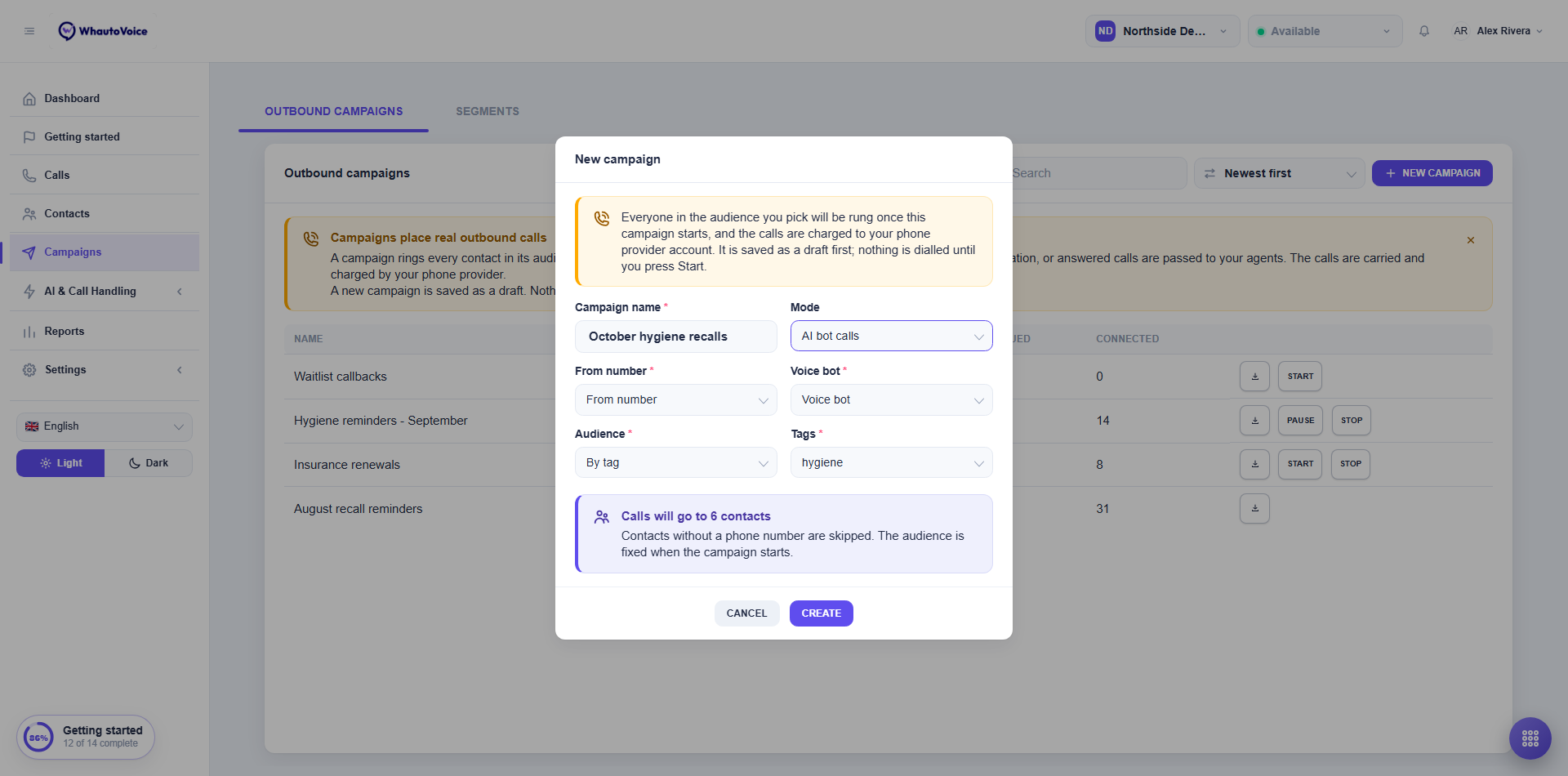
A new campaign walks you through six steps, listed down the left with what you picked under each one. Next checks a step before moving on, and Back or a click on an earlier step takes you back.
- Click New campaign
- Setup
- Campaign name: up to 80 characters, for example "October hygiene recalls".
- From number: the number contacts see.
- Mode: one of the three above. AI agent calls need an AI voice agent; the agent modes need a Call queue.
- Audience
- By tag, By segment or All contacts. There is no default, so a campaign never rings your whole list by accident.
- The count underneath tells you how many contacts it reaches right now. Contacts without a phone number, and blocked contacts, are not counted.
- Keep adding new contacts who match: turn this on for ongoing work such as calling every new web lead. Contacts who get the tag or join the segment while the campaign runs are called too, once each. Leave it off for a one-off push, so the count you confirm is the count that gets called.
- Schedule
- Start: When I press Start, or At a date and time. A scheduled campaign starts by itself.
- End: when every contact has been called (or, for a live list, when you stop it), or At a date and time. Nobody is called after the end time.
- Calling hours: see below.
- Retries and pacing: see below.
- Review
- Everything on one page, with Change next to each part.
- Save and start or Save and schedule asks you to confirm, then starts it or schedules it.
Save draft is on every step and only needs a name. Open the draft from Campaigns and click Edit to carry on where you stopped. A draft cannot start until every step is complete.
Calling hours
Calling hours decide when calls may go out. Set one or more windows for each day of the week, and add holiday dates with no calls at all. The default is weekdays, 9 AM to 6 PM.
- Each contact's local time: on by default. The time zone is worked out from the contact's phone number, so 9 AM means 9 AM where they are. US and Canadian numbers use the area code. A number in a country with several time zones is only called when the window is open in all of them.
- Time zone when we cannot tell: used for numbers whose local time cannot be worked out, and for every contact when you turn local time off.
- 8 AM to 9 PM limit: no call ever goes out before 8 AM or after 9 PM in the contact's time. This follows calling rules in most countries and cannot be widened. You can narrow it as much as you like, for example 2 PM to 4 PM on weekdays only.
When everyone left is outside their hours, the campaign waits and its page says when the next calls go out. It picks up again by itself.
Retries and pacing
- Calls per contact: from one call with no retries up to five. A contact who answers is never called again.
- Wait before calling again: set separately for no answer (default 4 hours), busy (30 minutes) and a failed call (1 hour). Retries always land inside calling hours.
- Call again after reaching voicemail: off by default, because voicemail usually means the number is right and the person was busy.
- Pacing (AI agent calls): Calls at once and New calls per minute. Your plan caps both; the form shows your limits. Agent modes pace themselves.
- Campaign calls share the account's concurrent call allowance with inbound calls, so a busy front desk slows a campaign down rather than the other way round.
- Your plan sets how many campaigns can run at once. Starting one more is refused with a message.
Start, schedule, pause and stop
| Status | Meaning |
|---|---|
| Draft | Saved, nothing dialled. Start or schedule it when ready. |
| Scheduled | Starts by itself at its start time. Start now starts it straight away; Cancel schedule turns it back into a draft. |
| Running | Calling, inside calling hours. |
| Paused | No calls, place kept. Resume carries on. |
| Completed | Every contact is done, the end time passed, or you pressed Stop. A completed campaign cannot be restarted. |
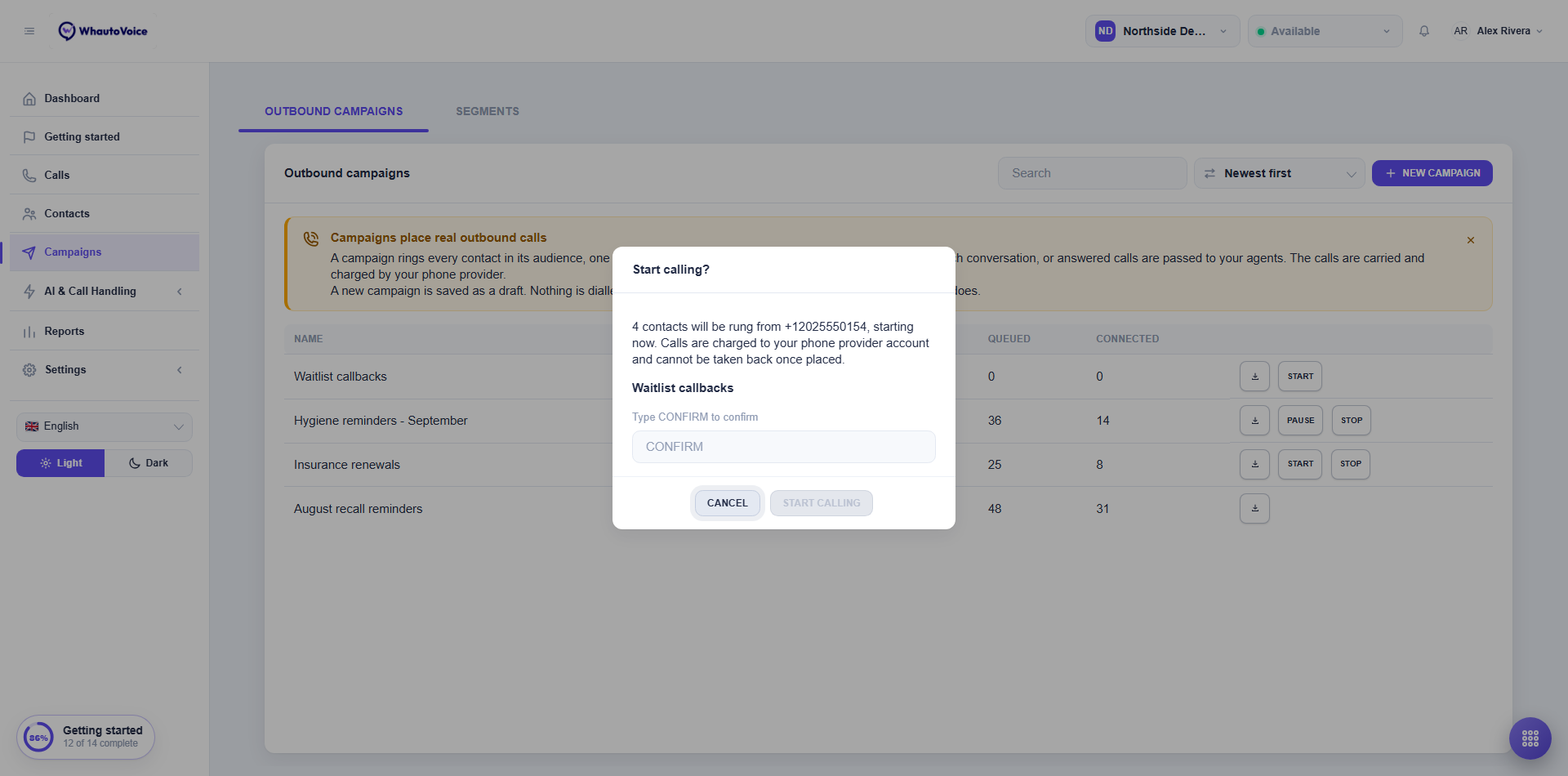
Starting or scheduling always asks first. The confirmation says how many contacts will be rung, from which number and when, and you type CONFIRM before it goes. Stop asks the same way, because contacts waiting for a retry are not called.
The contact list is built when the campaign first starts, not when you save it. If a scheduled campaign cannot start at its time (for example your plan is already running as many campaigns as it allows), it goes back to a draft, its page says why, and Owners and Administrators get a notification.
You can edit a draft or scheduled campaign freely. A paused campaign keeps its audience and mode, but you can change its hours, retries and end time.
Following a campaign
Open a campaign to see how it is going. The numbers refresh every few seconds while it runs.
- Progress: contacts done out of the total.
- Contacts, Calls placed, Connected (with the share of calls), Talk time, Voicemail, No answer, Busy, Failed and Do not call (left out because they are on your list).
- While running: On a call now, Ready to call, Waiting for their hours and Waiting to retry.
- Contacts lists every contact with their result, number of calls and when the next call is due. Filter it by result.
Do not call
Numbers on your do-not-call list are never called by a campaign. On AI agent calls, a contact who asks not to be called again is added to the list automatically. See Do not call list.
Results
- Each call appears in Calls, with the AI agent's summary and any tags it added.
- Click the download icon to export Campaign results. The file is built in the background and collected under Settings > Data exports.
- Owners and Administrators receive a Campaign completed notification when a campaign finishes.
- Reports shows outbound volume for the period.
Tag five colleagues, run the campaign against that tag, and listen to the calls before you point it at customers. Check the AI agent's greeting, its handling of "not now", and what it writes on the contact.
Outbound calling is regulated. Make sure you have consent to call, honour every opt-out, and check the rules where your contacts live. The 8 AM to 9 PM limit is a floor, not legal advice: some places allow fewer hours or none on certain days.
Related
Email us at hello@whautovoice.com and we will get you sorted.