Call details
Click View on any call, or the row itself on the dashboard, to open its detail page. It tells the whole story of one conversation: who it was with, how it was handled, what was said, and what your team wrote down afterwards.
The header
The top card introduces the person the call was with, the same way their contact page does: initials, name and phone number. If they match a contact the name is a link; hover it to see View contact and click to open their contact page on its Timeline tab. On the right, the green Call button rings them back on your default calling number, or asks Call from which number? if you have not set one.
Beneath that a row of fields summarises the call.
| Field | Meaning |
|---|---|
| Direction | Inbound or Outbound. |
| Status | Where the call ended up: Completed, Missed, Voicemail, Failed, or a live state while it is still running. |
| From and To | The two phone numbers in full international format. |
| Handled by | Ai for an AI agent-only call, Agent when a person took it, Queue while a hunt is still running. |
| Agent | The teammate who handled it, if any. |
| Duration | Total seconds on the line, shown as 644s for example. |
| Disposition | The recorded outcome. See below. |
| AI handoff | Only shown when an AI voice agent passed the call to a person. It holds the AI agent's own reason, for example Caller reported a dental emergency. |
Under the summary sit four tabs.
Transcript tab
The transcript shows the conversation as a list of turns, each one labelled with who spoke. AI agent marks the AI voice agent, Agent marks your teammate, and Caller marks the person on the other end. If the transcription engine cannot separate speakers, the labels are left off rather than guessed.
When the text arrives depends on who wrote it:
| Source | When the transcript appears |
|---|---|
| AI voice agent on OpenAI, xAI Grok or Sarvam AI | Live. Turns appear while the call is running, so you can read along from the live board. |
| AI voice agent on ElevenLabs Agents | Shortly after the call ends. |
| Twilio number with Transcribe calls on | In real time, and it does not need a recording. |
| Plivo number with Transcribe calls on | After the call, English only, and it needs Record calls to be on. Plivo returns one block of text without speaker labels. |
| Vonage number with Transcribe calls on | After the call, from the recording. |
If nothing was transcribed the tab reads No transcript for this call. When an AI agent summarises the call, the summary is filed as a note on the Notes tab rather than in the transcript.
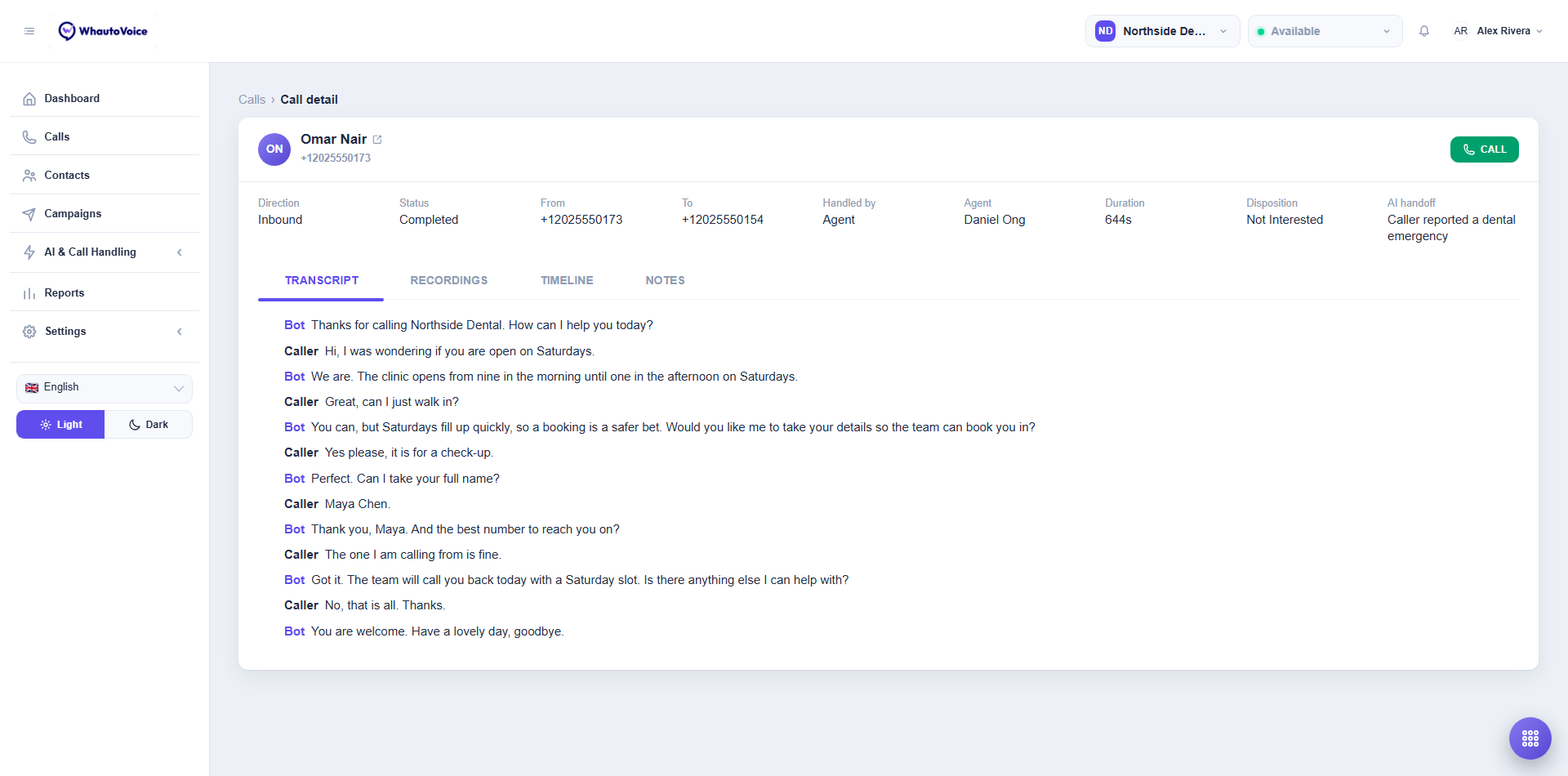
In the screenshot the Northside Dental receptionist AI agent books Maya Chen a Saturday check-up, then hands over to Daniel Ong.
Recordings tab
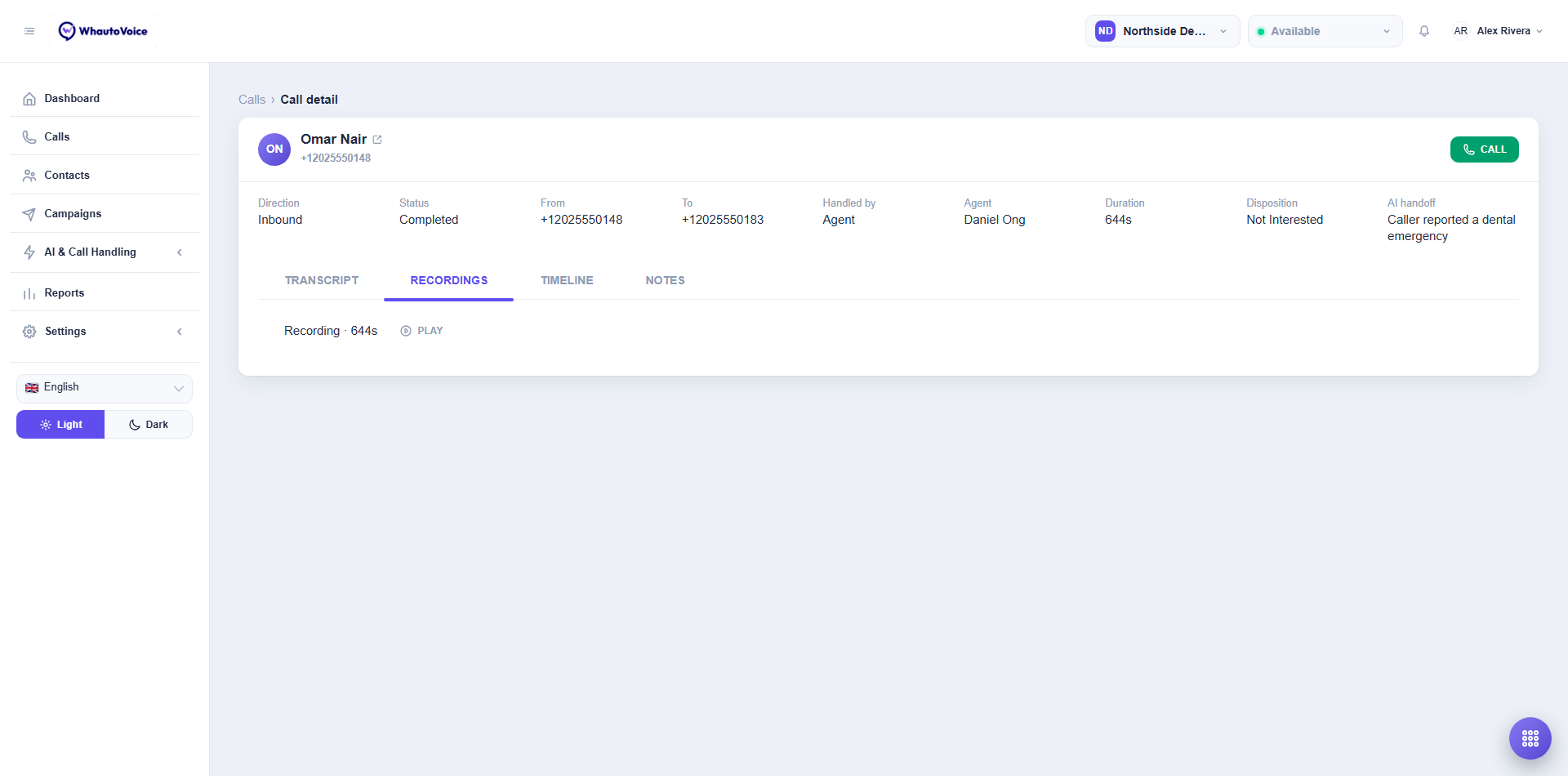
Each audio file is listed with its kind and length, for example Recording 644s or Voicemail 48s. Recording is the conversation itself; Voicemail is the message a caller left when nobody answered.
-
Click Play
- A player appears and starts straight away. Use its controls to pause, scrub or change the volume.
-
If it will not play
- The message Recording will not play appears with the hint that the recording could not be fetched from your provider: it may still be being written, or the link may have expired. Click Retry. Providers can take a minute or two after a long call to finish writing the file.
If nothing was recorded the tab reads No recordings. Recordings are fetched from your own provider account, so they follow that provider's retention. Vonage recordings cannot be deleted at the provider.
Timeline tab
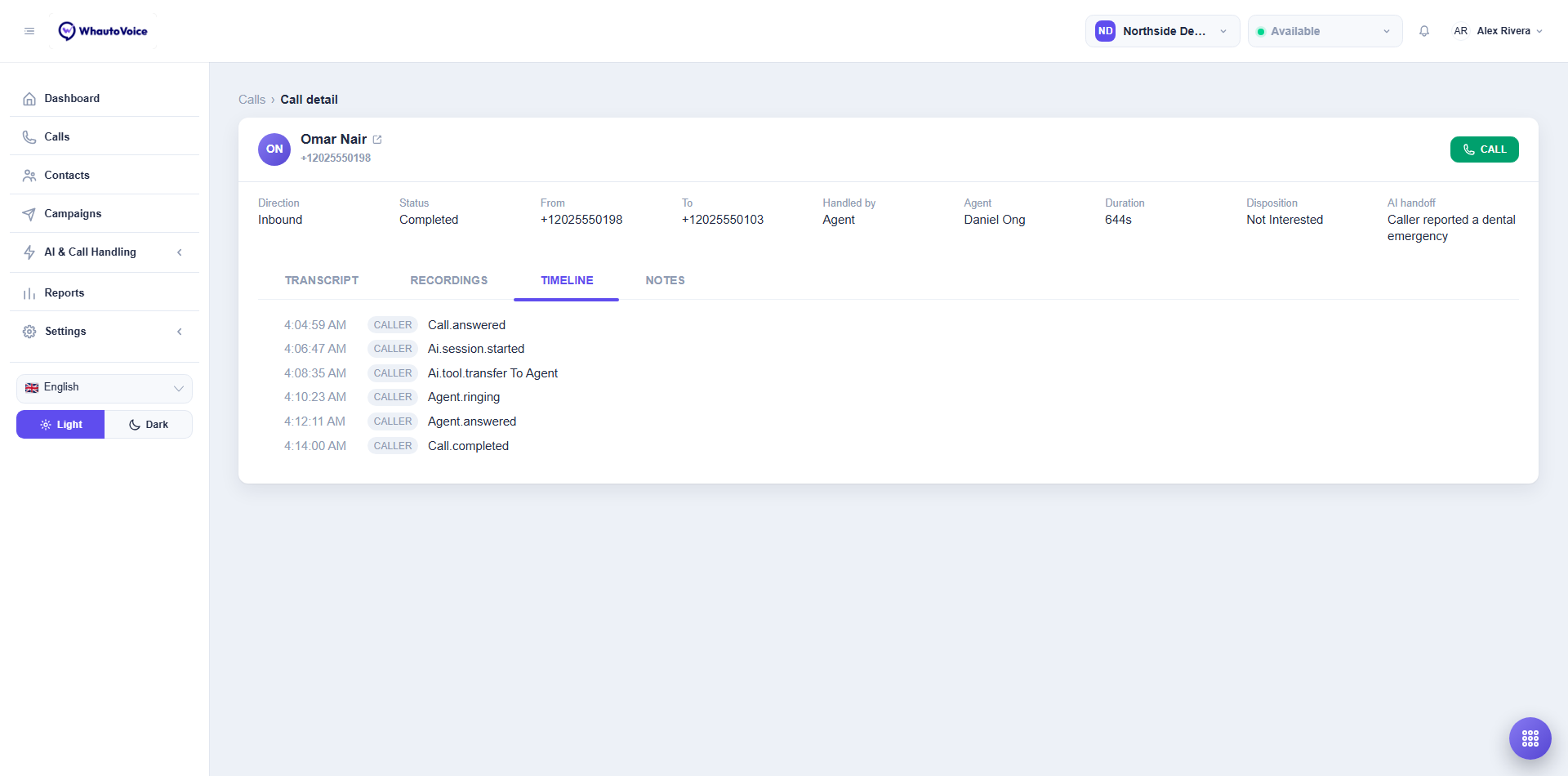
The timeline is the call's diary: every event with the time it happened and which leg it belongs to. Caller is the person's side of the call; Agent is the teammate's leg once one was rung. Naming the leg is what stops two correct lines, one ringing for the caller and one for the agent, from reading like a duplicate.
Typical events, in order:
- Call.answered, the number picked up.
- Ai.session.started, the AI voice agent began speaking.
- Ai.tool.transfer To Agent, the AI agent asked for a human.
- Agent.ringing and Agent.answered, the hunt found someone and they picked up.
- Call.completed, the line closed.
You will also see hold, recording, voicemail and missed events where they apply. If no events were captured the tab reads No events recorded.
Notes tab
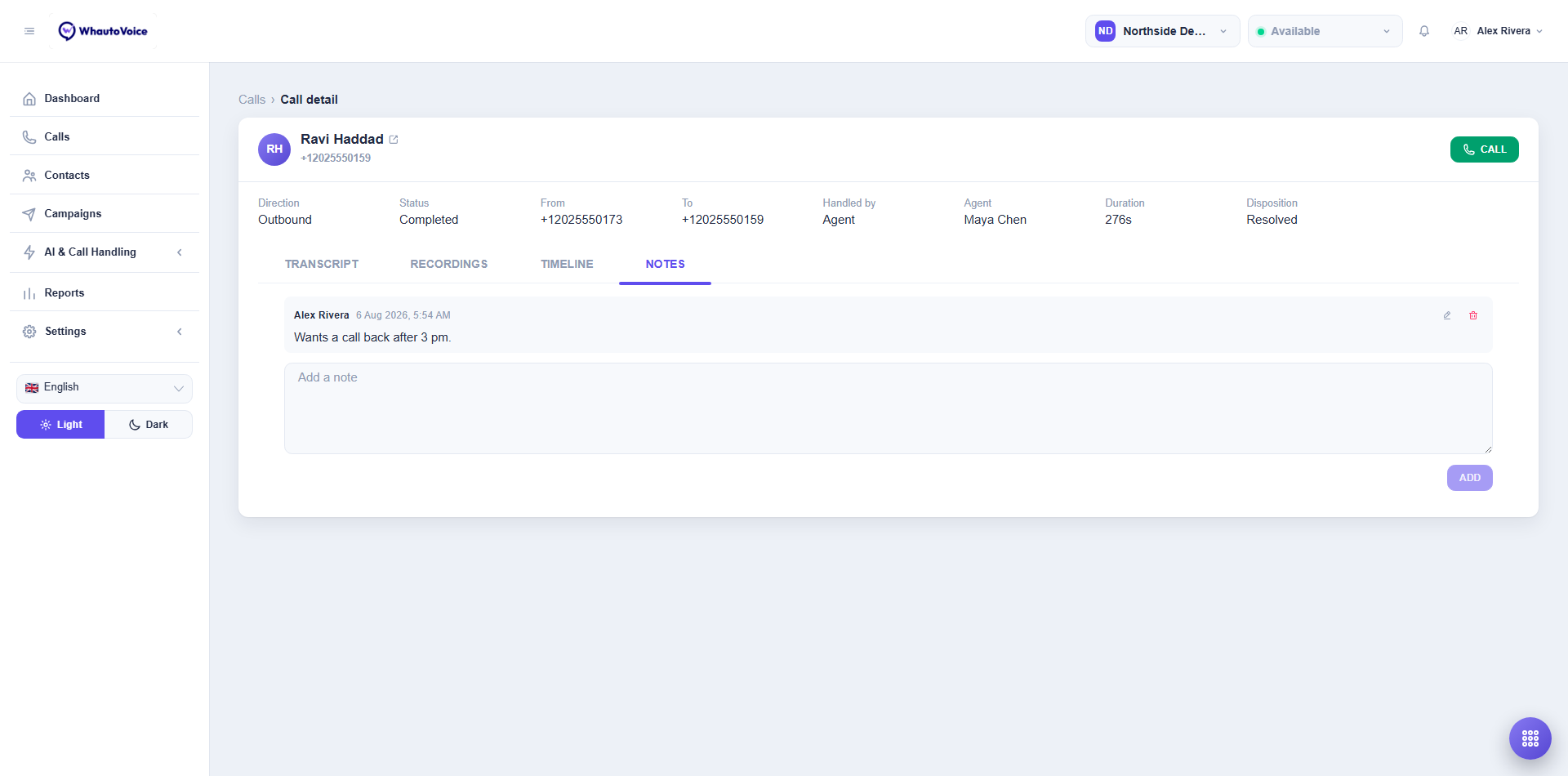
Notes are where your team leaves context for the next person who opens the call.
-
Add a note
- Type in the Add a note box and click Add. Enter inserts a new line, so a long note is easy to write. The note appears above with your name and the time.
-
Edit or delete a note
- Hover a note you wrote and click the pencil to change it or the bin to remove it. Editing marks the note edited; hover the word to see when. Deleting asks Delete this note? first. Agents can only change their own notes; Owners and Administrators can change any.
When an AI voice agent finishes a call it files its own summary here as a note by the AI agent. There is only ever one summary per call, and it is replaced rather than duplicated if the AI agent summarises again. Until anyone writes anything the tab reads No notes yet.
Dispositions
A disposition is the one-line outcome of a call. It appears in the header, as a column in Call history, in the calls CSV export and in reports, so you can count how many calls were resolved, how many need a follow-up and how many reached the wrong person. WhautoVoice ships with these values:
| Disposition | Use it when |
|---|---|
| Resolved | The caller got what they needed. |
| Follow-up required | Someone must do something after the call. |
| Not interested | An outbound contact declined. |
| Wrong number | The person reached was not the contact. |
| Voicemail | The call went to voicemail. |
| Callback scheduled | You agreed to ring them at a set time. |
| Escalated | The call was passed up the chain. |
A call with no disposition shows a dash in the list.
Agents can open calls assigned to them and live calls that nobody has taken yet. Owners and Administrators can open every call in the workspace.
Related
Email us at hello@whautovoice.com and we will get you sorted.