Making outbound calls
Every outbound call is placed from the browser softphone and goes out on one of your workspace's numbers. There are three ways to start one, and they all end in the same in-call bar described in The softphone.
Before you start
- Your workspace needs at least one active number. Without one the dialer shows No active numbers to call from.
- Allow the microphone when the browser asks, or the person you call will hear silence.
- Set your presence to Available or Wrap-up. You can still dial while Busy, but nobody can transfer a call to you.
Call from the dialer bar
The Calls page opens with a dialer bar above the live board.
-
Type a name or number
- Click the Name or number field. As you type, WhautoVoice searches your contacts and shows the matches beneath the field with their initials and phone number. Type at least two characters of a name, or start typing digits to match on the phone number.
- You can also paste a full number with its country code, such as +15551234567.
-
Pick the contact
- Click a match to fill the field with that person's number. Their name appears as a pill inside the field so you can see who the call will be filed against. Click the cross on the pill to clear it and start again.
-
Choose the From number
- The From number selector shows each number with its label, digits and provider, for example Front desk, +1 202 555 0154, Twilio. It is pre-filled with your default calling number if you have one.
-
Click Call
- The softphone bar appears with the state Connecting, then Ringing, then On call once they pick up. The Call button stays disabled until both a destination and a From number are filled in.
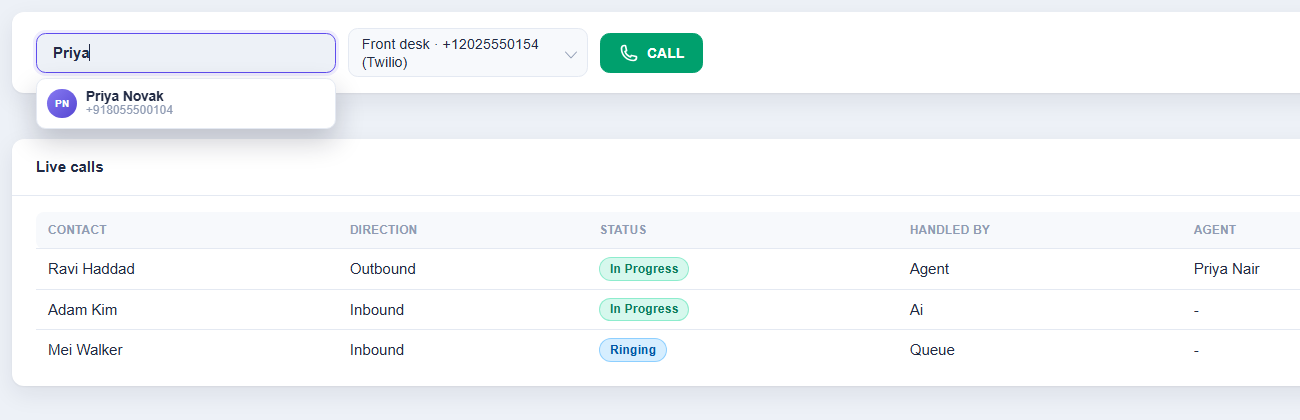
In the screenshot, Alex at Northside Dental has typed "Priya" and the bar has found Priya Novak.
Call from the dial pad
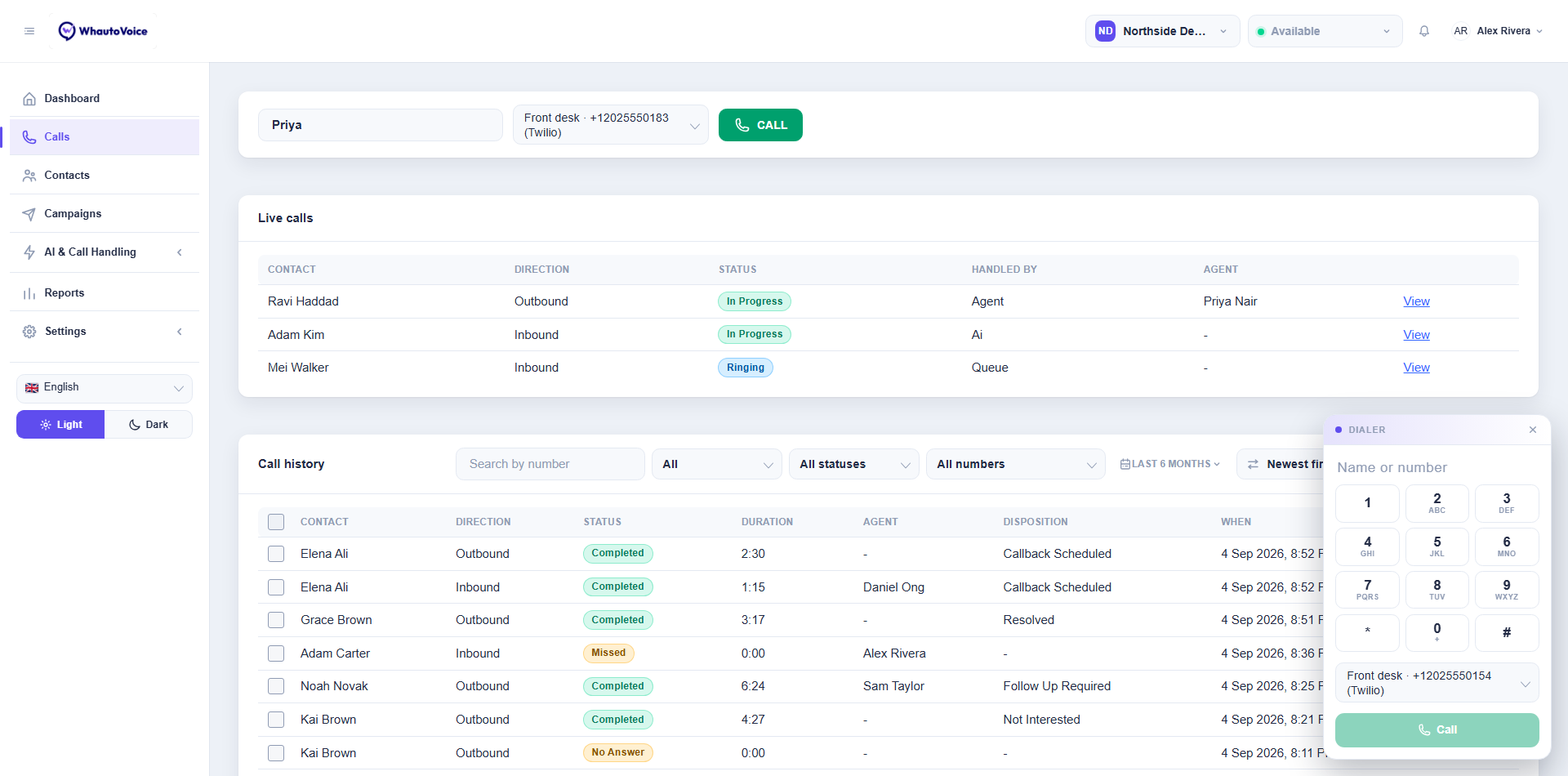
The round keypad button in the bottom-right corner of every page opens the Dialer, so you never have to leave the page you are on.
-
Open the Dialer
- Click the floating keypad button. A card slides up with a Name or number field, the twelve keys and a From number selector. Click the cross on the strip to close it, or press Escape.
-
Enter the destination
- Tap the keys or type. The field matches contacts as you type exactly like the dialer bar, so typing a few letters of a name is often faster than a number. Long-press 0 to enter the plus sign for an international number. A backspace button appears next to the field once something is in it.
-
Choose the From number and click Call
- Pick the number in the From number selector, then click Call or press Enter.
Click-to-call from a contact
- On the Contacts list, hover a row and click the phone icon at its end.
- On a contact's page, click the green Call button in the header.
- On a call's detail page, click Call in the header to ring the same person back.
The call is filed against that contact automatically.
Which number the call goes out from
The number you call from matters twice over: it is the number the person sees on their screen, and it decides which provider carries the call. So WhautoVoice needs to know which one to use.
- If your workspace has one number, it is used without asking.
- If it has more than one and you have no default, the Call from which number? dialog appears the first time you click-to-call. Choose a number from the list, tick Always call from this number if you want to skip the dialog next time, and click Call.
To change the choice later, either:
- Open the user chip and go to User preferences > Calling from. Choose Ask me every time or Always this number and pick the number. This is your own setting and does not affect anyone else on the team.
- Open AI & Call Handling > Phone Numbers and click Use as my default on the number you want. The number you have chosen is marked Yours. Click Clear to go back to being asked.
Once saved you see the toast Your calls will go out from +1 202 555 0154. Clearing it shows You'll be asked which number to call from.
What the person sees
The person receives an ordinary phone call from the number you chose in From number. They do not see your personal mobile number or anything about WhautoVoice.
Recording outbound calls
Whether an outbound call is recorded follows the Record calls setting on the number you call from. A number set to record captures both directions, inbound and outbound, and recording starts when the person picks up. Where the provider allows it you can also start or stop recording from the softphone during the call.
Calls to countries outside your allowed list are refused before they ring, with the message that calls to that destination are not enabled. This protects you against toll fraud. Emergency numbers such as 911, 999, 112, 995 and 000 cannot be dialled from WhautoVoice.
Outbound calls placed by an agent count as processed minutes on your plan for as long as they are connected. If your plan's minutes for the cycle are used up, the dialer tells you to upgrade before it will connect. Nothing is charged for going past an allowance.
Related
Email us at hello@whautovoice.com and we will get you sorted.