How to Sign Up and Set Up Your Account
This page takes you from the sign-up form to your first look at the dashboard. It takes about two minutes, and you do not need a card.
Before you start
- Have a work email address you can open right away. A verification link is sent to it.
- Decide on a password of at least 8 characters.
Create your account
- Open the sign-up page
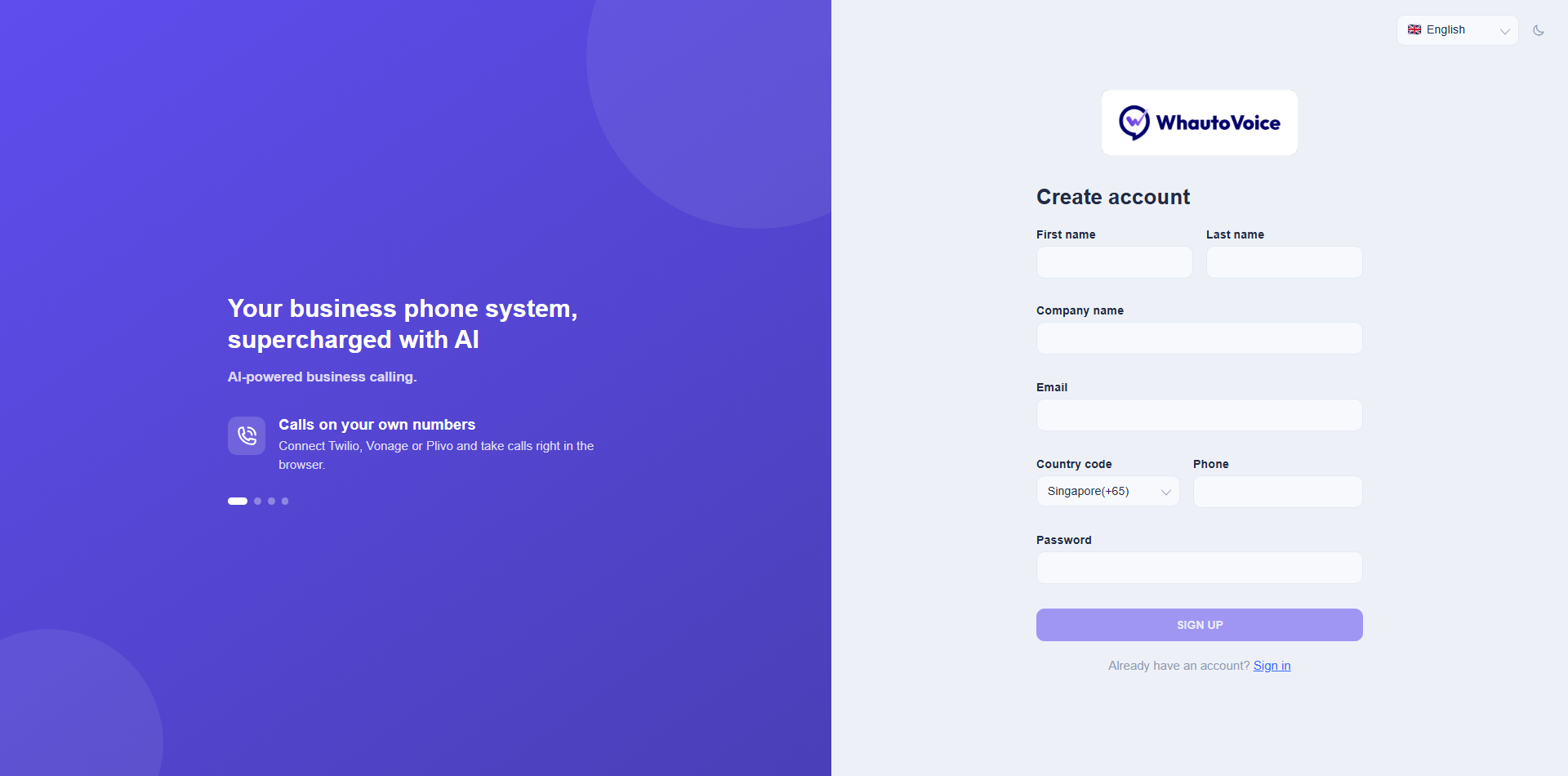
- Go to https://app.whautovoice.com/auth/register. The Create account form appears on the right. You can switch the language from the selector in the top right and the moon icon next to it switches the page to dark mode.
- Fill in the form
- First name and Last name. How you appear to your team and on call records.
- Company name. Your business name. WhautoVoice uses it to name your first workspace.
- Email. Your login and where the verification link goes.
- Country code and Phone. Pick your country from the list, then type the rest of the number without the code. The country defaults to where you are signing up from.
- Password. At least 8 characters.
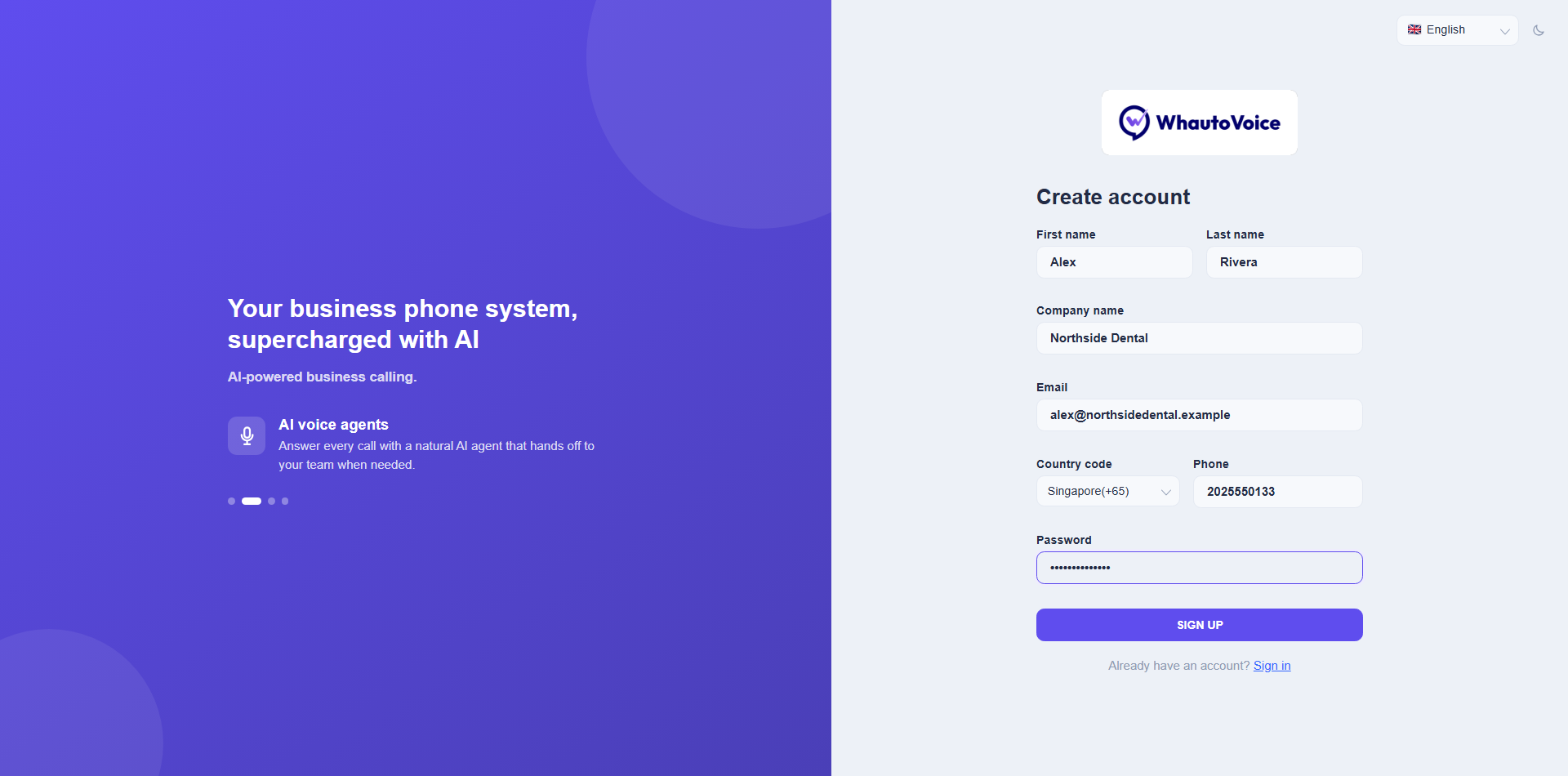
- The Sign up button lights up once every field is filled. In the screenshot, Alex Rivera is creating the account for Northside Dental.
- Click Sign up
- You will see Account created! Signing you in, and a moment later the dashboard opens. There is no separate workspace step: a workspace is created for you automatically and you are already inside it.
Your first look at the dashboard
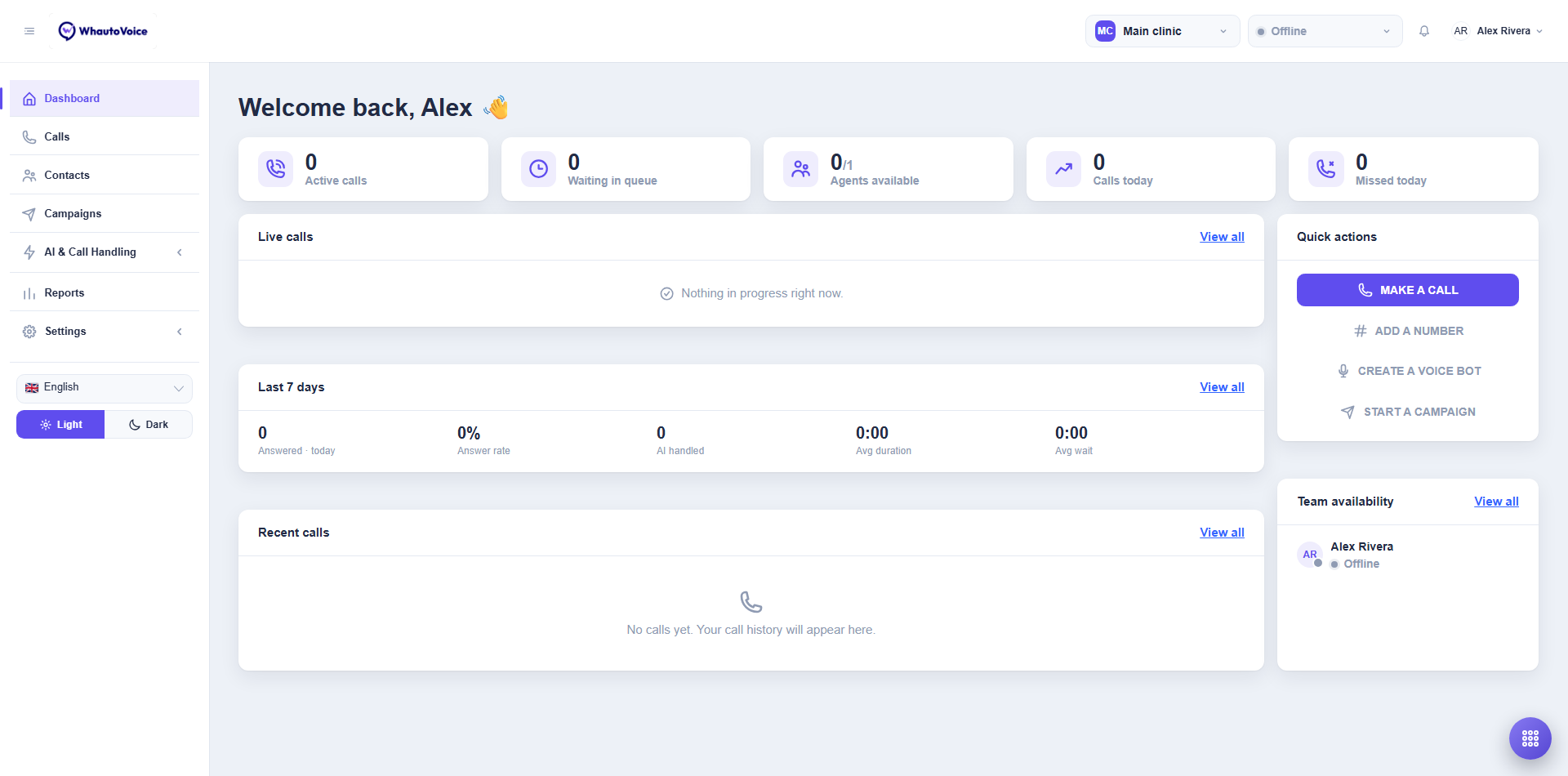
The dashboard greets you by name. Everything is at zero because no numbers or AI agents exist yet.
- The header shows the workspace switcher on the left, your presence (Offline until you set yourself Available), the notification bell and your user chip.
- The five tiles across the top count Active calls, Waiting in queue, Agents available (0/1, because you are the only member and you are offline), Calls today and Missed today.
- Live calls says Nothing in progress right now. and Recent calls says No calls yet. Your call history will appear here.
- Quick actions on the right is your launchpad: Make a call, Add a number, Create an AI voice agent and Start a campaign.
- Team availability lists you as the only member.
Read Understanding the dashboard for what each panel does, or jump straight to the Quick start to place your first call.
Verify your email
Check your inbox for a message from WhautoVoice with the subject line about verifying your email, and click the link. This confirms you own the address and unlocks password resets. If it has not arrived after a few minutes, check your spam folder.
The trial starts the moment you sign up. Every feature is open for 14 days and no card is taken. When you are ready, choose a plan under Settings > Subscription & usage. See Understanding subscription plans.
Logging in later
- Open the login page
- Enter your details
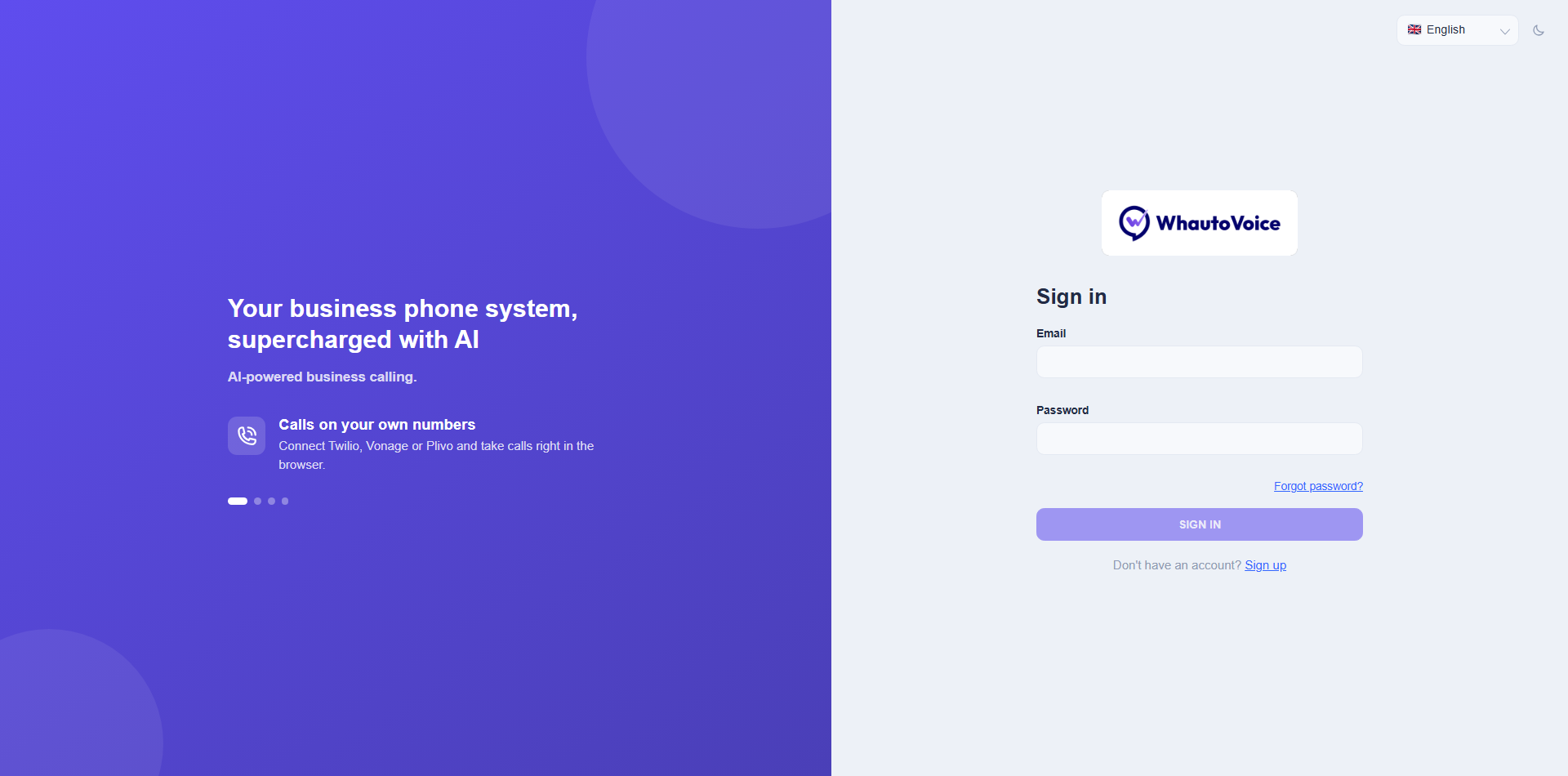
- Type your Email and Password, then click Sign in.
- If you have switched on two-factor authentication, a One-time code field appears next. Enter the six-digit code from your authenticator app and click Verify.
- Forgotten your password?
- Click Forgot password? under the form, enter your email and click Send reset link. See Forgot password.
Bookmark app.whautovoice.com and keep the tab open while you are on shift. Incoming calls ring in the browser, so the softphone only works while the tab is open.
Related
- Quick start: your first call
- Understanding the dashboard
- Security and two-factor authentication
- Adding team members
Email us at hello@whautovoice.com and we will get you sorted.