Adding team members
Your team is everyone who signs in: the people who take calls, the administrators who set things up, and you. Only Owners and Administrators can manage the team.
The Team page
Open Settings > Team (also under Settings in the sidebar).
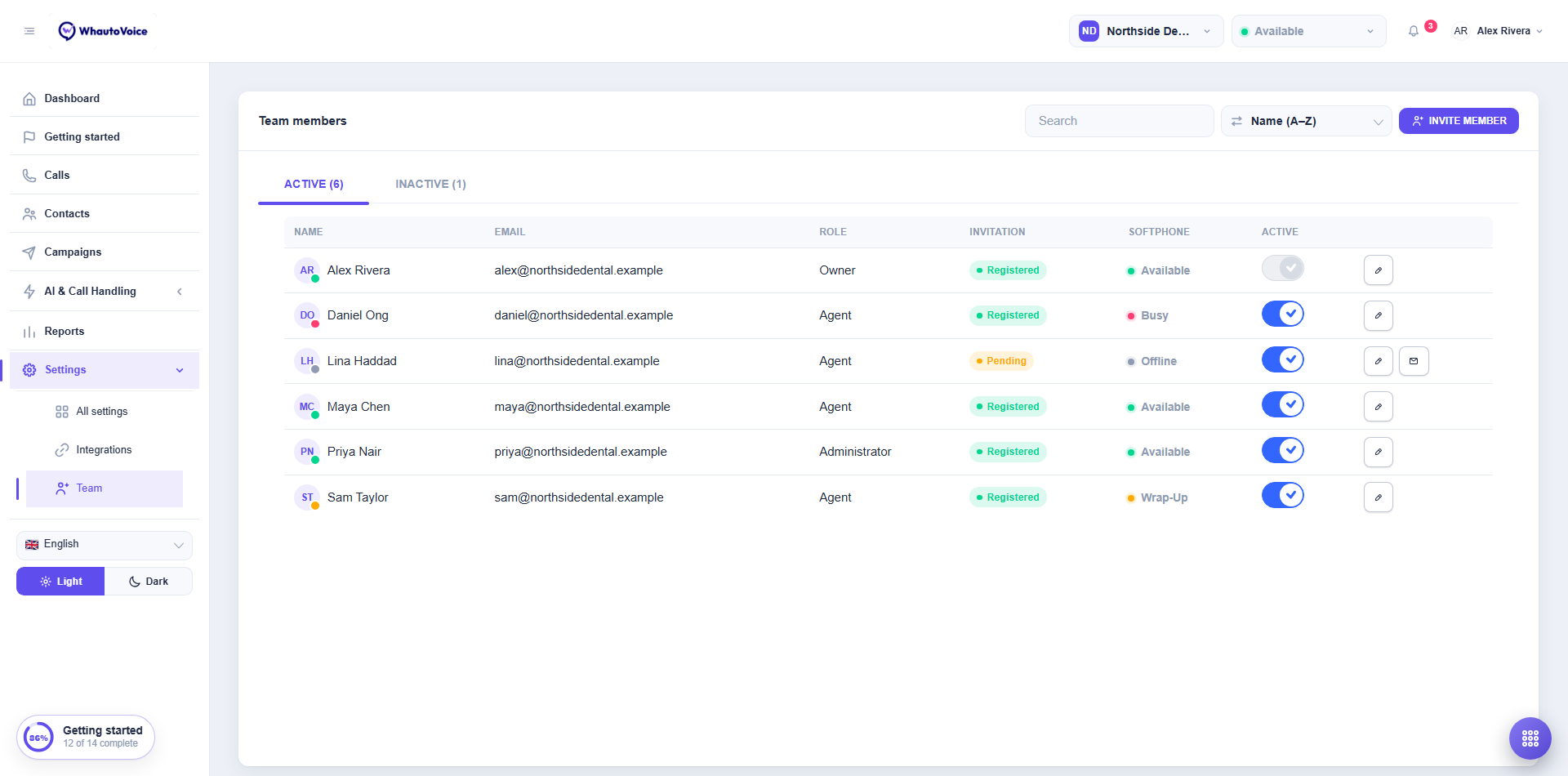
Two tabs split the list, with the number of people in each: Active is everyone who can sign in, Inactive is everyone you have switched off. Search, sort and paging work inside the tab you are on.
| Column | Meaning |
|---|---|
| Name | With the member's presence dot. |
| Their login. | |
| Role | Owner, Administrator or Agent. |
| Invitation | Registered once they have set their password and signed in. Pending until then. |
| Softphone | Their current presence: Available, Busy, Wrap-Up or Offline. |
| Active | Switch off to stop a member signing in. The Owner cannot be deactivated. |
The pencil opens Edit member. The envelope sends Resend invite, and it appears only on Pending rows. Once someone is Registered there is nothing left to resend.
Invite a member
- Click Invite member
- Fill in the form
- First name and Last name.
- Email: their login. It cannot be changed later.
- Country code and Phone.
- Role: Administrator for people who set up numbers, AI agents and billing; Agent for people who take calls and work contacts. Owner is in the list only when you are signed in as the Owner, and gives the person the same full access you have. See User roles and permissions.
- Workspaces: the workspaces this member can open. At least one.
- Click Send invite
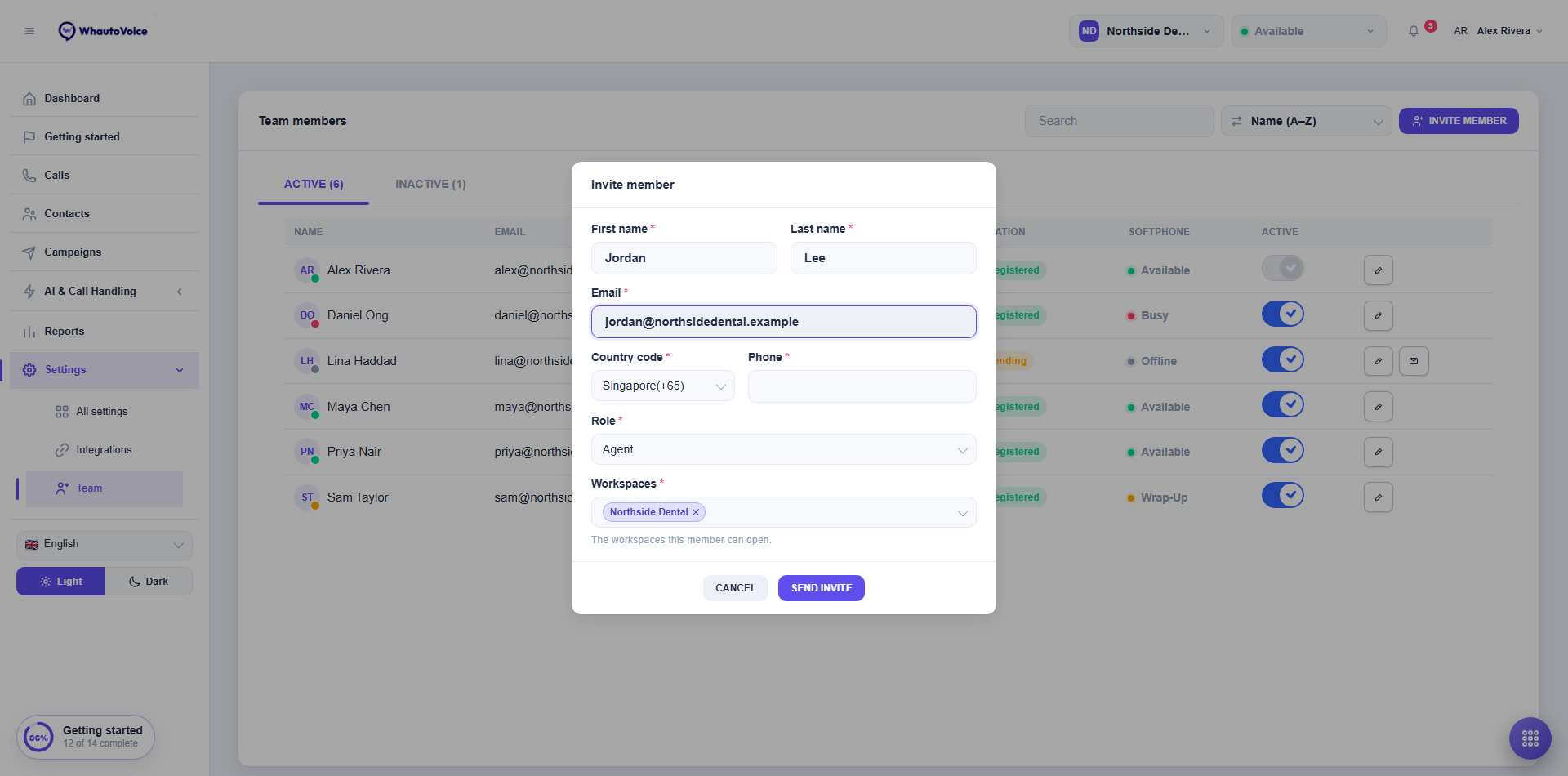
The member receives an email with an activation link. It opens the Create account page where they set a password, then they sign in at the normal login page. Until then their Invitation reads Pending and the envelope icon lets you Resend invite. It turns to Registered the moment they finish.
Edit a member
Click the pencil. You can change the name, phone, Role and Workspaces. Email is locked. Click Save; the change applies the next time they load the app.
Only the Owner can set someone's role to Owner. Administrators can edit an Owner's details but not their role.
Deactivate and reactivate
Switch Active off to remove a member's access straight away. The row moves to the Inactive tab as soon as you do it. Their calls and notes stay in the history.
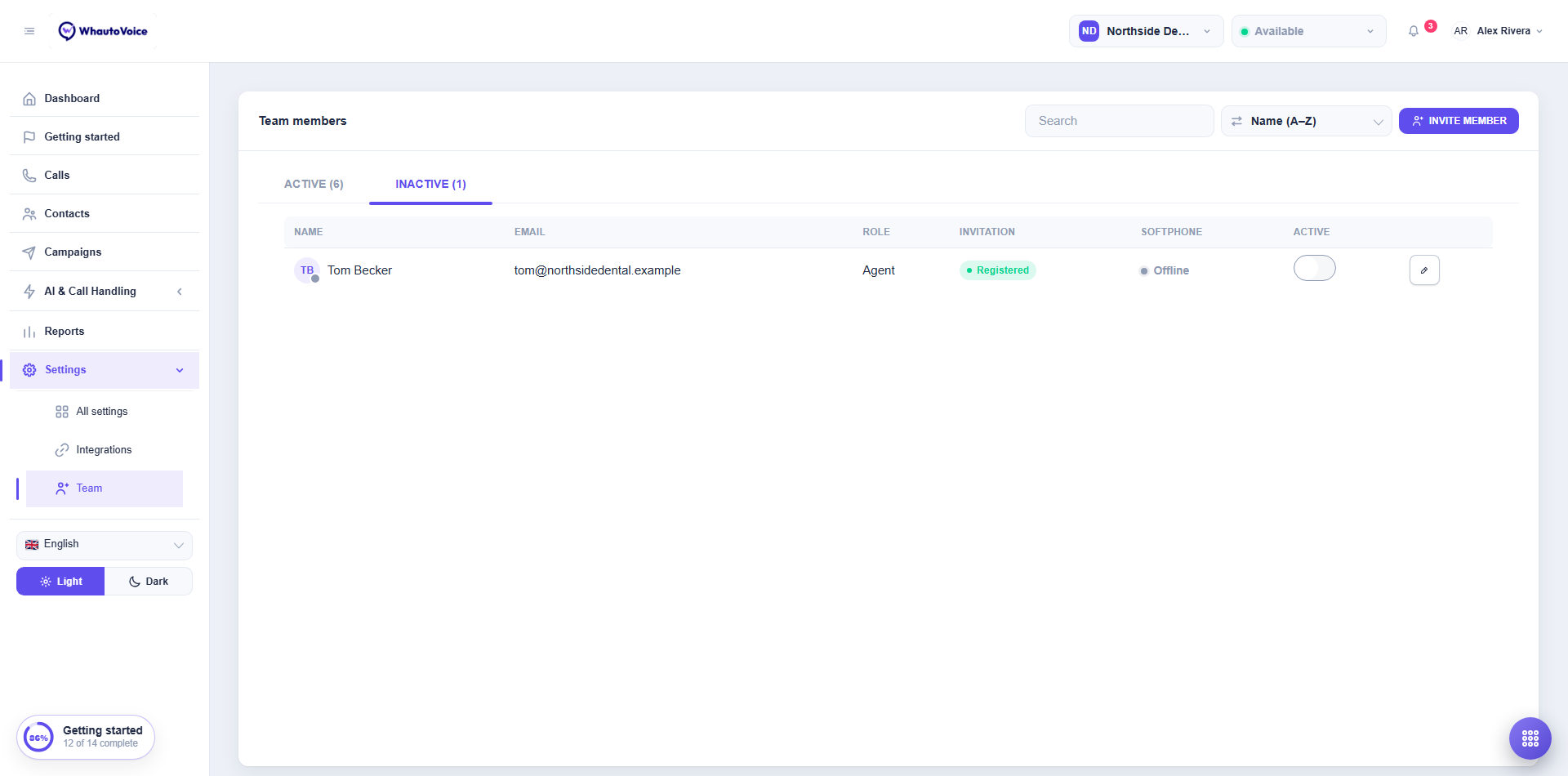
Open the Inactive tab and switch Active back on to let someone in again. They keep the role and workspaces they had. Deactivated members do not use a seat.
Seats
Each plan includes a number of seats: 3 on Starter, 10 on Growth, 25 on Scale, plus 5 more with the +5 agent seats add-on. Everyone on the Active tab counts, whether their invitation is Registered or still Pending.
An agent who can open two workspaces sees two queues, two number lists and two sets of calls. Keep it to the one they answer for, and add more only when they cover for a colleague.
Related
Email us at hello@whautovoice.com and we will get you sorted.