Security and two-factor authentication
Two-factor authentication (2FA) adds a one-time code from an authenticator app to every login, so a stolen password alone is not enough to get in. Owners and Administrators should switch it on; they can buy numbers and change routing for the whole business.
Open the Security page
Go to Settings > Security, or choose Account security from the user chip at the top right.
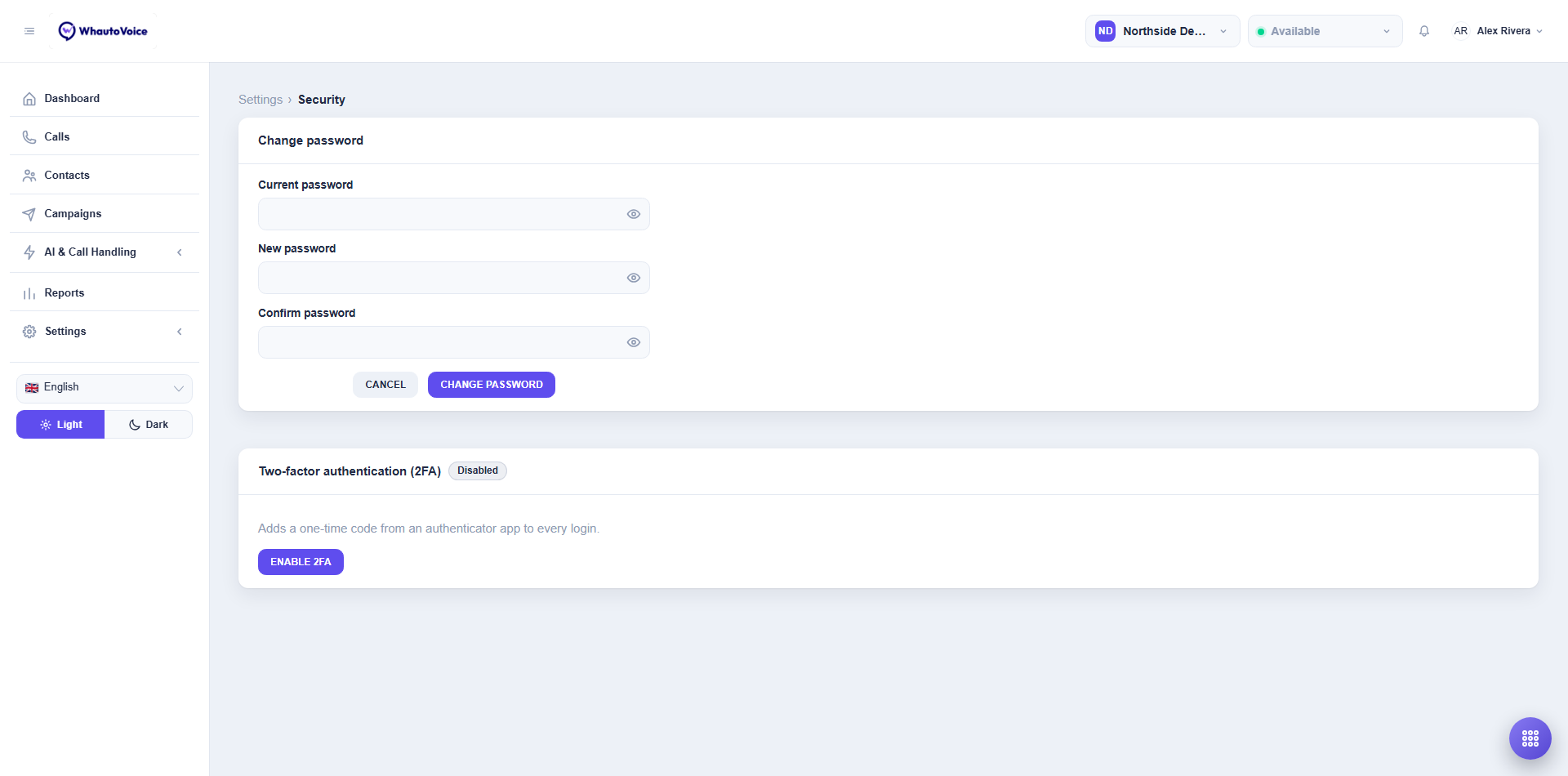
The page shows whether 2FA is Enabled or Disabled, when your password was last changed, how often your account suggests changing it, and lets you change it.
We email you a code first
Changing your password, turning 2FA on and turning 2FA off each ask for a six-digit code sent to the email address on your account. Knowing the password is not enough on its own: if somebody walked up to an unlocked screen, the code is the second signal that it is really you.
The code arrives as soon as the dialog opens, lasts ten minutes, and you can ask for a new one after a minute. If you type it wrong the dialog stays open, so a typo costs you one attempt rather than the whole change.
We also email you afterwards, with the time, IP address and device, every time one of these three things changes. If one of those emails arrives and it was not you, change your password straight away and contact support.
Change your password
- Enter Current password
- Enter New password and confirm it
- 8 to 64 characters, with an uppercase letter, a lowercase letter, a number and a special character, and no spaces. Use a passphrase you do not use anywhere else.
- Click Change password
- Enter the code we email you and click Confirm
- A Password changed message confirms, and you are taken back to the sign-in screen. Changing a password signs out every browser and phone on the account, this one included, so sign in again with the new password.
Enable 2FA
You need an authenticator app on your phone: Google Authenticator, Microsoft Authenticator, Authy, 1Password and similar all work.
- Click Enable 2FA
- Enter the code we email you and click Confirm. This happens before the QR code appears, so hunting through your inbox does not eat into the thirty seconds you get to type the authenticator code later.
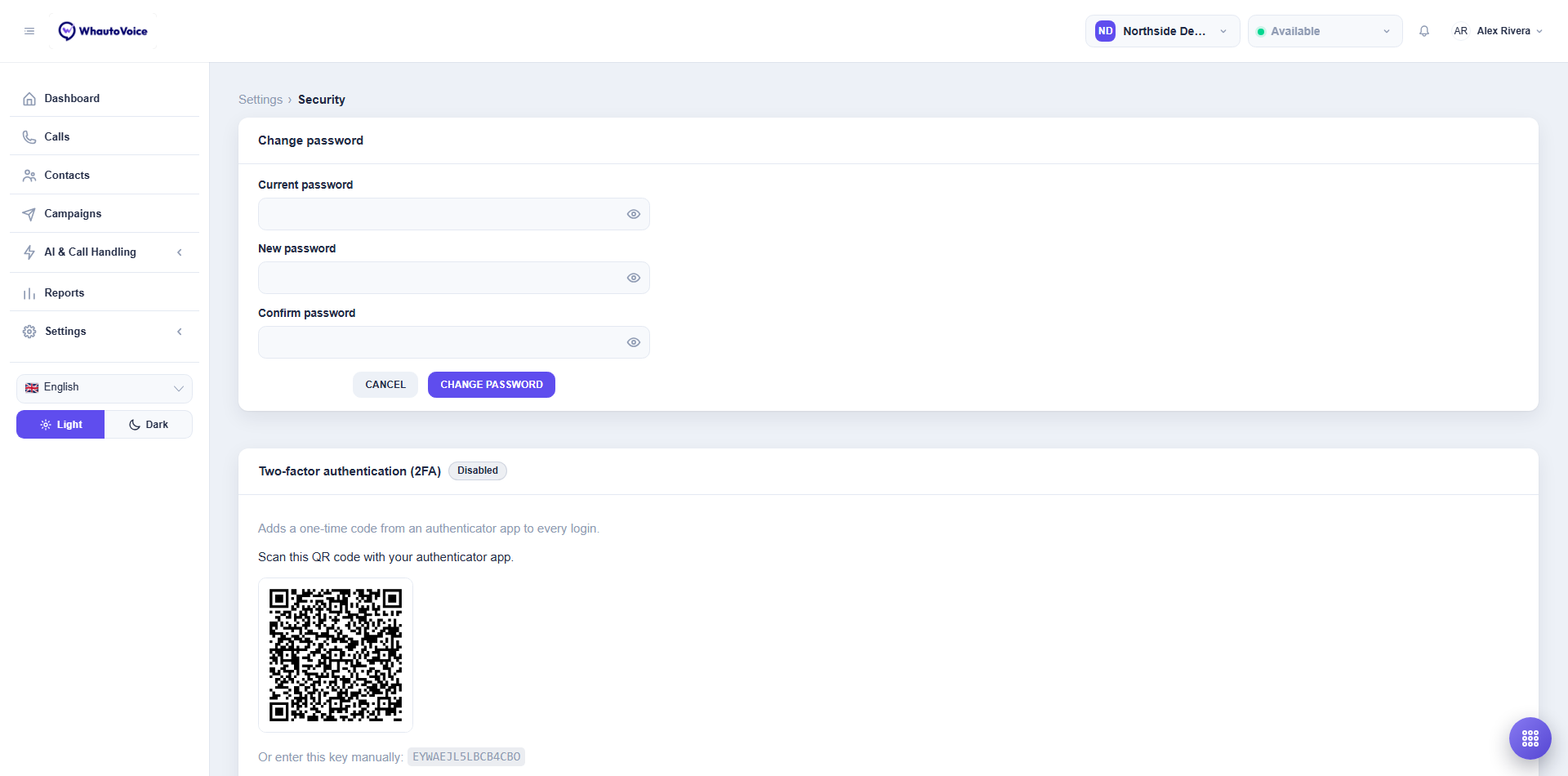
- Scan the QR code
- Open the authenticator app, add an account and scan the code on screen. If you cannot scan, choose Or enter this key manually and type the key shown.
- Type the six-digit code the app shows
- Click Verify & enable
- Two-factor authentication enabled confirms. If you see "That code was not accepted", wait for the next code and try again.
Logging in with 2FA
Enter your email and password as usual. A One-time code field appears; type the current code from your app and click Verify. Codes change every 30 seconds.
Disable 2FA
Click Disable 2FA on the Security page, type CONFIRM when asked, then enter the code we email you. Turning the second factor off is the most useful thing anyone who had taken your session could do, so it asks twice.
The code goes to your email rather than your authenticator app on purpose: if you have genuinely lost the phone, you still have a way back in.
Do this before you change phones, then enable it again on the new device.
When your password gets old
Most accounts are never forced to change their password on a schedule. What happens instead is a reminder.
After 90 days, a banner appears at the top of the app saying Time to refresh your password, with how old yours is. Nothing is blocked. Calls, numbers and everything else carry on exactly as before, and you can ignore it for as long as you like.
It gives you two choices:
- Change password takes you to the Security page.
- Remind me later hides it for a month.
The snooze is kept on your account rather than in the browser, so it follows you to your other browsers and your phone instead of having to be dismissed on each one.
It does come back after a month, because the password is still old. The Security page says so the whole time, snoozed or not: it shows how many days old the password is and what your account suggests. Hiding the reminder hides the reminder, not the fact.
Making everyone change passwords on a timetable tends to produce Summer2026 followed by Autumn2026, which is weaker rather than stronger, and does nothing about a password that was phished this morning. The current advice from NIST, the UK's NCSC and Microsoft is all the same: stop forcing routine changes, and use two-factor authentication instead. So we remind you, and leave the decision with you.
Change it straight away, though, if you have any reason to think somebody else knows it, or if you have used it on another site that was breached. That is the case where changing a password genuinely helps.
Password expiry
Some installations go further and do require a new password every so often. This is off unless whoever runs your installation has switched it on, usually because a contract or an auditor asks for it.
When it is on, the Security page tells you the date yours expires and how many days are left, and a warning appears at the top of the app for the last week. That warning has no Remind me later, on purpose: it is the last thing you are told before a sign-in stops working.
If you leave it until the deadline, the next sign-in does not let you in. It takes you straight to a Time to set a new password screen instead, which asks for a code emailed to you and your new password together. Setting it there signs you in, so you do not have to type your password twice.
That screen cannot be reloaded, on purpose: nothing that authorises it is ever put in the address bar. If you refresh it, sign in again and it will come back.
The mobile app has the same screen, so a phone is never a dead end. Closing the app before you finish sends you back to sign in, for the same reason a refresh does on the web.
Both periods, the one behind the reminder and the one behind expiry, are set for the whole installation by whoever runs it. They are the same for everybody on it, so there is no switch for either on this page. On a self-hosted installation your administrator can change or turn off either one.
Lost your device?
Codes are tied to the phone you scanned with, and signing in asks for one before anything else, so a lost phone locks you out at the sign-in screen.
If you are still signed in somewhere, such as another browser or a tab you have not closed, go to Settings > Security there and turn 2FA off. That step is confirmed by a code emailed to you rather than by the authenticator app, precisely so a lost phone does not stand in the way. Then enable it again on the new device.
If you are signed out everywhere, ask an Owner or Administrator to contact support at hello@whautovoice.com from the account's email so 2FA can be reset for you.
Worth doing before you change phones: turn 2FA off first, then enable it again once the new device is set up.
Authenticator codes depend on your phone's clock. If codes keep failing, turn on automatic time in the phone's settings.
Related
Email us at hello@whautovoice.com and we will get you sorted.