Phone numbers
Every call starts at a number. The Phone numbers page is where you buy or import them, give them names your team recognises, decide which AI engines may answer on them and take them off the account again when you are done.
Before you start
- At least one telephony provider connected under Settings > Integrations. Until then the page tells you to connect a provider first. See Connect Telnyx, Connect Vobiz, Connect Twilio, Connect Plivo or Connect Vonage.
- An Owner or Administrator role. Agents do not see this page.
The Phone numbers page
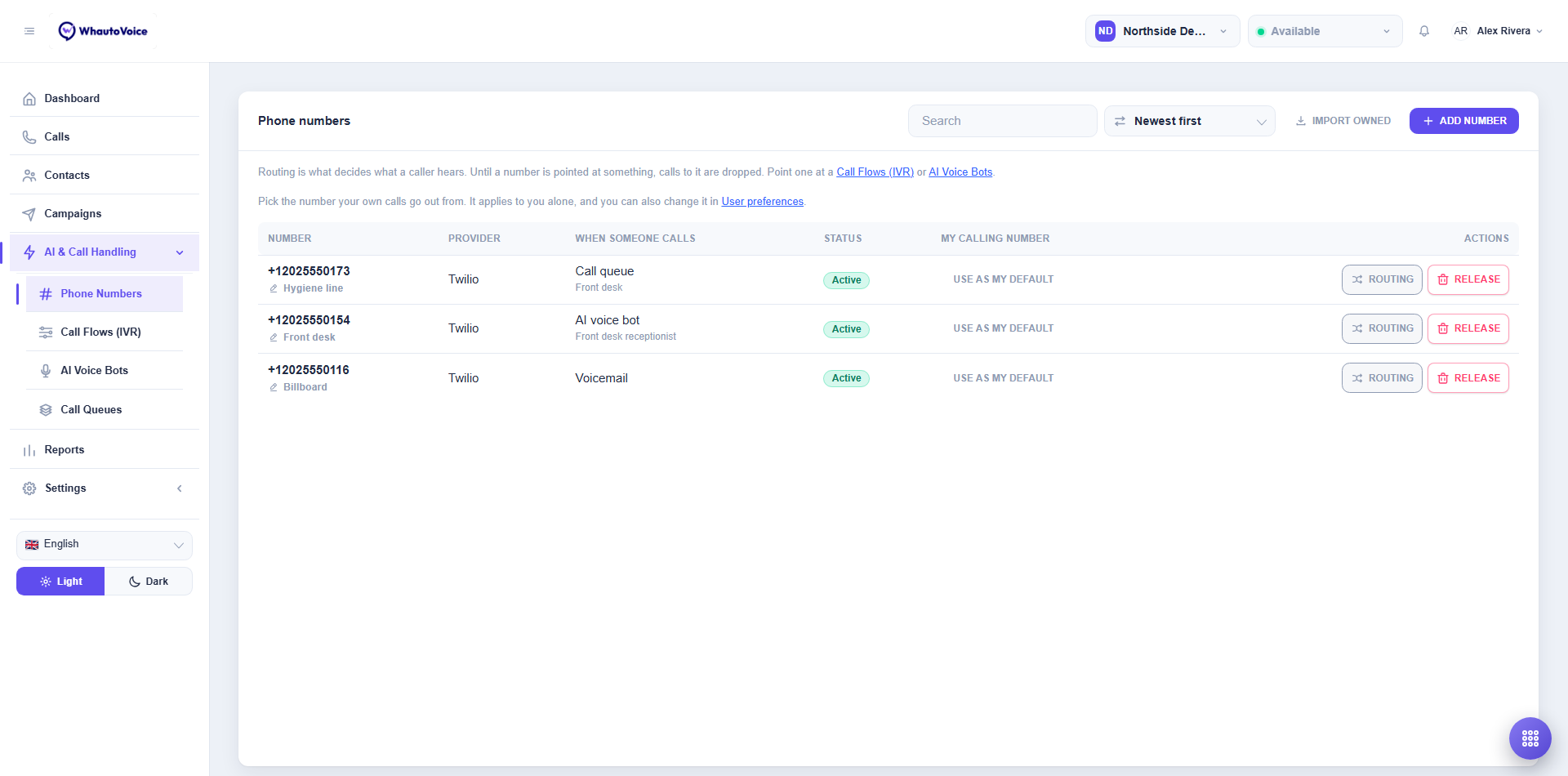
Open AI & Call Handling > Phone Numbers. Above the table there is a Search box, a sort control (Newest first by default), Import owned and Buy number. Two lines of help remind you that routing is what decides what a caller hears, and that the calling number you pick applies to you alone.
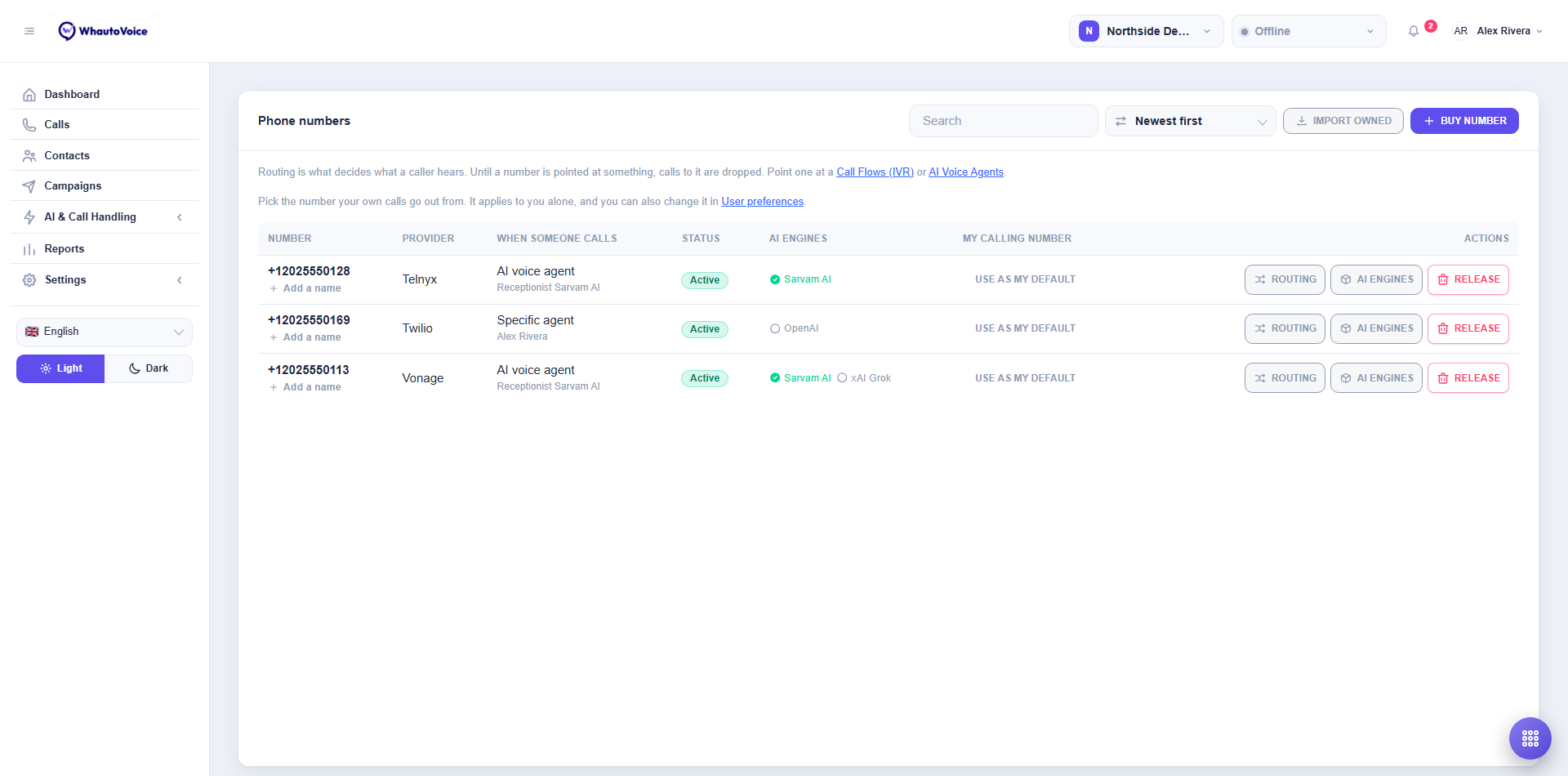
Each row shows:
| Column | What it shows |
|---|---|
| Number | The number in international format. Beneath it is either Add a name or the nickname you gave it. |
| Provider | Telnyx, Twilio, Plivo or Vonage. Northside Dental has one of each in the screenshot. |
| When someone calls | The routing mode and its target, for example AI voice agent and "Receptionist Eleven Labs". A number with no routing reads Nothing set - calls are dropped with a Set up routing button. |
| Status | Active once the number is configured. |
| AI engines | Which engines this number is registered with. A green tick means registered, a hollow circle means not. This column appears once you have connected an AI engine. |
| My calling number | Use as my default to make this the number your own outbound calls go out from. |
| Actions | Routing, AI engines and Release. |
Buy a number
-
Open Buy number
- Click Buy number at the top right of the page.
-
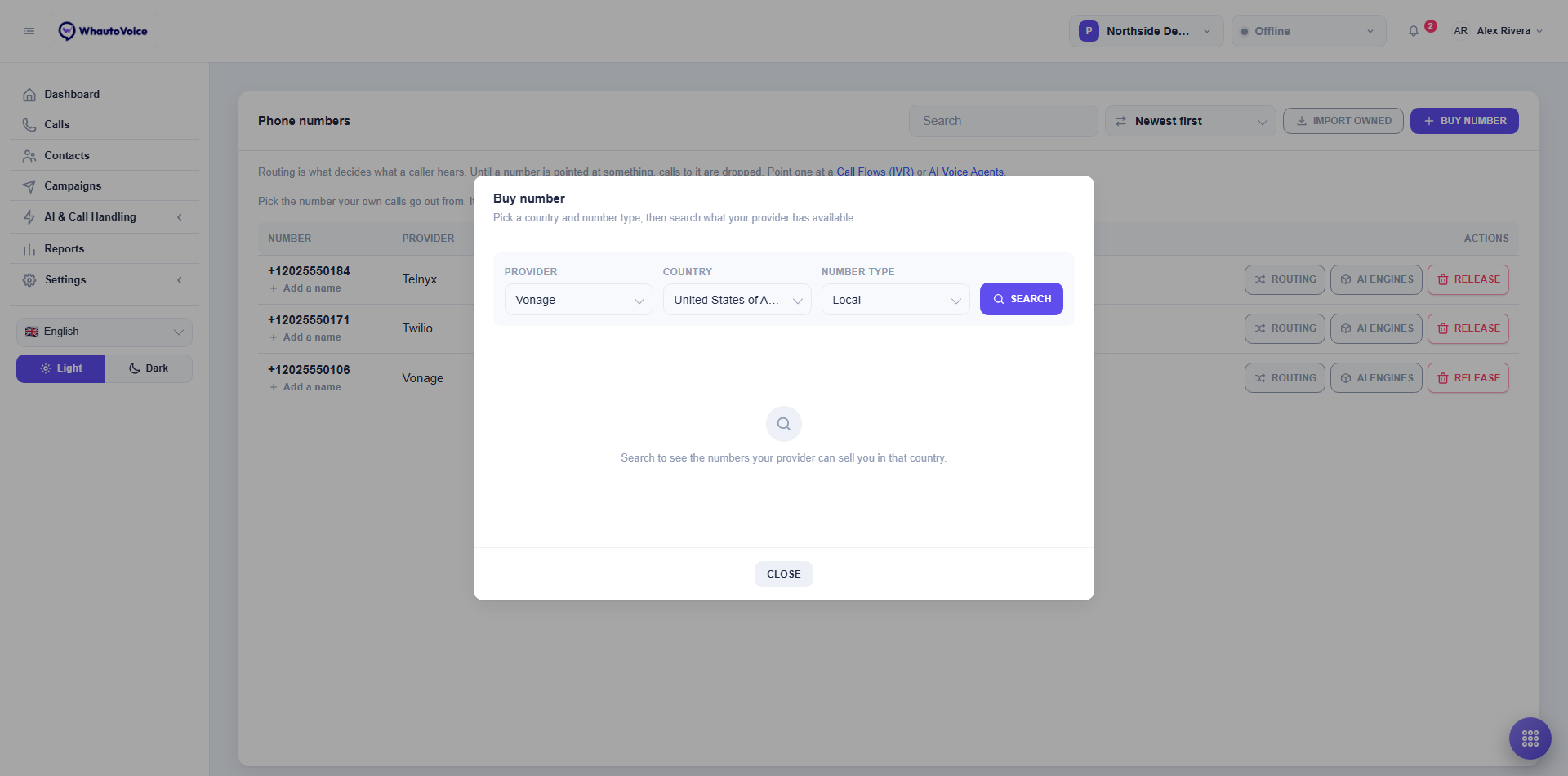
Choose what you are looking for
- Provider: which connected account to buy through. The number lives on that account and is billed there.
- Country: where the number is based. For Twilio the list only offers countries your Twilio account is cleared to buy in.
- Number type: Local, Mobile or Toll-free. Not every type exists in every country.
- Click Search.
- Pick one and buy it
- Matching numbers are listed with the monthly price the provider charges, shown as an amount followed by /mo. Click Buy beside the one you want. The button reads Buying while the purchase goes through.
- On success you see Number added and the number appears in the table as Active, already pointed at WhautoVoice. There is nothing to configure at the provider.
- If the search returns nothing you see No numbers available for that country. Try another type or country. If the purchase itself fails you see Purchase failed with the reason the provider gave, usually missing account verification or credit.
Import numbers you already own
- Open Import owned
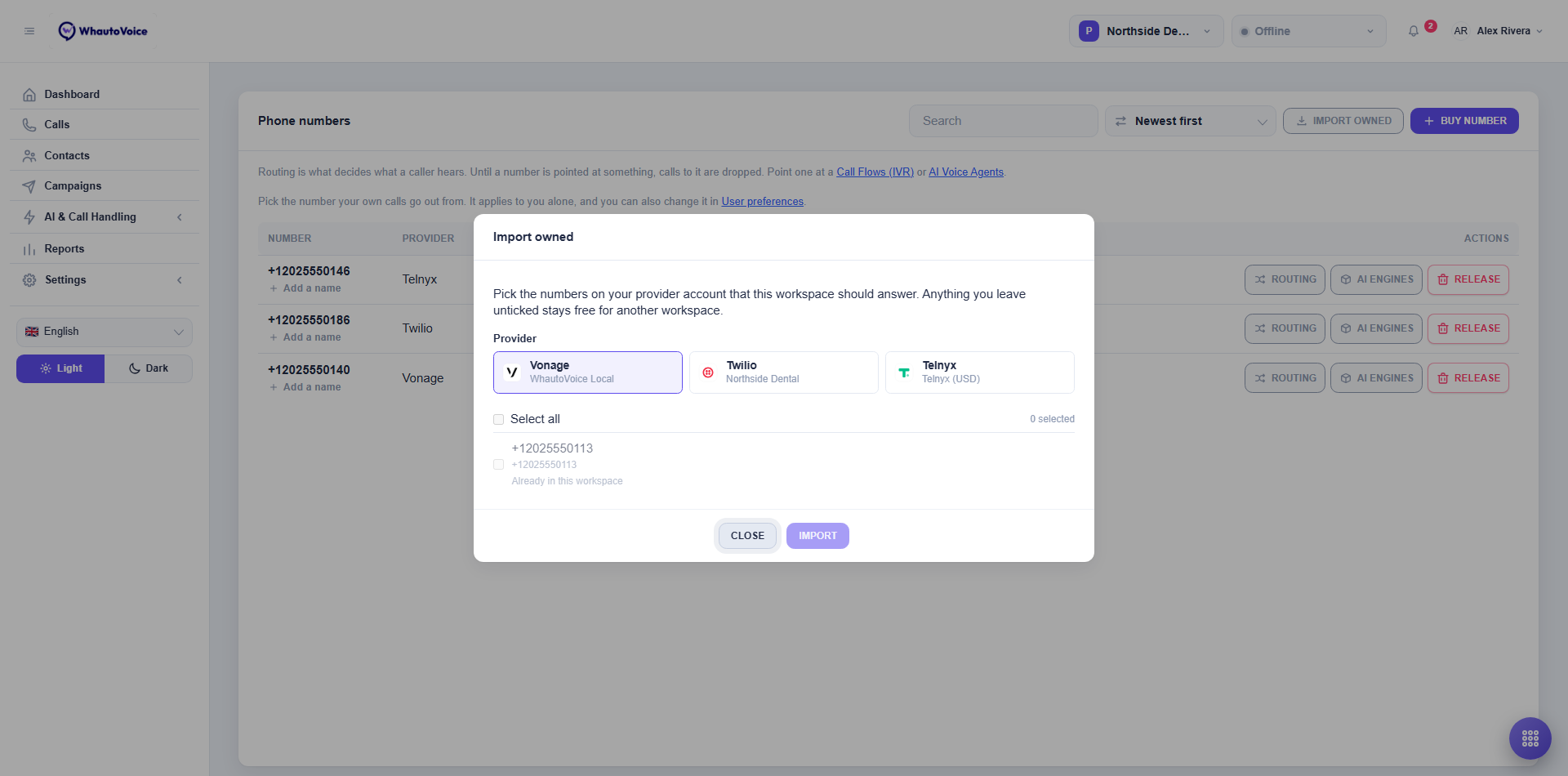
- Click Import owned and pick the Provider whose numbers you want to bring in. The dialog lists every number on that provider account as soon as you pick one.
-
Tick the numbers this workspace should answer
- Tick a number to bring it in, or use Select all. The count on the right says how many you have picked. Anything you leave unticked stays on your provider account, free for another workspace to import, so one Twilio or Plivo account can serve several workspaces with a number each.
- A number that is already spoken for is listed but cannot be ticked. It reads Already in this workspace, or In use by the workspace on your account that has it. One that reads Here, but setup did not finish can be ticked again to retry the provider setup.
- For Vonage, only numbers linked to your application are listed. Everything else on the account is left alone.
-
Click Import
- The button carries the number of numbers you picked and reads Importing while it runs. On success you see Numbers imported with a count of numbers imported and configured.
What can happen:
- Nothing new to import. The numbers you picked are already here, so nothing changes.
- Duplicates. A number that is already on this account under any provider is skipped with a note that it was already here and was not imported again.
- Partial failures. If some numbers could not be set up you see how many, with the reason beside each one. Fix the reason at the provider and import again; the ones that worked are already in the table.
Name a number
Digits are hard to tell apart. Click Add a name beneath a number to open Name this number. Type a name your team will recognise in Name, such as "Front desk" or "Billboard"; the preview under Your team will see shows how it looks, for example "Front desk · +12025550169". Click Save.
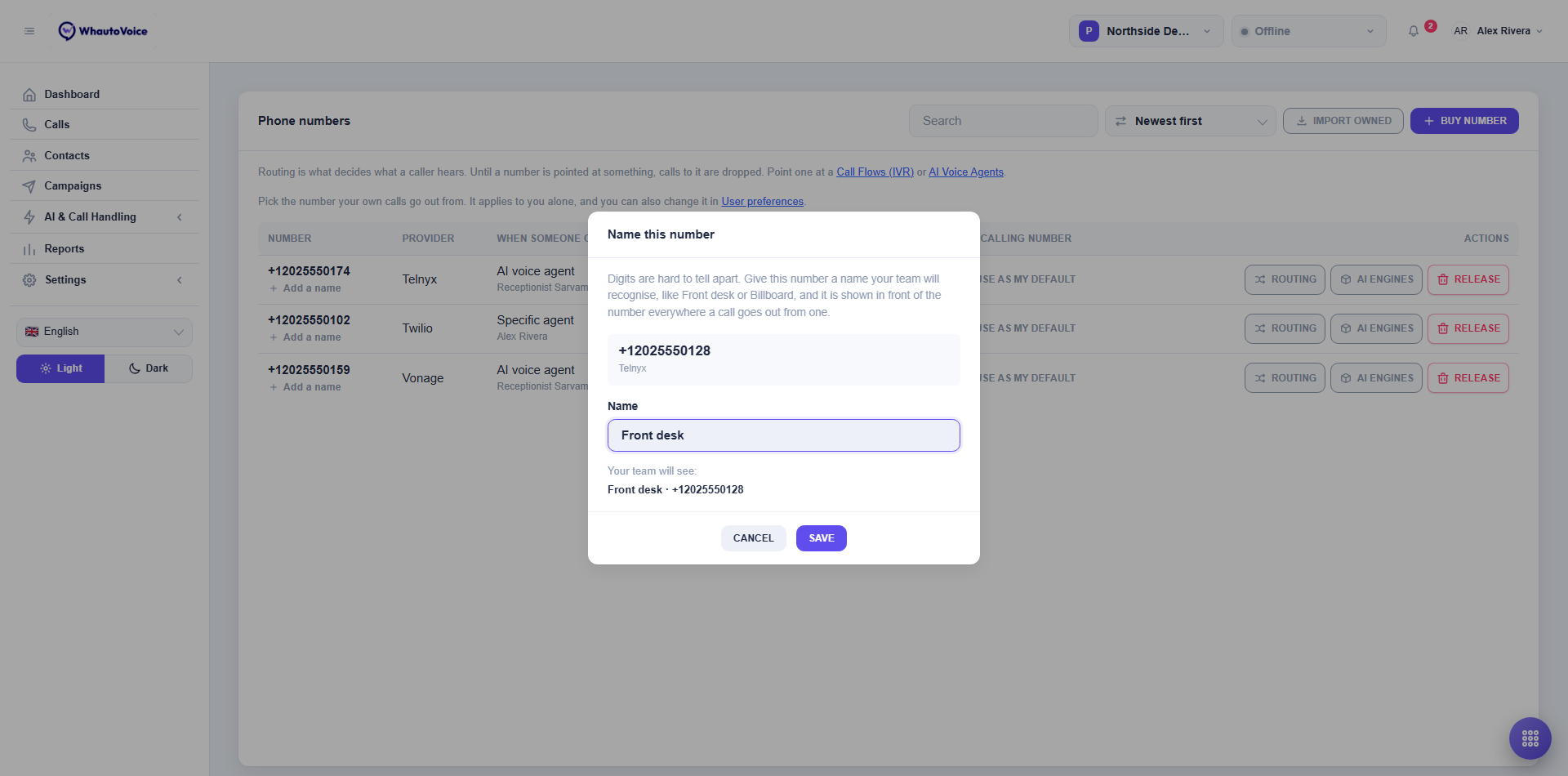
The nickname is shown in front of the number everywhere a call goes out from one: in the table, on the softphone, in call history and in the Call from which number? dialog. Click the pencil icon beside the name to change it.
AI engines per number
A number answers with an AI voice agent only on the AI engines you register it with. Click AI engines on a row to see each connected engine and its state.
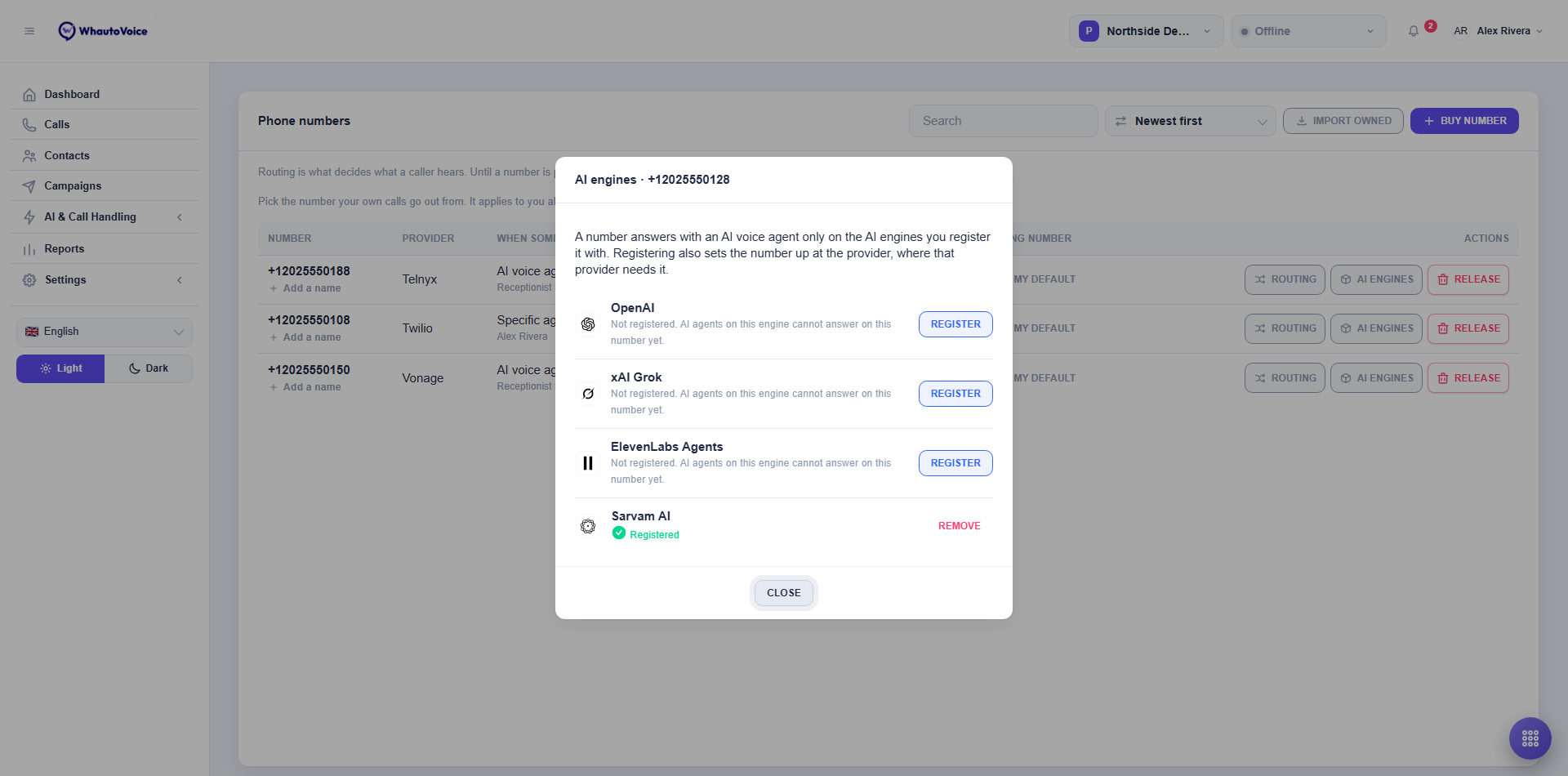
- Registered with a Remove link means AI agents on this engine can answer on this number.
- Not registered. AI agents on this engine cannot answer on this number yet. with a Register button means they cannot, and a call routed to such an AI agent goes to voicemail instead.
- Not connected. Add an API key first: means the engine itself is not set up yet under Settings > Integrations.
- Registration failed. means the engine rejected the number. The reason is shown; fix it and try again.
Which engines need it:
| Engine | Needs registration? |
|---|---|
| xAI Grok | Yes. Grok is dialled at the number itself, so it only answers on numbers you register. |
| ElevenLabs Agents | Yes. Each number is registered with the engine, and Indian numbers need the India region connected. |
| Sarvam AI | Nothing is sent to Sarvam. One connection already answers on any number, so registering is simply a switch that says this number may use Sarvam agents. |
| OpenAI | No setup at OpenAI. One connection already answers on any number, so registering here sends nothing to OpenAI; it is simply a switch that says this number may use OpenAI agents. |
Registering also sets the number up at the provider, where that provider needs it. The table warns you when a number is routed to an AI agent on an engine it is not registered with: the AI engines column shows Register with ElevenLabs Agents (or whichever engine) in orange. Click it to register in one step. Callers reach voicemail until you do.
Click Remove to withdraw a number from an engine. You are asked to confirm, and calls routed to an AI voice agent on that engine reach voicemail instead, starting with the next call.
If you register an Indian number with an engine that offers an India region, the dialog warns that this Indian number needs an India connection for that engine and that calls will be rejected without one. Connect the India region under Settings > Integrations before you route the number to an AI agent.
Use as my default
The My calling number column is personal to you. Click Use as my default on a number and your own outbound calls go out from it; the row then reads Yours with a Clear link. Clearing it means the softphone asks Call from which number? each time you dial, and that dialog has its own Always call from this number checkbox. You can also change this under Settings > User preferences.
The number you call from is the one the person sees, and it decides which provider carries the call.
Release or remove a number
Click Release on a row to open Release number. What the dialog offers depends on where the number came from.
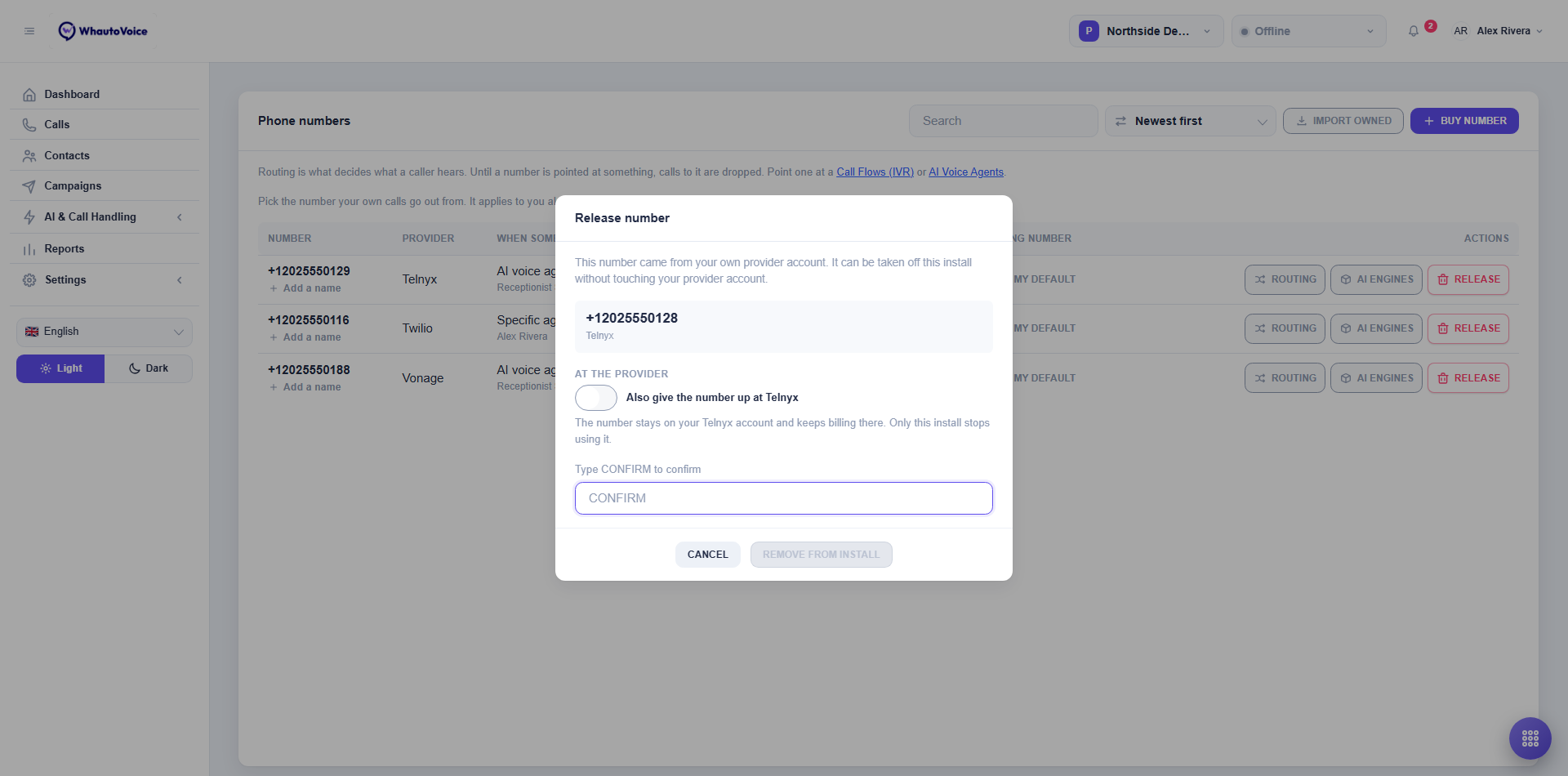
- A number you imported from your own provider account. The dialog says it can be taken off this install without touching your provider account. The Also give the number up at Twilio toggle (or Vonage, or Plivo) starts off. Left off, the number stays on your provider account and keeps billing there; only WhautoVoice stops using it. The button reads Remove from install and afterwards you see Number removed.
- A number you bought here. The dialog says giving it up stops calls to it and hands it back so it stops billing. The button reads Release number and afterwards you see Number released.
Turn the toggle on for an imported number and the dialog warns that you did not buy this number here and that handing it back gives it up at the provider for good: anyone dialling it will no longer reach you.
Either way you must type CONFIRM before the button activates. A released number cannot be got back.
Plan limits
Each plan caps how many phone numbers an account answers on: 3 on Starter, 15 on Growth and 50 on Scale. The numbers themselves are bought and paid for on your own carrier account, so this is a ceiling on how many WhautoVoice handles rather than an allowance of numbers we supply. It counts every number this account answers, imported ones included. When you reach the limit, Buy number and Import owned tell you so. You can add more in blocks of 10 with the +10 phone numbers add-on under Settings > Subscription & usage, or move up a plan.
Related
- Call routing
- Connect Telnyx
- Connect Vobiz
- Connect Twilio
- Connect Plivo
- Connect Vonage
- Provider limitations
Email us at hello@whautovoice.com and we will get you sorted.