Connect Telnyx
Telnyx connects with a single API key. It is a good fit if you want low per-minute rates on a carrier-grade network, and it supports browser calling, recording, AI voice agents and WhatsApp calling in both directions.
Before you start
- A Telnyx account with credit. The portal lives at https://portal.telnyx.com.
- An Owner or Administrator role in WhautoVoice.
Connect Telnyx
-
Open Integrations
- In the sidebar choose Settings > Integrations, then click Connect on the Telnyx card. If it is already connected the button reads Update.
-
Create and copy the API key
- In the Telnyx portal, click your name at the top right and choose Account Settings. The left menu has an API Keys section with three pages: API Keys, Organization API Keys and Public Key.
- Open API Keys and click Create API Key. The first setup step on the right of the WhautoVoice page links there.
- Copy the key into the form straight away. Telnyx shows it only once. It starts with
KEY.
-
Copy the public key
- In the same API Keys section, open Public Key. The page says "Use your public key to validate Telnyx API V2 webhooks" and shows one key with a copy button.
- Copy it into Public Key (recommended).
- This is not a secret. It is how WhautoVoice checks that a call event really came from Telnyx. Without it, events are only checked by a signed token in their address.
-
Decide about the application and the outbound profile
- TeXML Application ID (optional, auto-created) is for people who already run a TeXML application and want WhautoVoice to use it. Your numbers and your agents' softphones both use this application, and WhautoVoice points it at itself.
- Outbound Voice Profile ID (optional, auto-created) is the profile Telnyx places outbound calls through. Telnyx will not dial out without one. A profile WhautoVoice creates allows calls to every country. If you name your own, add the countries your team calls to its Whitelisted destinations in the Telnyx portal, or calls outside the United States fail before they ring.
- Most people leave both blank. Each is created the first time it is needed, and its id fills in here afterwards.
-
Save & verify
- Click Save & verify. WhautoVoice stores the key (encrypted at rest) and asks Telnyx to confirm it.
- On success the badge turns to Connected.
- On failure it reads Saved, but not verified with the error Telnyx returned. Correct the value and click Save & verify again.
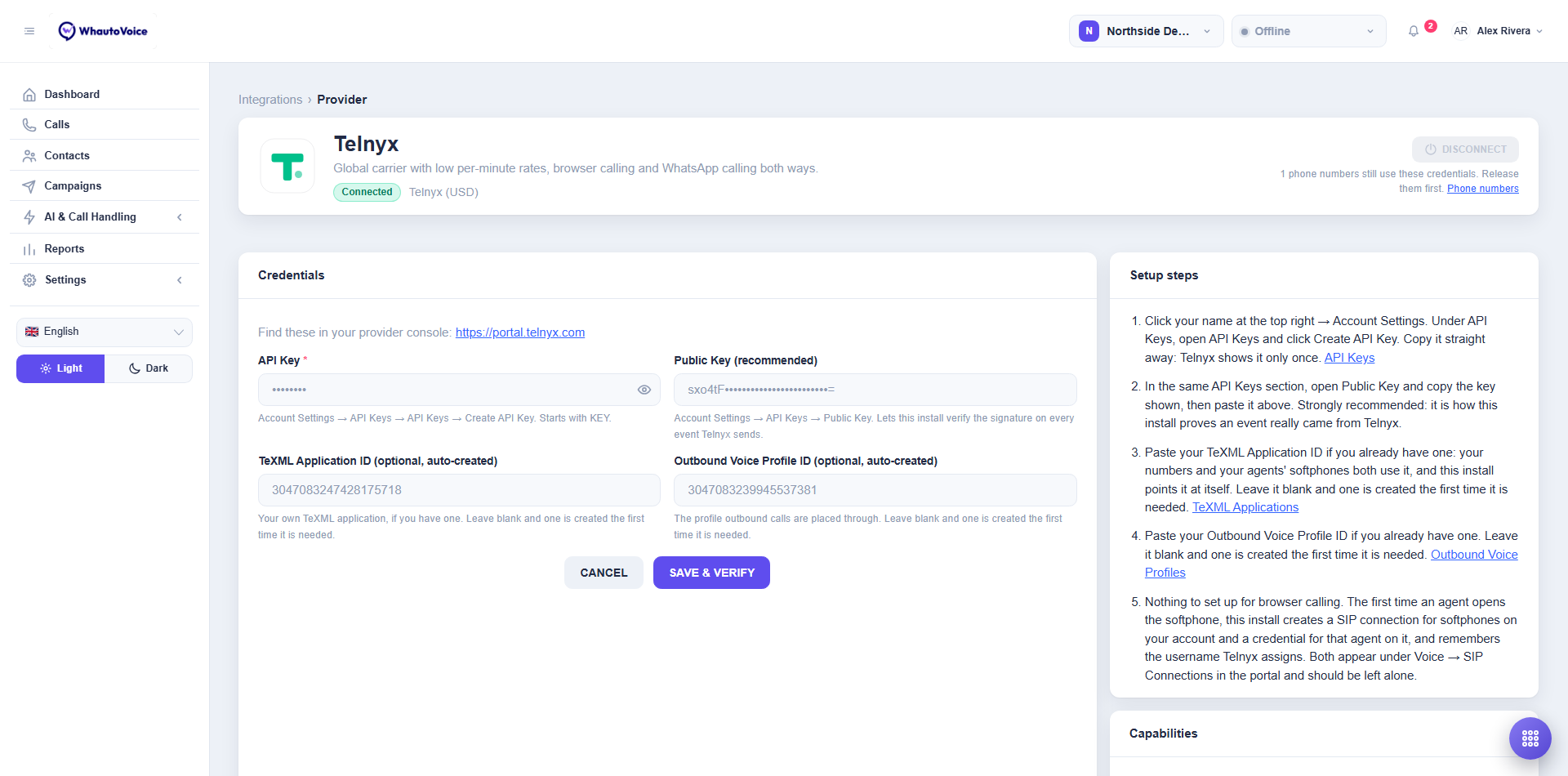
In the screenshot the account is already connected, so the API key is masked and the application and profile ids are filled in. The Setup steps list on the right walks through the Telnyx portal in the same order as the form, and links to the pages it names.
The credential fields
| Field | Where it is in the Telnyx portal | What it is for |
|---|---|---|
| API Key | Account Settings > API Keys > API Keys > Create API Key. Starts with KEY. | Proves the account is yours and lets WhautoVoice manage numbers, softphones and calls. |
| Public Key (recommended) | Account Settings > API Keys > Public Key. | Lets WhautoVoice verify the signature on every event Telnyx sends. |
| TeXML Application ID (optional, auto-created) | Voice > TeXML Applications, if you already have one. | The application your numbers and softphones use. Leave blank and WhautoVoice creates one for you. |
| Outbound Voice Profile ID (optional, auto-created) | Voice > Outbound Voice Profiles, if you already have one. | The profile outbound calls are placed through. Leave blank and WhautoVoice creates one for you. |
Browser calling and SIP credentials
There is nothing to set up for browser calling. The first time an agent opens the softphone, WhautoVoice creates a SIP connection for softphones on your Telnyx account, creates a credential for that agent on it, and remembers the username Telnyx assigns. From then on that agent's calls go through their own credential.
You can see the connection and its credentials under Voice > SIP Connections in the Telnyx portal. Leave them alone: deleting a credential there means that agent cannot take calls until they reopen the softphone and a new one is created.
A new Telnyx account starts at a level that cannot create connections or place calls. If the portal shows a banner asking for additional documents, complete that verification under Account Settings > Account Level before agents open the softphone. Until then WhautoVoice shows the refusal Telnyx returns.
WhatsApp calling on Telnyx
Telnyx can carry WhatsApp calls in both directions. When you turn calling on for a WhatsApp number and pick Telnyx as the carrier, WhautoVoice creates a SIP endpoint on your Telnyx account and points WhatsApp at it. Calls from WhatsApp users arrive like any other inbound call, and agents can call WhatsApp users back once those users have agreed to be called.
The endpoint accepts calls from the WhatsApp network only by its address, which is long and random. Telnyx does not ask the caller for a password the way Twilio does. See Provider limitations.
The Capabilities panel
Telnyx ticks every capability in the panel: Browser calling, Call recording, Call transfer, SIP dial-out (AI bridge), Answering machine detection and Conference. The one thing missing is transcription.
The Transcribe calls option is not available on Telnyx numbers for now. Recordings work as normal. If you need transcripts, put that number on Twilio, Plivo or Vonage. See Provider limitations.
What happens next
- Go to AI & Call Handling > Phone Numbers. Click Buy number to get a new one through Telnyx, or Import owned to choose which of the numbers already on your Telnyx account this workspace answers. WhautoVoice points each number at itself. See Phone numbers.
- Give each number a routing so it answers. See Call routing.
Many countries make Telnyx collect documents before a number can carry calls. Such a number shows Req. In Review (or Req. Pending) in the Telnyx portal, and Telnyx refuses outbound calls on it and plays a "testing only" message on inbound ones. WhautoVoice will not mark the number active in that state: it points the number at itself, lists it as setup-failed with Telnyx's reason, and you import it again once the portal shows Active. Nothing else needs redoing.
Disconnect Telnyx
Click Disconnect at the top right of the provider page. The stored key is removed from this workspace and your call history is kept. The button is greyed out while phone numbers still use these credentials or calls are live on them. Release or remove those numbers first; the note under the button says how many and links to Phone numbers.
Related
Email us at hello@whautovoice.com and we will get you sorted.