Connect Twilio
WhautoVoice runs on your own Twilio account. You paste a handful of credentials once, and from then on every number you buy or import is configured for you. Twilio bills you directly for calls and numbers; WhautoVoice only counts the processed minutes against your plan.
Before you start
- A Twilio account with a payment method attached. The console lives at https://1console.twilio.com.
- An Owner or Administrator role in WhautoVoice. Agents cannot see the Integrations page.
- About ten minutes. Two of the values are shown only once, so keep a text editor open to paste into.
Open the Twilio integration
- Open Integrations
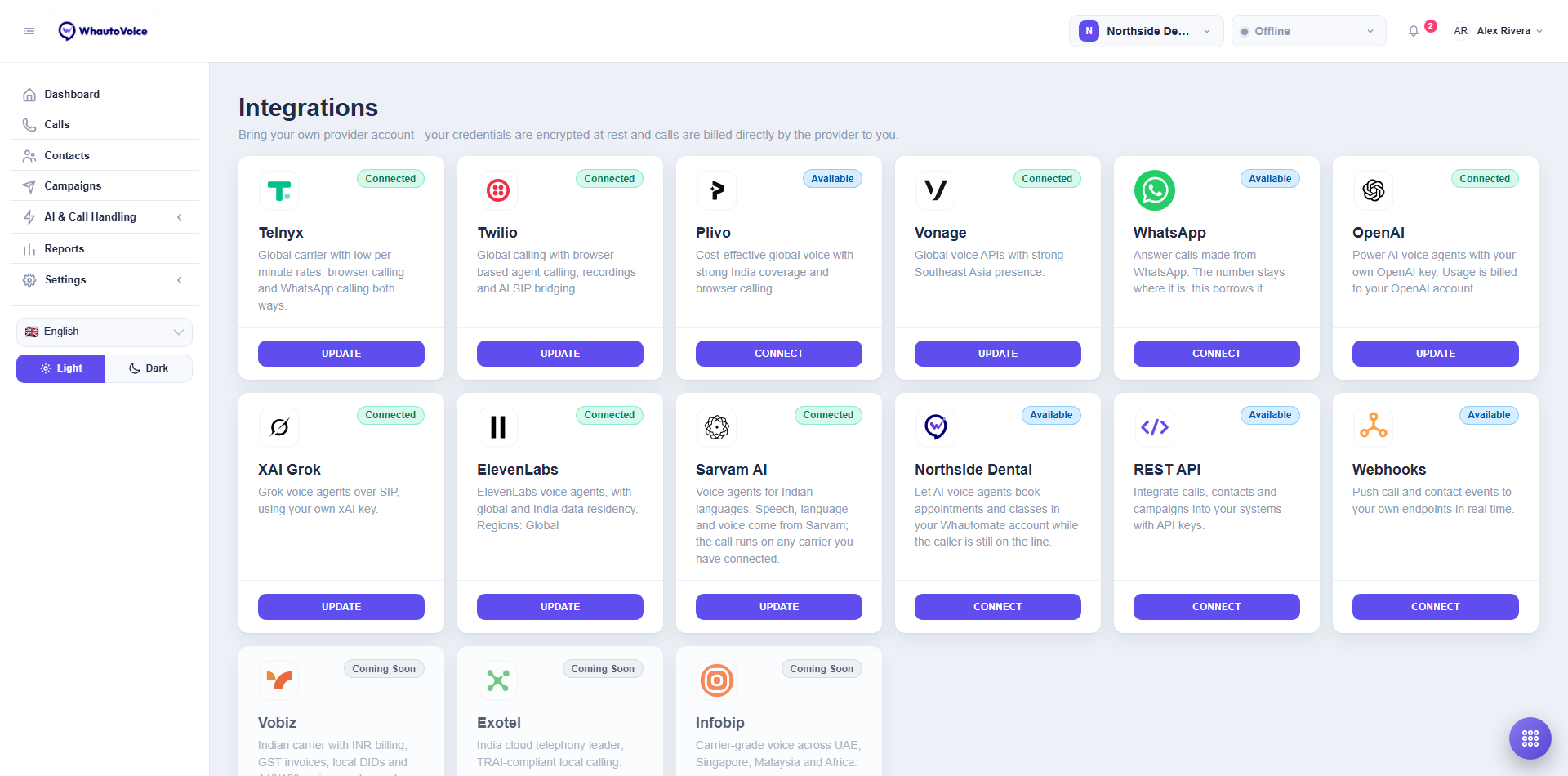
- In the sidebar choose Settings > Integrations. The hub lists every provider and AI engine, with the carriers you can connect in the order Telnyx, Twilio, Plivo, Vonage, and the ones still to come after them. A connected card shows Connected and an Update button; a card you have not set up yet shows Available and a Connect button.
- Click Connect on the Twilio card.
- Find the Credentials form
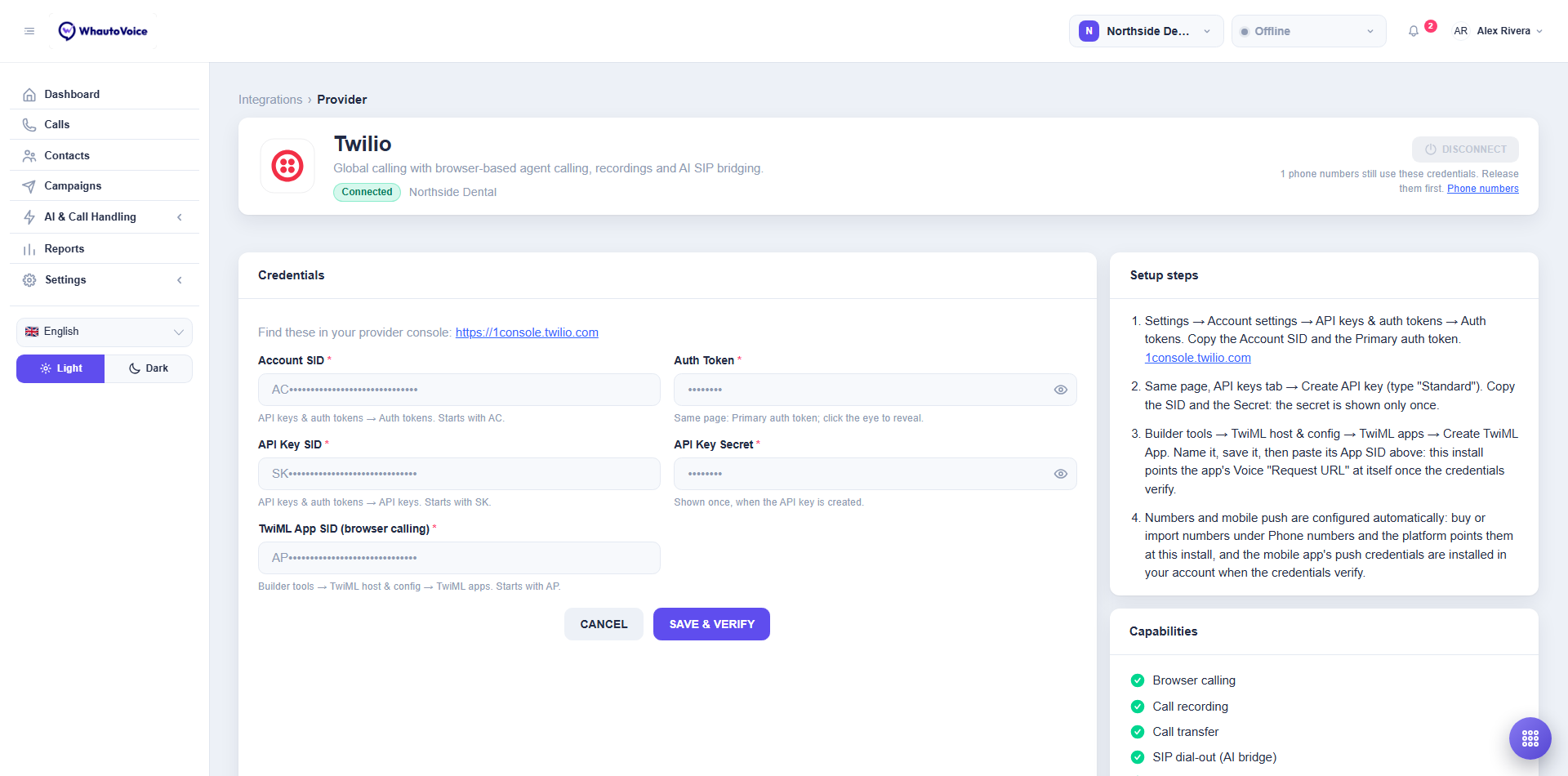
- The provider page has a Credentials form on the left and a Setup steps list on the right. The setup steps tell you where each value lives in the Twilio console, and the first step links straight to it.
- Once an account is connected the fields show masked values, as in the screenshot. You only see a full value while you are typing it.
The five credential fields
| Field | Where it is in the Twilio console | What it is for |
|---|---|---|
| Account SID | Settings > Account settings > API keys & auth tokens > Auth tokens. Starts with AC. | Identifies your Twilio account. Used to search, buy and configure numbers. |
| Auth Token | Same page, Primary auth token. Click the eye to reveal it. | Proves the account is yours. Needed to configure numbers and to check that calls really came from Twilio. |
| API Key SID | Same page, API keys tab > Create API key, type Standard. Starts with SK. | Signs in the softphone your agents use in the browser and the mobile app. |
| API Key Secret | Shown once, when the API key is created. | The other half of the API key. Copy it before you close the Twilio dialog. |
| TwiML App SID (browser calling) | Builder tools > TwiML host & config > TwiML apps > Create TwiML App. Name it, save it and copy its SID. Starts with AP. | Lets an agent place an outbound call from the browser. You do not fill in the app's Voice Request URL yourself; WhautoVoice points it at itself once the credentials verify. |
There is nothing to enter for the mobile app. When the credentials verify, WhautoVoice installs the app's push credentials in your Twilio account itself (you will see them under Voice > Manage > Push Credentials as WhautoVoice iOS and WhautoVoice Android), which is what lets the app ring a locked phone.
- Work through the Setup steps
- Follow the four steps on the right of the page in order. Steps 1 and 2 are on the same console page; step 3 creates the TwiML app; step 4 tells you there is nothing more to do for numbers or for the mobile app.
- Save & verify
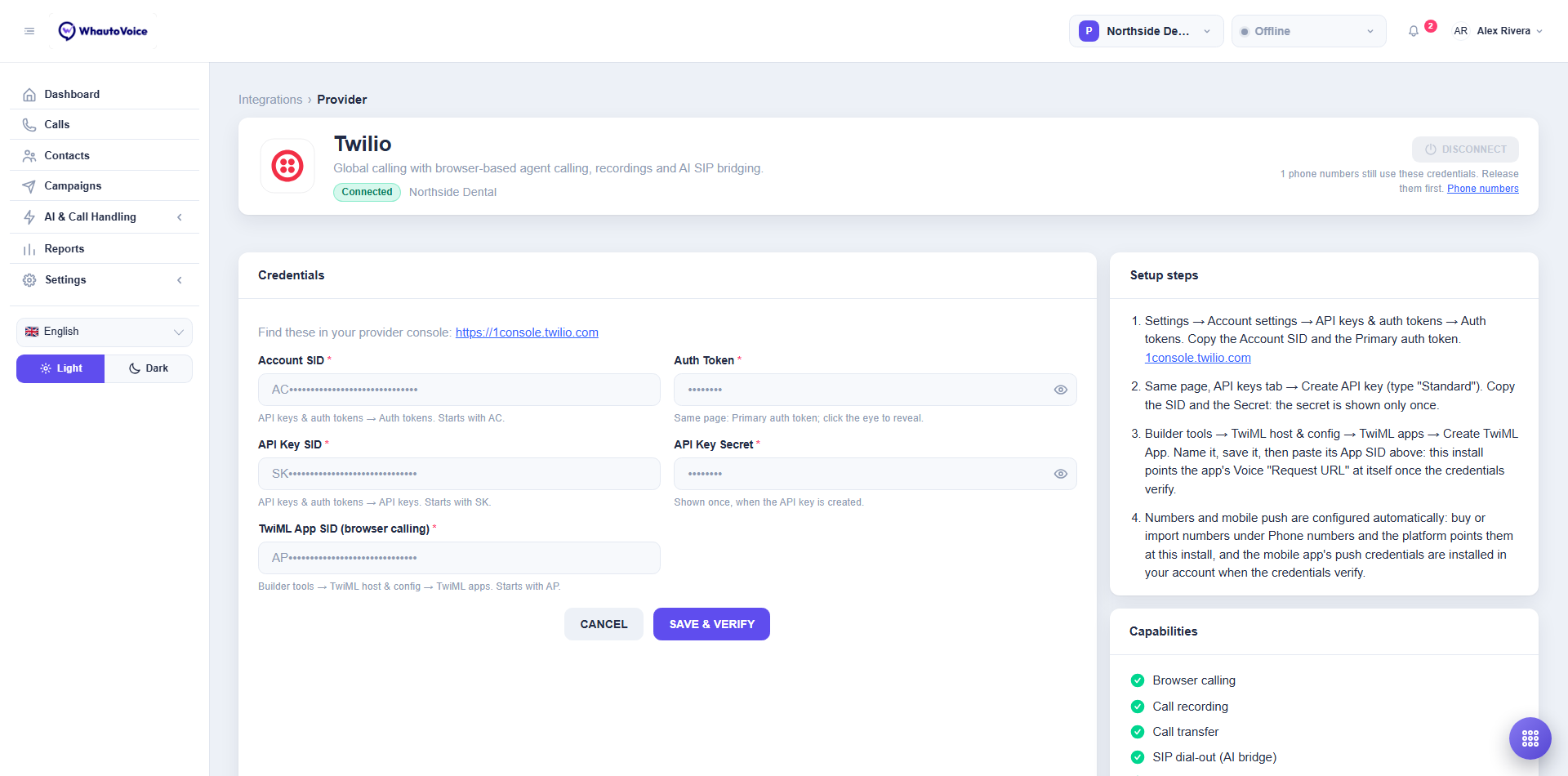
- Click Save & verify. WhautoVoice stores the credentials (encrypted at rest) and asks Twilio to confirm them.
- If Twilio accepts them the badge under the provider name turns to Connected and shows the friendly name of your Twilio account. For Northside Dental it reads Connected followed by "Northside Dental".
- If Twilio rejects them the badge reads Saved, but not verified and the error Twilio returned is shown. Your values are kept so you can correct the one that is wrong and click Save & verify again. Nothing works on a provider that is not verified, so do not leave it in that state.
- Click Cancel to leave the page without changing anything.
Twilio shows the API Key Secret only at the moment you create the key. If you lose it, create a new API key in the console and paste the new SID and secret here. The old key can then be deleted at Twilio.
The Capabilities panel
Under the setup steps, the Capabilities panel lists what this provider can do inside WhautoVoice: Browser calling, Call recording, Call transfer, SIP dial-out (AI bridge), Answering machine detection and Conference. Twilio ticks all six. It is also the only provider with the ConversationRelay fallback for AI voice agents. See Provider limitations for the full comparison.
What happens next
- Numbers are configured automatically. Go to AI & Call Handling > Phone Numbers, then Buy number to get a new one or Import owned to choose which of the numbers already on your Twilio account this workspace answers. WhautoVoice points each number at itself; there is nothing to paste into the Twilio console. See Phone numbers.
- Each number then needs routing before it answers. See Call routing.
- Agents can open the softphone straight away. The API key pair is what signs them in.
Update the credentials
Click Update on the Twilio card, change the field you need and click Save & verify again. Numbers and agents keep working on the new values as soon as they verify.
Disconnect Twilio
Click Disconnect at the top right of the provider page. It removes the stored credentials from this workspace. Your call history is kept.
Disconnect is greyed out while:
- Phone numbers still use these credentials. The note under the button says how many and links to Phone numbers. Release or remove every Twilio number first, then come back. This stops you from silently killing a number that is still receiving calls.
- Calls are still live on these credentials. Wait for them to end.
Disconnecting only removes the credentials from WhautoVoice. Numbers you bought stay on your Twilio account and keep billing there until you release them, either from Phone numbers before you disconnect or in the Twilio console afterwards.
Related
Email us at hello@whautovoice.com and we will get you sorted.