Connect Vonage
Vonage attaches call handling to an Application rather than to each number, so connecting it takes a few more steps than Twilio or Plivo. Follow the guide below once and every number linked to that application is ready to import.
Before you start
- A Vonage account with credit. The dashboard lives at https://dashboard.nexmo.com.
- An Owner or Administrator role in WhautoVoice.
- A text editor open. Vonage shows the API secret and the private key only once each.
Open the Vonage integration
-
Open Integrations
- In the sidebar choose Settings > Integrations, then click Connect on the Vonage card. If it is already connected the button reads Update.
-
Find the Credentials form
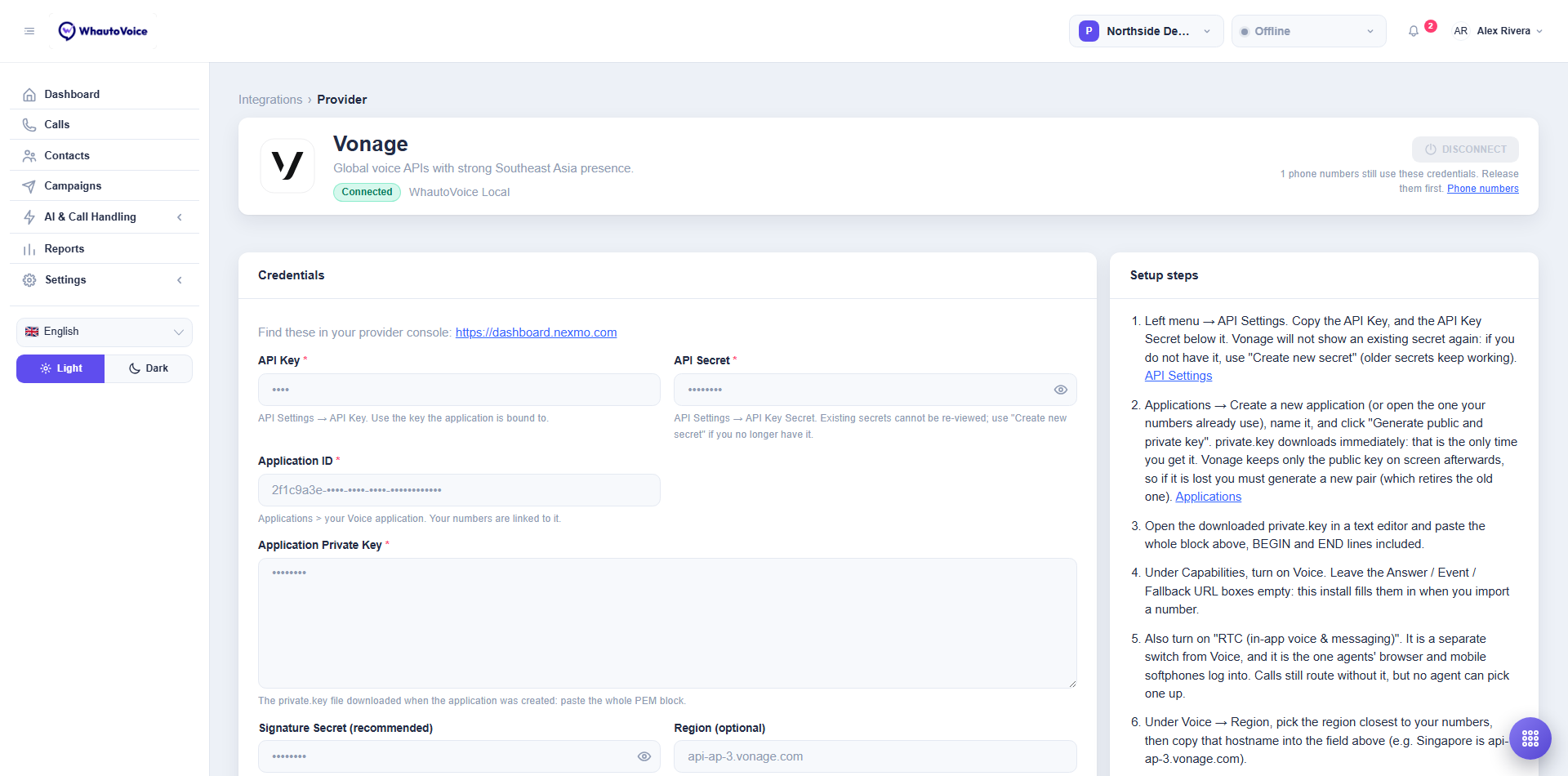
- The Credentials form is on the left. The Setup steps list on the right walks you through the Vonage dashboard and links to the pages it mentions.
- In the screenshot the account is already connected, so every value is masked. The Region (optional) field shows
api-ap-3.vonage.com, the Singapore region.
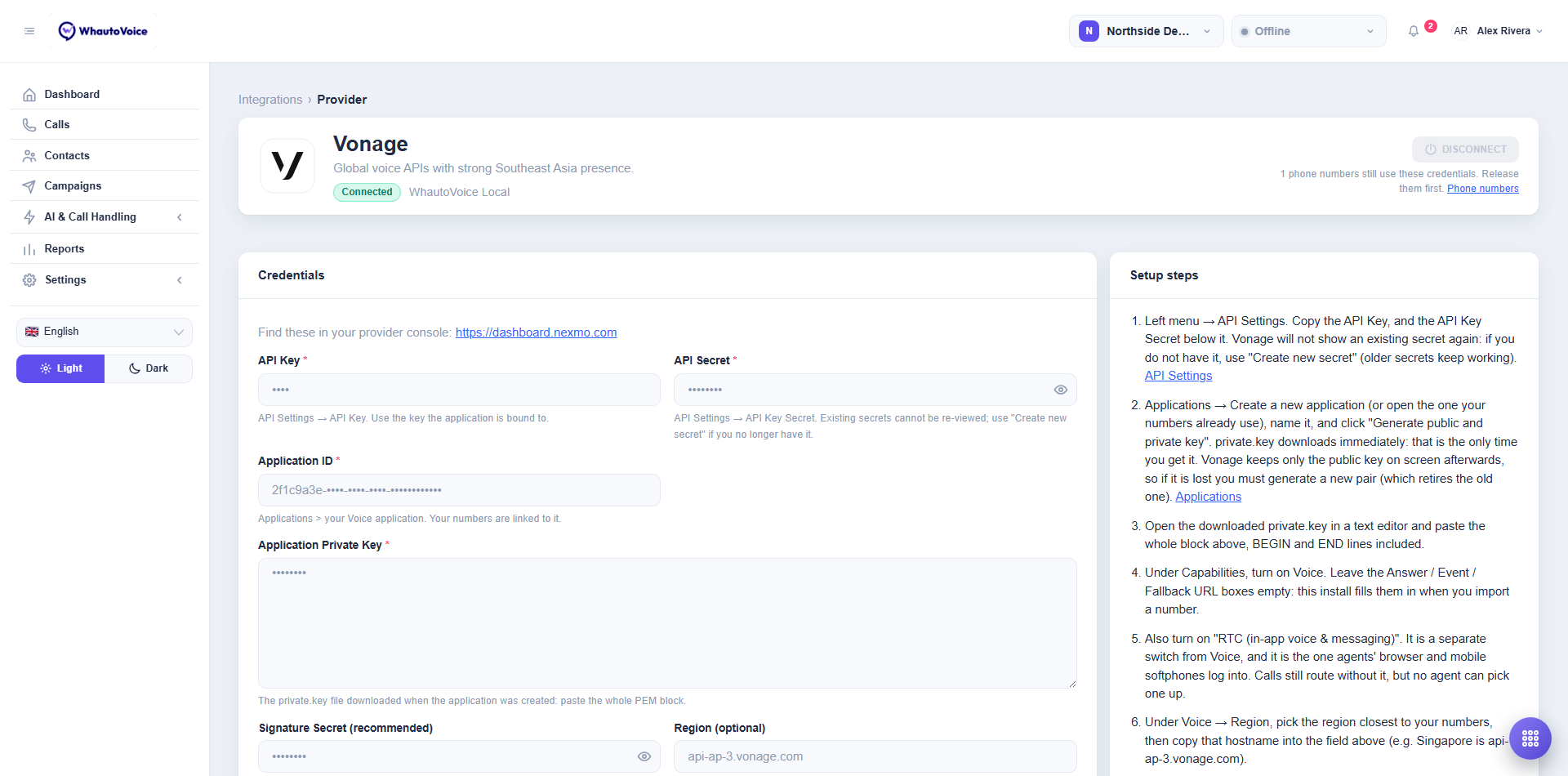
The credential fields
| Field | Where it is in the Vonage dashboard | What it is for |
|---|---|---|
| API Key | API Settings > API Key. Use the key the application is bound to. | Manages numbers on your account. |
| API Secret | API Settings > API Key Secret. Existing secrets cannot be viewed again; use Create new secret if you no longer have it. | Proves the account is yours. |
| Application ID | Applications > your Voice application. | The application your numbers are linked to. It owns call handling and the agent softphones. |
| Application Private Key | The private.key file downloaded when the application was created. Paste the whole PEM block. | Signs every call WhautoVoice places or answers on the application. |
| Signature Secret (recommended) | API Settings > Signed webhooks. | Lets WhautoVoice prove a call event really came from Vonage. Without it, events are only checked by a signed token in their address. |
| Region (optional) | Match the application's Voice > Region setting. | Where Vonage handles your calls. Pick from the list or type another host. Blank uses the global api.nexmo.com. |
The 11 setup steps
Work through these in order. They match the numbered list on the right of the page.
-
Copy the API key and secret
- In the Vonage left menu open API Settings. Copy the API Key and the API Key Secret below it. Vonage will not show an existing secret again: if you do not have it, click Create new secret. Older secrets keep working.
-
Create the application and its keys
- Open Applications and click Create a new application, or open the one your numbers already use. Name it, then click Generate public and private key. The file
private.keydownloads immediately. That is the only time you get it: Vonage keeps only the public key on screen afterwards. If the file is lost you must generate a new pair, which retires the old one.
- Open Applications and click Create a new application, or open the one your numbers already use. Name it, then click Generate public and private key. The file
-
Paste the private key
- Open the downloaded
private.keyin a text editor and paste the whole block into Application Private Key, BEGIN and END lines included.
- Open the downloaded
-
Turn on Voice
- Under Capabilities on the application, turn on Voice. Leave the Answer, Event and Fallback URL boxes empty. WhautoVoice fills them in when you import a number.
-
Turn on RTC
- Also turn on RTC (in-app voice & messaging). It is a separate switch from Voice, and it is the one your agents' browser and mobile softphones log into. Calls still route without it, but no agent can pick one up.
-
Pick the Voice region
- Under Voice > Region, pick the region closest to your numbers, then copy that hostname into Region (optional). Singapore, for example, is
api-ap-3.vonage.com. The field offers the full list as you type: Global, North America East and West, Europe West and East, Singapore and Australia.
- Under Voice > Region, pick the region closest to your numbers, then copy that hostname into Region (optional). Singapore, for example, is
-
Copy the Application ID
- Save the application and copy its Application ID from the applications list into the form.
-
Enable signed webhooks
- Back on API Settings, scroll down to Signed webhooks, enable it and copy the signature secret into Signature Secret (recommended). Strongly recommended: it is how WhautoVoice knows a call event really came from Vonage.
-
Leave the regional API host alone
- Leave the regional API host blank unless Vonage has pinned your account to a region such as
api-eu,api-usorapi-apon.nexmo.com.
- Leave the regional API host blank unless Vonage has pinned your account to a region such as
-
Link your numbers to the application
- On the application's Link numbers tab, click Link beside each number this workspace should answer. Only linked numbers are imported; everything else on the account is left alone.
-
Save, then import
- Click Save & verify on this form, then go to AI & Call Handling > Phone Numbers, click Import owned and tick the numbers this workspace should answer. There is nothing more to paste into Vonage. WhautoVoice points the application at itself.
What Save & verify checks
- Account level. The API key and secret must be able to read your account balance. If they cannot, the badge reads Saved, but not verified and shows the error.
- Application level. The application must have Voice enabled. If it does not, verification is refused with a message saying the application does not have the Voice capability enabled. Turn it on in the dashboard and verify again.
- RTC. If RTC (in-app voice & messaging) is off, the credentials still verify but you get a warning saying so. Calls will route, but nobody on your team can answer them until you turn it on.
When everything passes the badge turns to Connected and shows the application name.
The private key cannot be downloaded again. Store the file somewhere your team can find it. If you have to generate a new pair, paste the new key here straight away, because the old one stops working the moment the new one is created.
Vonage limitations
Vonage behaves a little differently from Twilio and Plivo. The full comparison is in Provider limitations; the points that matter day to day are:
- No mid-call hold. The Hold button is hidden on the softphone for Vonage calls. Agents can still mute and transfer.
- Recording is decided when the call is answered. Turn on Record calls in the number's routing and every conversation is recorded from the moment someone picks up. There is no Record button to start or stop recording during a call.
- Recordings cannot be deleted at Vonage. WhautoVoice keeps recordings for your plan's retention period, but it cannot remove the copy on Vonage's side.
- Transcription needs a recording and is produced from it after the call, with the caller and your team shown separately.
- Sentiment is available. Vonage is the only provider that returns a sentiment reading alongside the transcript.
Disconnect Vonage
Click Disconnect at the top right of the provider page to remove the stored credentials from this workspace. Call history is kept. The button is greyed out while phone numbers still use the credentials or calls are live; remove those numbers under Phone numbers first. Numbers you remove stay on your Vonage account.
Related
Email us at hello@whautovoice.com and we will get you sorted.