Business hours
A schedule decides what counts as open. Point a phone number's after-hours routing at one, or branch on it inside a call flow, and callers are handled differently when you are closed.
Before you start
- An Owner or Administrator role. Agents do not see this page.
- Your opening times and the time zone of the location they apply to.
Create a schedule
-
Open Business hours
- In the sidebar choose Settings > Business hours. Existing schedules are listed as cards; the page is empty until you make one.
-
Click New schedule
- A new card appears with the default name Opening hours, opening 9 to 5 on weekdays.
-
Name it and pick the time zone
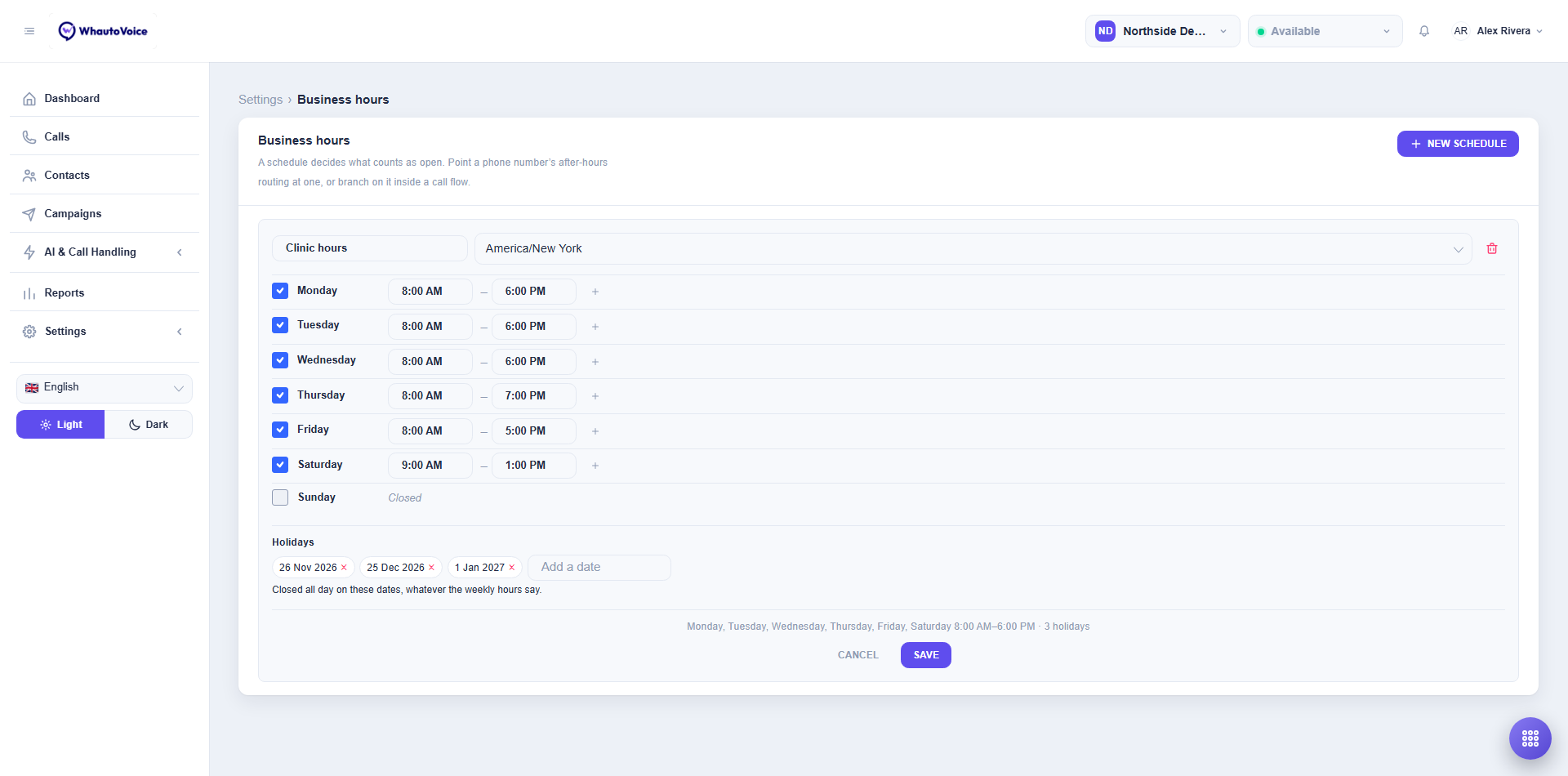
- Replace the name with something your team will recognise, such as Northside Dental's "Clinic hours". A schedule without a name cannot be saved: you see Give the schedule a name.
- Choose the Time zone the hours are written in, for example America/New York. Calls are checked against the clock in this zone, wherever your agents happen to be.
-
Set each day's windows
- Every weekday has a checkbox. Ticked means open, with an opening and closing time beside it. Untick a day and it reads Closed, as Sunday does in the screenshot.
- Click the + at the end of a row to Add another window, for a lunch break for instance: 8:00 AM to 12:00 PM, then 1:00 PM to 6:00 PM. Callers in the gap count as outside opening hours.
- The closing time must be after the opening time. If it is not, saving fails with the day named, for example Thursday: the closing time must be after the opening time.
-
Add holidays
- Under Holidays, use Add a date to pick dates the business is closed all day, whatever the weekly hours say. Each one becomes a chip you can remove with its x. Northside Dental has 26 November 2026, 25 December 2026 and 1 January 2027.
-
Save
- The summary line under the card describes the schedule in a sentence, ending with the number of holidays. If every day is unticked it reads Closed every day. Click Save; you see Schedule saved. Cancel throws away unsaved edits.
A workspace can hold several schedules. If your reception and your hygiene line keep different hours, make one schedule each and point each number at its own.
Where a schedule is used
- A phone number's after-hours routing. In the number's Routing dialog, pick the schedule under Business-hours schedule and choose what happens Outside opening hours, instead. See Call routing.
- The Business hours step in a call flow. The step branches on a schedule: one path while open, another while closed.
Edits take effect on the next call. There is no need to re-save the numbers or flows that use the schedule.
Delete a schedule
Click the bin icon at the top right of the card. You are asked: Delete this schedule? Any number or call flow using it falls back to always open. That means a number pointed at the deleted schedule stops routing anything after hours and uses its main route around the clock, and a Business hours step in a flow always takes its open path. Point them at another schedule first if that is not what you want.
Related
Email us at hello@whautovoice.com and we will get you sorted.