Call routing
Routing is what decides what a caller hears. Until a number is pointed at something, calls to it are dropped. This page walks through the Routing dialog on a phone number: the six places a call can go, recording and transcription, and what to do outside opening hours.
Before you start
- A number on the Phone numbers page.
- Whatever you want to route to already built: a call flow (and activated), an AI voice agent, a call queue or an active team member. The dialog tells you if the list is empty.
Open the Routing dialog
- Open Routing on the number
- Go to AI & Call Handling > Phone Numbers and click Routing on the row. A number that has never been routed shows Set up routing instead.
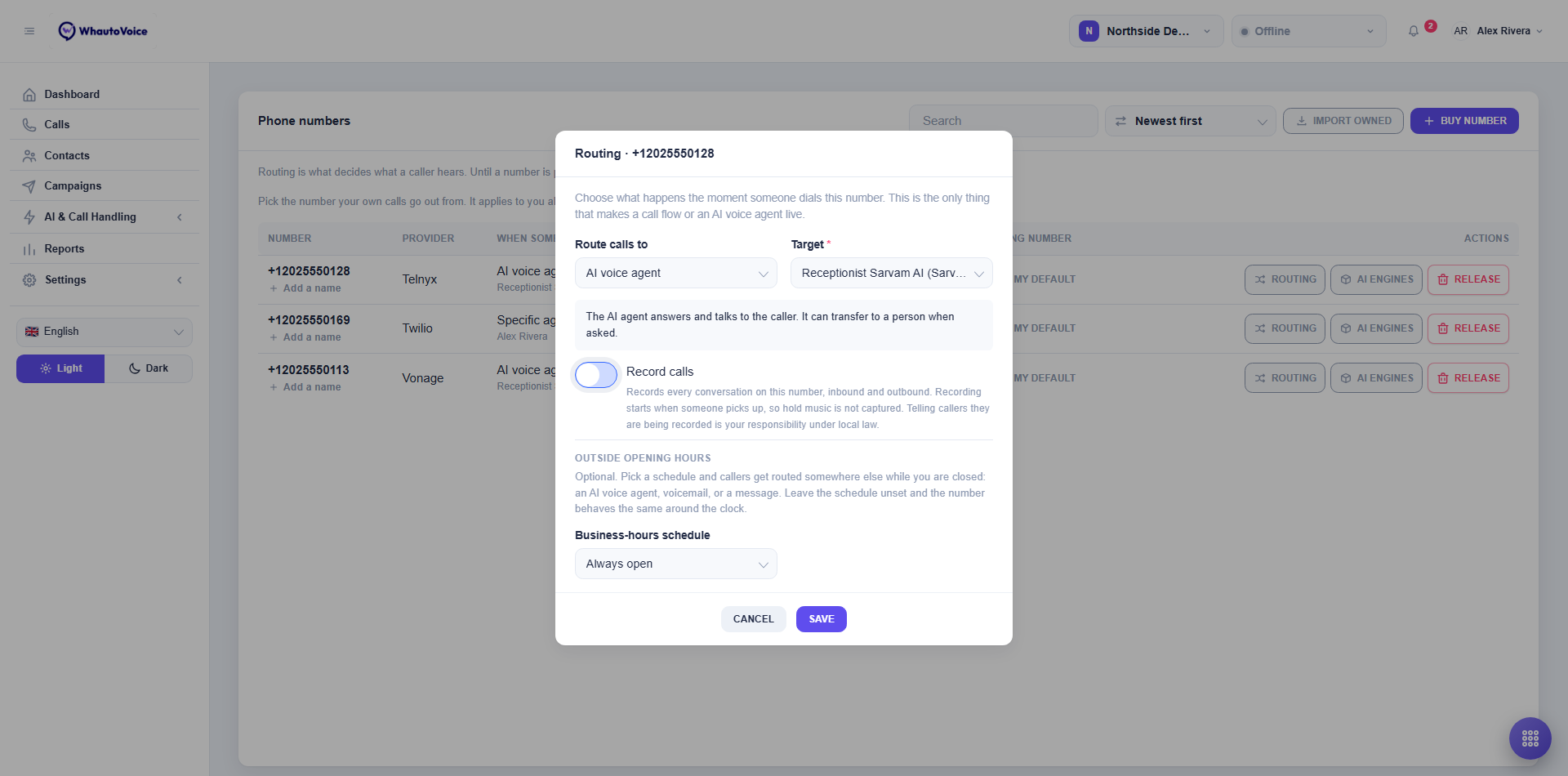
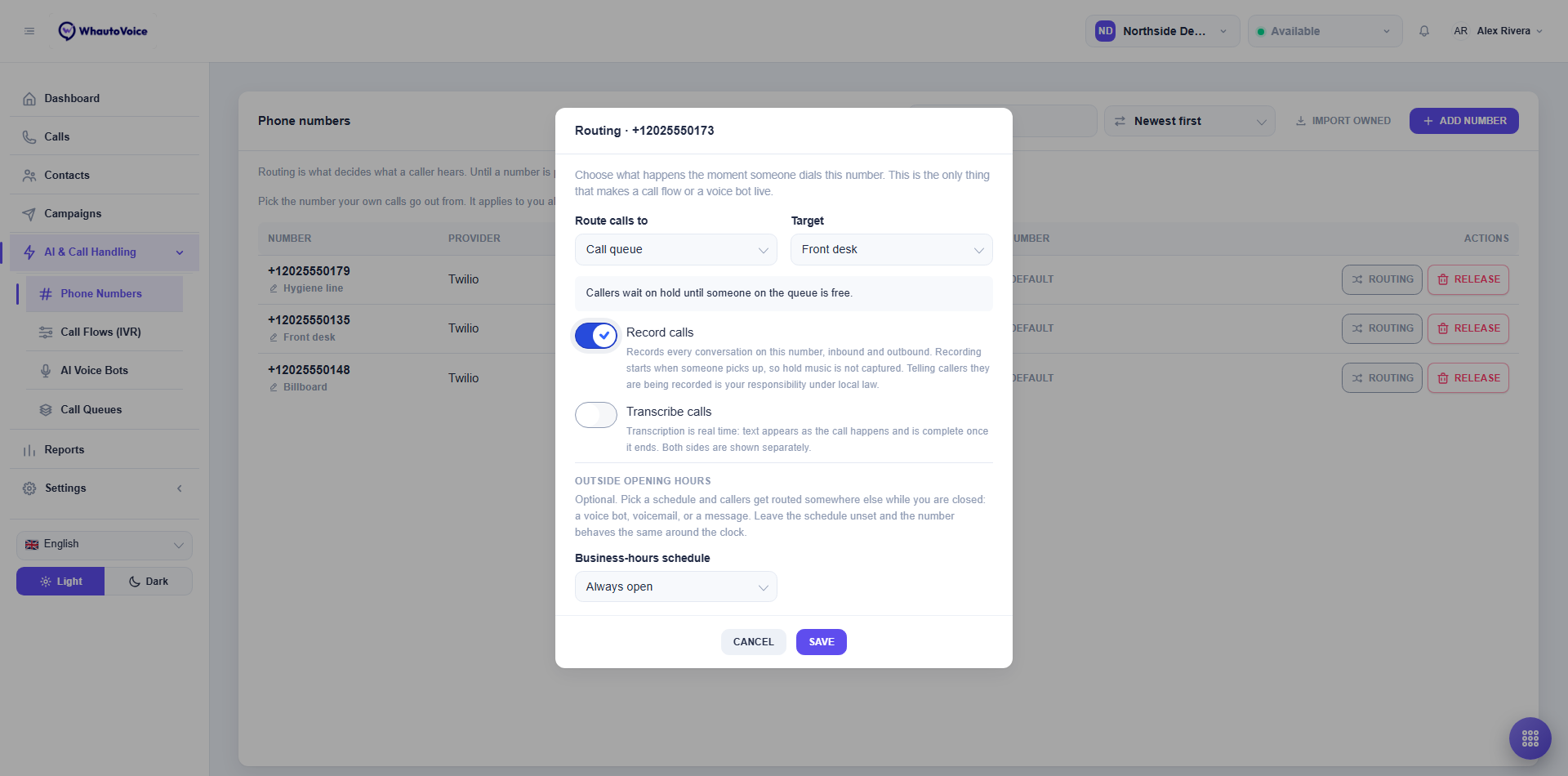
- The dialog is titled Routing followed by the number. Its help text says it all: choose what happens the moment someone dials this number. This is the only thing that makes a call flow or an AI voice agent live.
Route calls to
The Route calls to dropdown has six options. Pick one and a short explanation appears beneath it describing what the caller experiences.
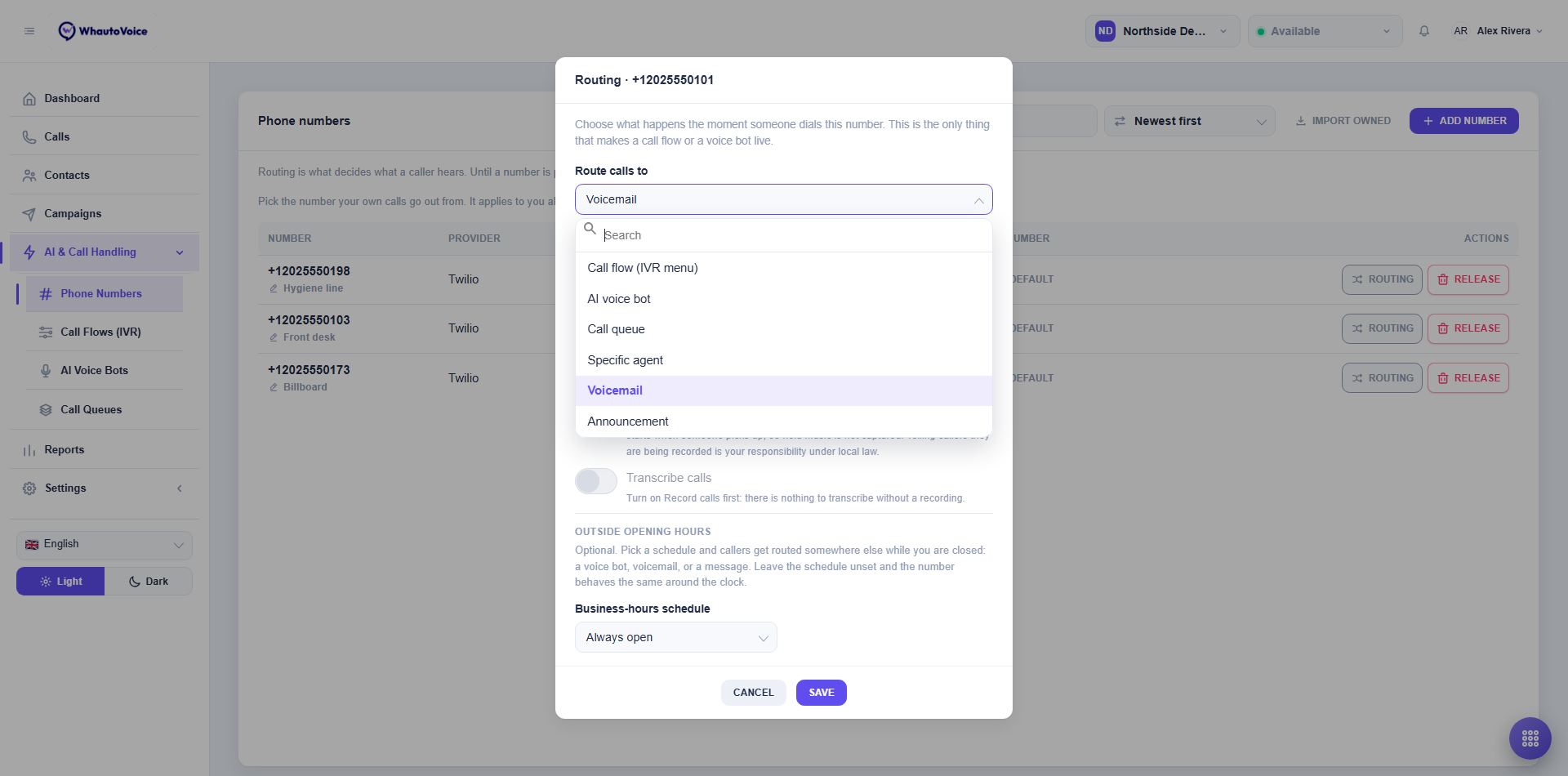
| Option | What the caller experiences |
|---|---|
| Call flow (IVR menu) | Callers hear a menu and choose where to go, such as "press 1 for sales". The flow can then hand them to an AI agent, a queue or a person. |
| AI voice agent | The AI agent answers and talks to the caller. It can transfer to a person when asked. |
| Call queue | Callers wait on hold until someone on the queue is free. |
| Specific agent | One person's softphone rings. If they do not answer, the caller reaches voicemail. |
| Voicemail | Callers hear a prompt and leave a message. Nothing rings. |
| Announcement | Callers hear a message and the call ends. Useful for a number that is being retired. |
Target
The first four options need a Target: which flow, AI agent, queue or agent. Northside Dental's main number in the screenshot is routed to the AI voice agent "Receptionist Eleven Labs (ElevenLabs)"; the engine is shown in brackets after an AI agent's name.
If there is nothing to pick yet the target list says so:
- No active call flows yet. Build one and activate it first. A draft flow does not appear here.
- No AI voice agents yet. Create one first.
- No call queues yet. Create one first.
- No active team members yet. Invite someone first.
Create the missing item under AI & Call Handling (or Settings > Team for agents), then come back.
Announcement message
Choosing Announcement replaces the target with an Announcement message box. Whatever you type is read out to the caller in a synthesised voice, then the call ends. The placeholder gives the idea: "Thank you for calling. This number is no longer in service - please call 555 0100 instead."
Voicemail greeting
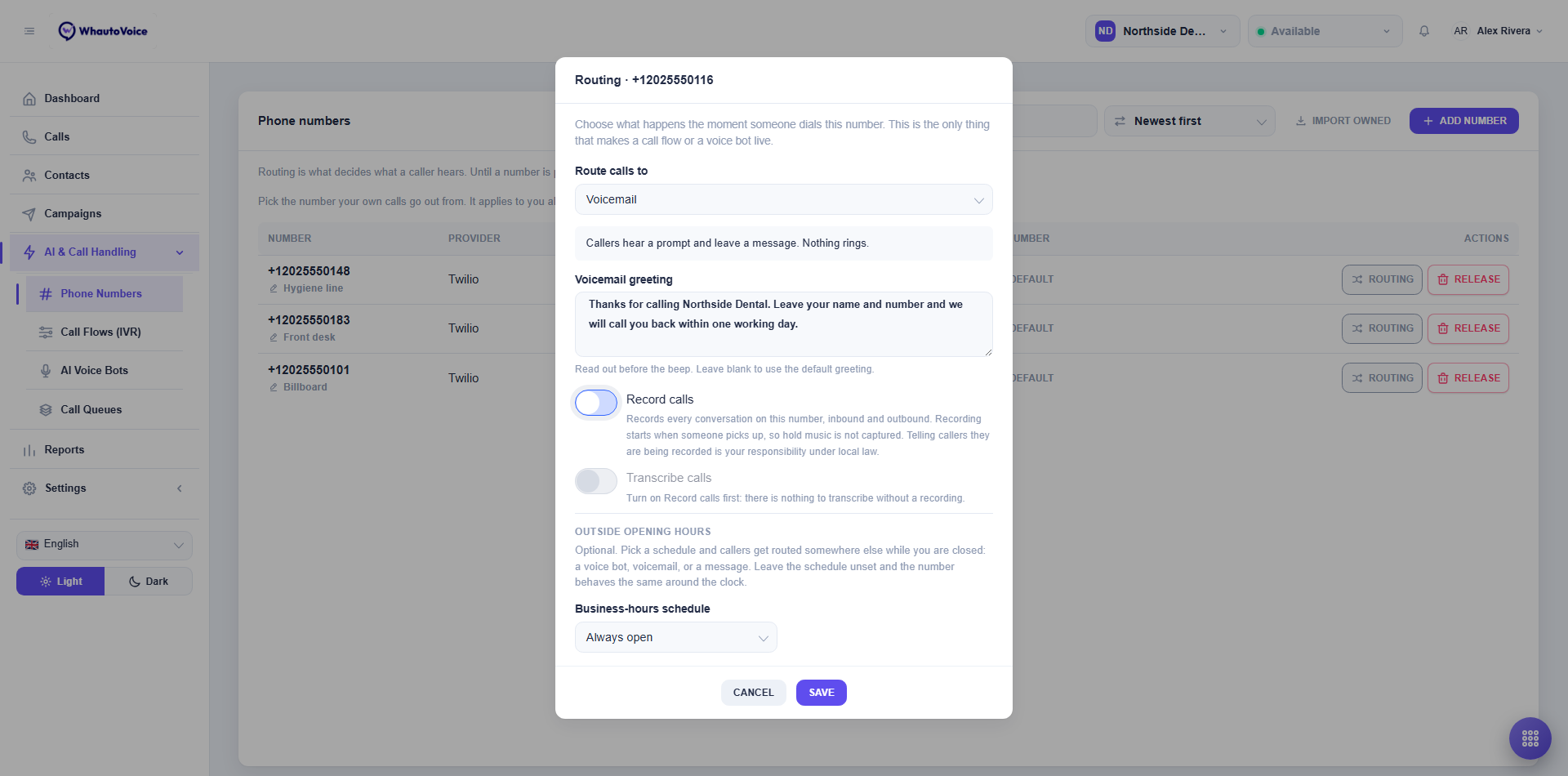
Choosing Voicemail shows a Voicemail greeting box. It is read out before the beep. Leave it blank to use the default greeting. Northside Dental's billboard number uses "Thanks for calling Northside Dental. Leave your name and number and we will call you back within one working day."
Messages left this way appear in the Calls list with the status Voicemail, and anyone subscribed to the New voicemail notification is told.
Record calls
Turn on Record calls to record every conversation on this number, inbound and outbound. Recording starts when someone picks up, so hold music and ringing are not captured. Recordings appear on the Recordings tab of the call.
Telling callers they are being recorded is your responsibility under local law. Many places require you to say so before the conversation starts. Put the notice in your greeting, IVR menu or AI agent instructions.
On Twilio and Plivo an agent can also start and stop recording during a call with the softphone's Record button. On Vonage recording is decided when the call is answered and cannot be changed mid-call. See Provider limitations.
Transcribe calls
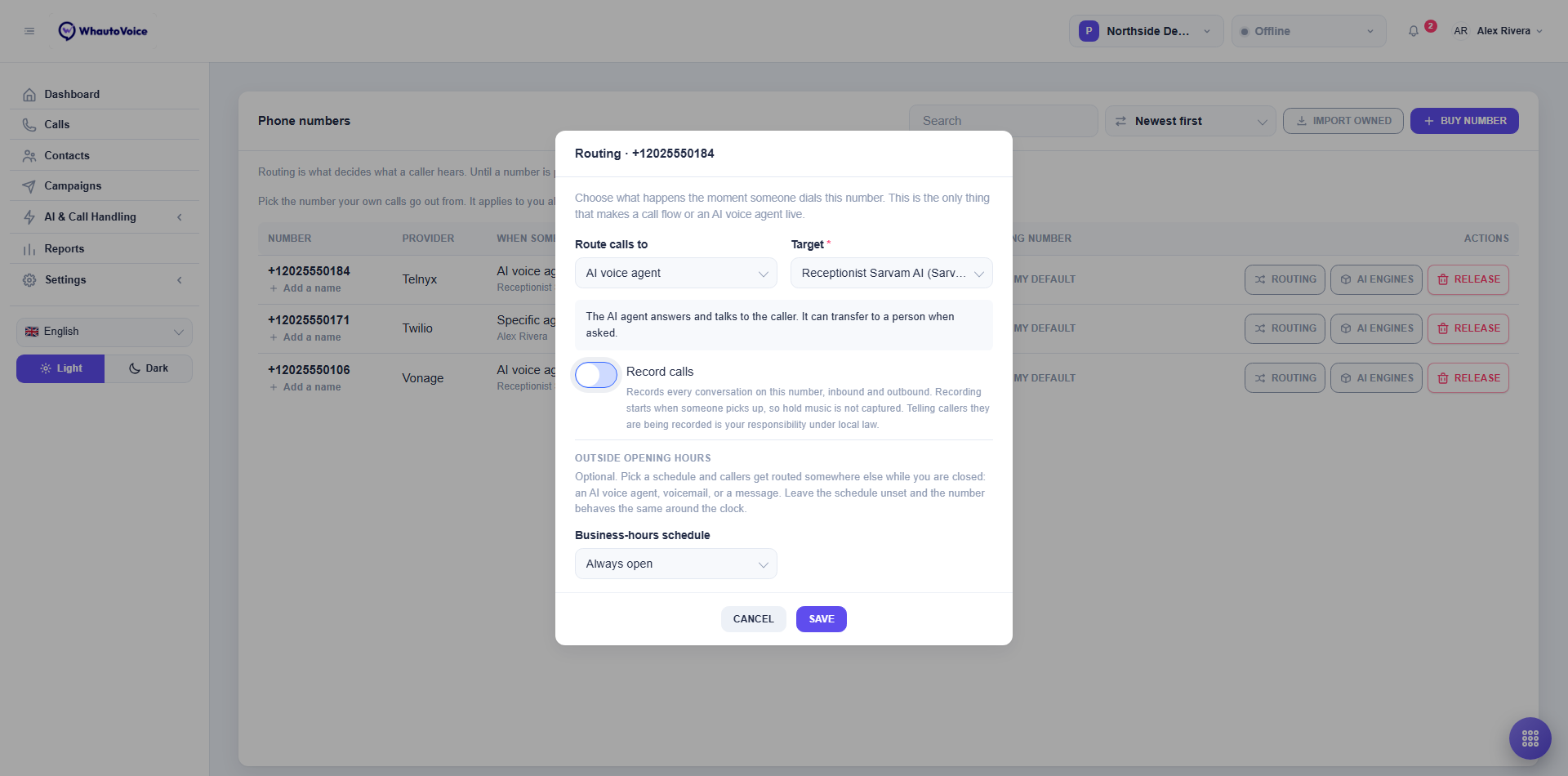
Transcribe calls turns the conversation into text on the call's Transcript tab. It needs Record calls on: while recording is off the toggle is greyed out with the note Turn on Record calls first: there is nothing to transcribe without a recording.
The hint under the toggle changes with the number's provider:
- Twilio. Transcription is real time: text appears as the call happens and is complete once it ends. Both sides are shown separately.
- Vonage. Turns the recording into searchable text on the call record after the call, with the caller and your team shown separately.
- Plivo. Your provider transcribes in English only. The recording becomes one block of text, without separating who said what.
Outside opening hours
This section is optional. Pick a schedule and callers get routed somewhere else while you are closed: an AI voice agent, voicemail or a message. Leave the schedule unset and the number behaves the same around the clock.
- Pick a Business-hours schedule
- The Business-hours schedule dropdown defaults to Always open. Choose one of the schedules you made under Settings > Business hours. If you have none yet the dropdown says No schedules yet - create one under Settings > Business hours. See Business hours.
- Choose the fallback
- Once a schedule is selected, Outside opening hours, instead appears with its own Route calls to and Target. Pick where closed-hours callers go, for example an after-hours AI voice agent or voicemail with a greeting that gives your opening times.
- Holidays on the schedule count as closed all day.
Record calls and Transcribe calls apply to both the open-hours and the after-hours route.
Caller protection
Choose how your caller protection rules apply on this number: Use the business settings (the default), Use rules of its own to set this number's own blocked, withheld, restricted and repeat-caller rules, or Off for this number so every caller is answered as routed, blocked callers included. See Caller protection.
Save
Click Save. You see Routing updated and the When someone calls column shows the new mode and target. The change applies from the next call; a call already in progress is not affected. Cancel closes the dialog without changes.
"Nothing set - calls are dropped"
A number whose When someone calls column reads Nothing set - calls are dropped has no routing. Anyone dialling it hears the call end. This is the state of a freshly bought or imported number, so set up routing straight after adding one.
A related trap: a number routed to an AI voice agent on an AI engine it is not registered with sends callers to voicemail rather than the AI agent. The AI engines column warns you with a Register with button. See Phone numbers.
Related
Email us at hello@whautovoice.com and we will get you sorted.