Managing contacts
Contacts are the people your team and your AI agents talk to. Every inbound caller is added automatically, so the list fills itself. This page covers the list, the contact page, and the bulk actions.
The contact list
Open Contacts in the sidebar. The page has two tabs: Contacts and Do not call (numbers no campaign rings, see Do not call list). On the Contacts tab the List view is the default; the Pipeline view is covered in Contact pipeline.
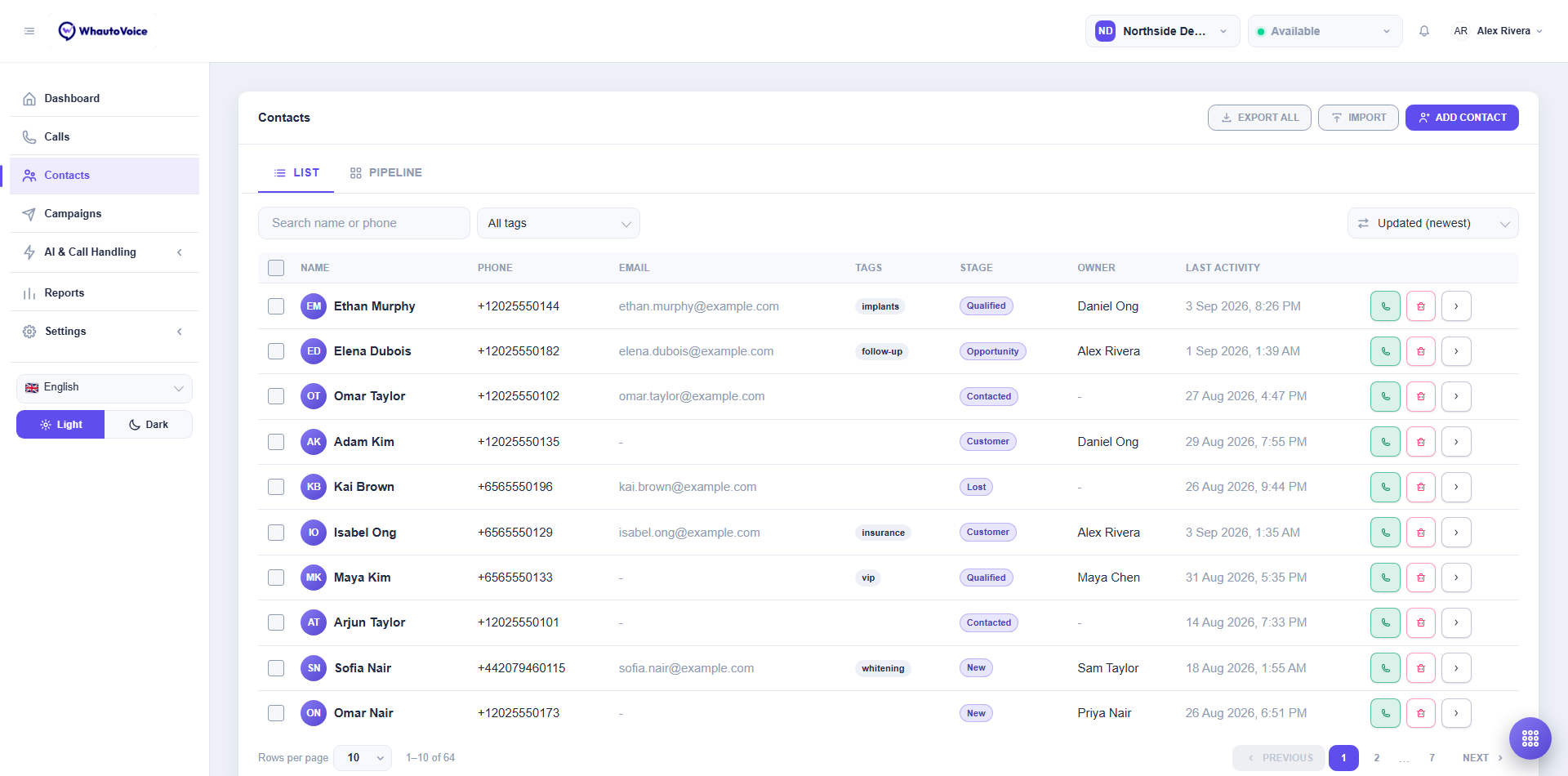
- Search name or phone finds a contact as you type.
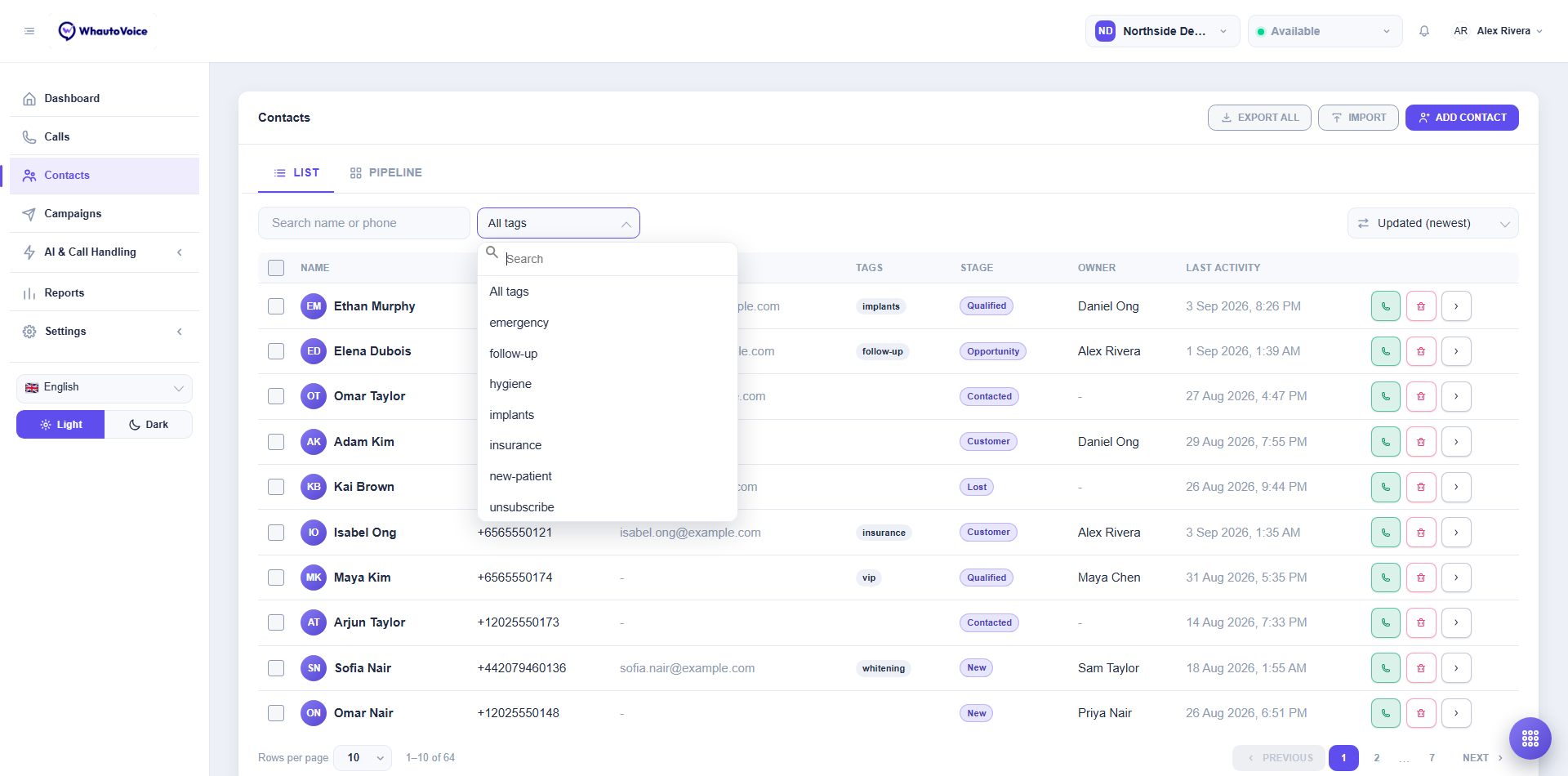
- All tags narrows the list to one tag. There is also an All segments filter once you have segments.
- The sort control on the right offers Updated (newest), Name (A-Z), Last activity and more. Your choice is remembered.
- Columns: Name, Phone, Email, Tags, Stage, Owner and Last activity.
- A red shield next to a phone number means it is on the do-not-call list.
- Row actions: the green phone button calls the contact from your softphone, the red bin deletes, and the arrow opens the contact page.
- Rows per page and the pager sit at the bottom.
Add a contact
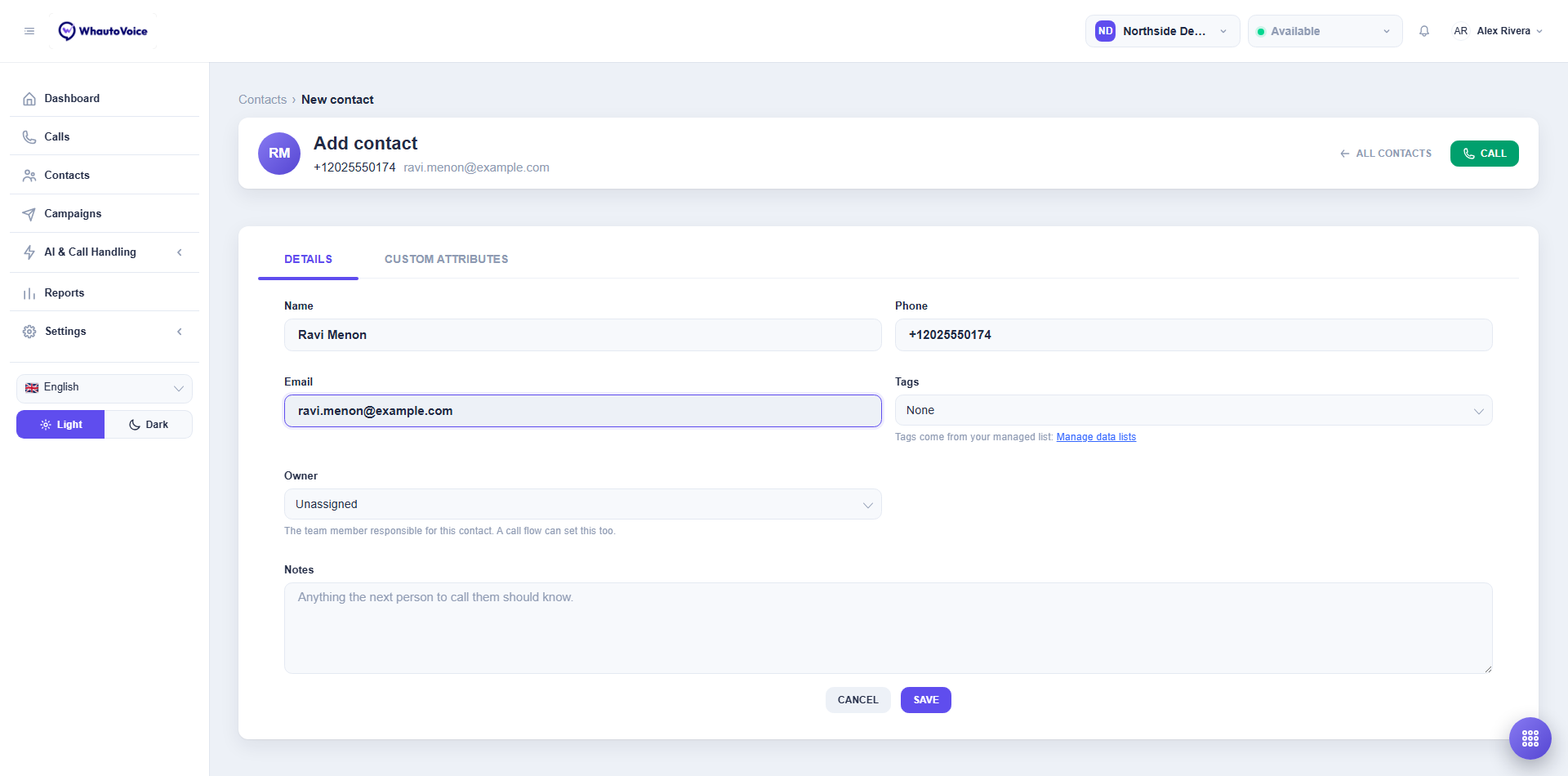
- Click Add contact
- The New contact form opens.
- Fill in the details
- Name, Phone (with the country code, for example +1 202 555 0188), Email, Tags (comma separated, or picked from your managed list), Owner (the team member responsible), Stage, Notes and any Custom attributes.
- Click Save
- The contact appears at the top of the list.
Phone numbers are unique per account. If the number already exists you are told which contact has it.
The contact page
Click the arrow on a row (or the contact name on a call) to open the contact.
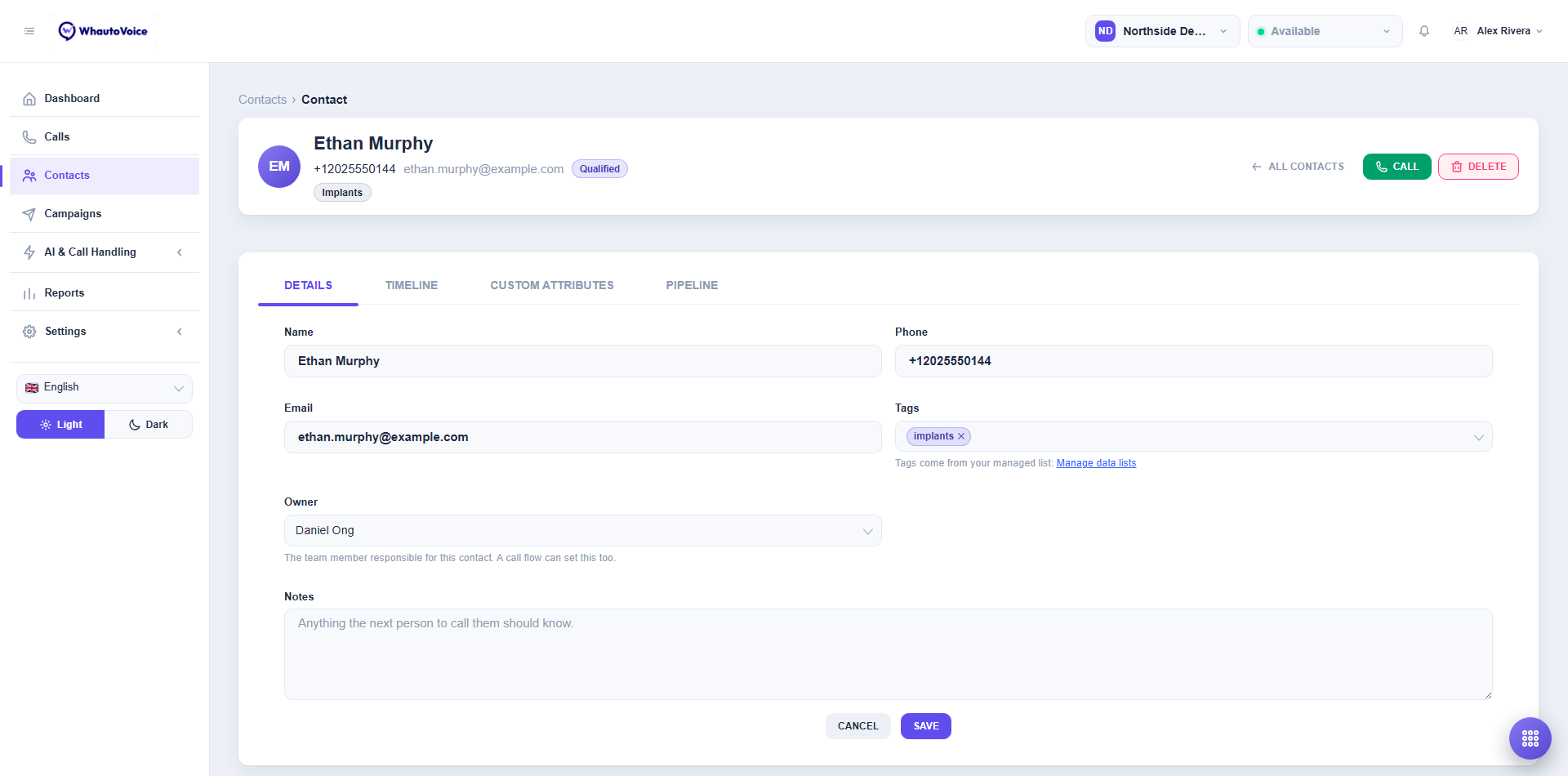
Details tab:
- Name, Phone, Email.
- Tags: type them comma separated or choose from the list managed under Settings > Manage data lists.
- Owner: the team member responsible for this contact. Unassigned means nobody yet. A call flow automation can set this too.
- Stage and In this stage since: where the contact sits in your pipeline. Stages are shared across the account.
- Notes: anything the next person to call them should know. AI agents append their call summaries here as well.
Click Save after editing. The Call button at the top rings the contact from your softphone.
Do not call at the top puts the number on the do-not-call list, and the contact then shows a red Do not call badge with how and when it was added. Owners and Administrators can take it off again with Allow calls. Calling a listed contact by hand still works, after a warning with Call anyway.
Timeline tab:
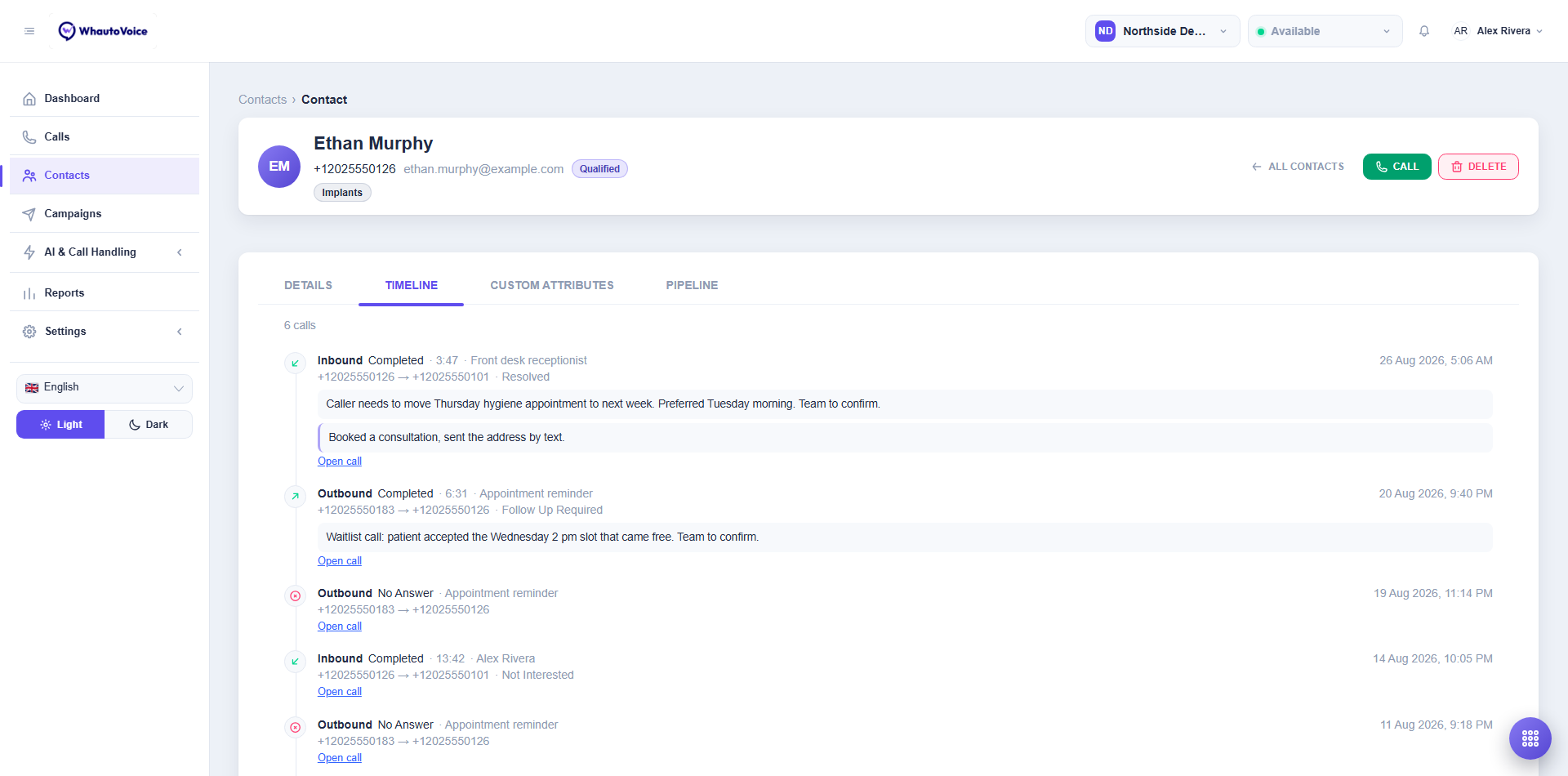
Every call with this contact, newest first, with direction, status, duration and the number of recordings. Open call takes you to the call detail. The last entry is Contact created. Load more reaches further back.
Custom attributes tab:
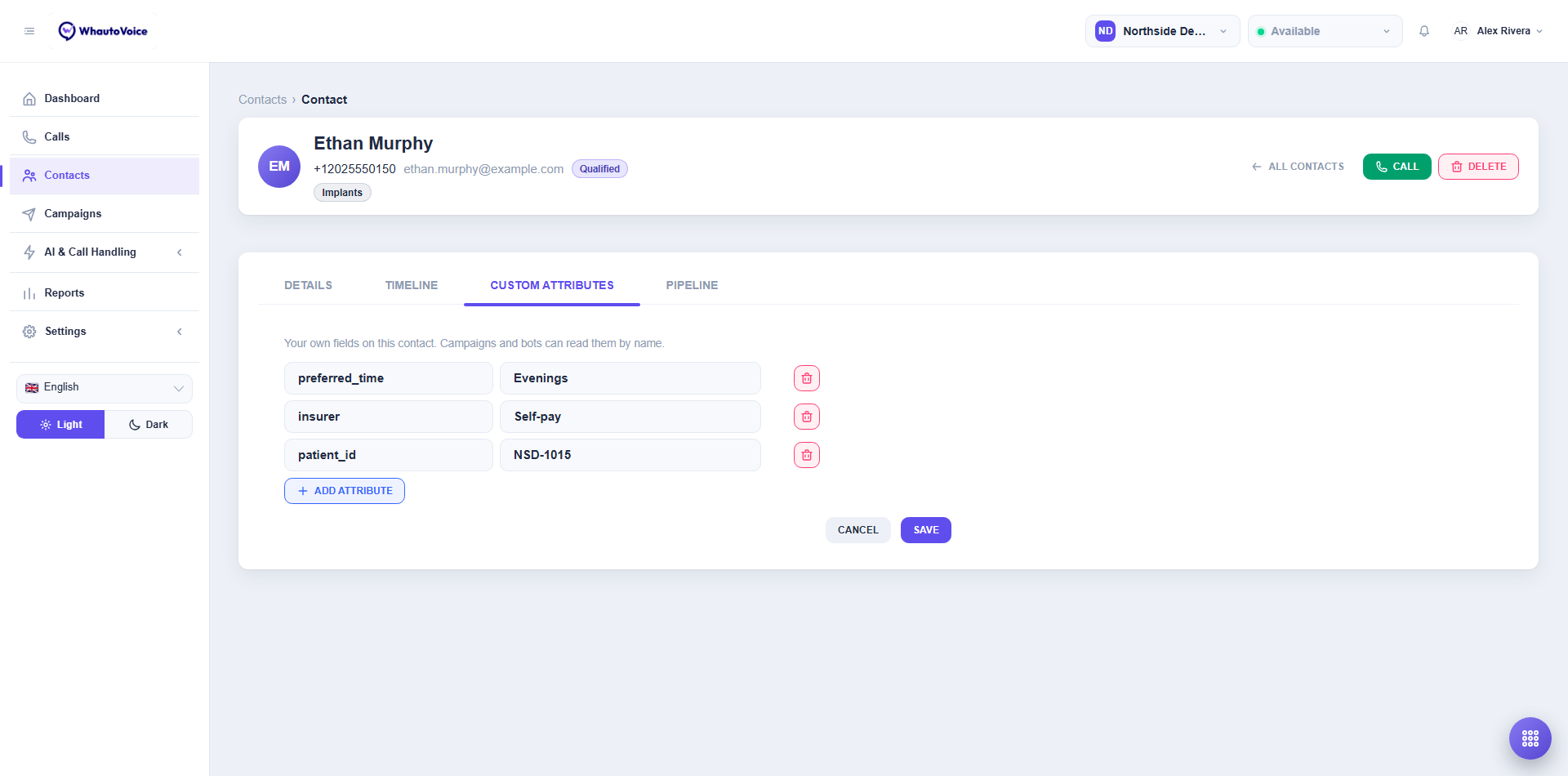
Your own fields on this contact, as Attribute and Value pairs. Campaigns and AI agents can read them by name, and CSV imports save any unmatched column here. Click Add attribute to add one.
Bulk actions
Tick the boxes on several rows (or the box in the header for the whole page) and a bar appears with the actions.
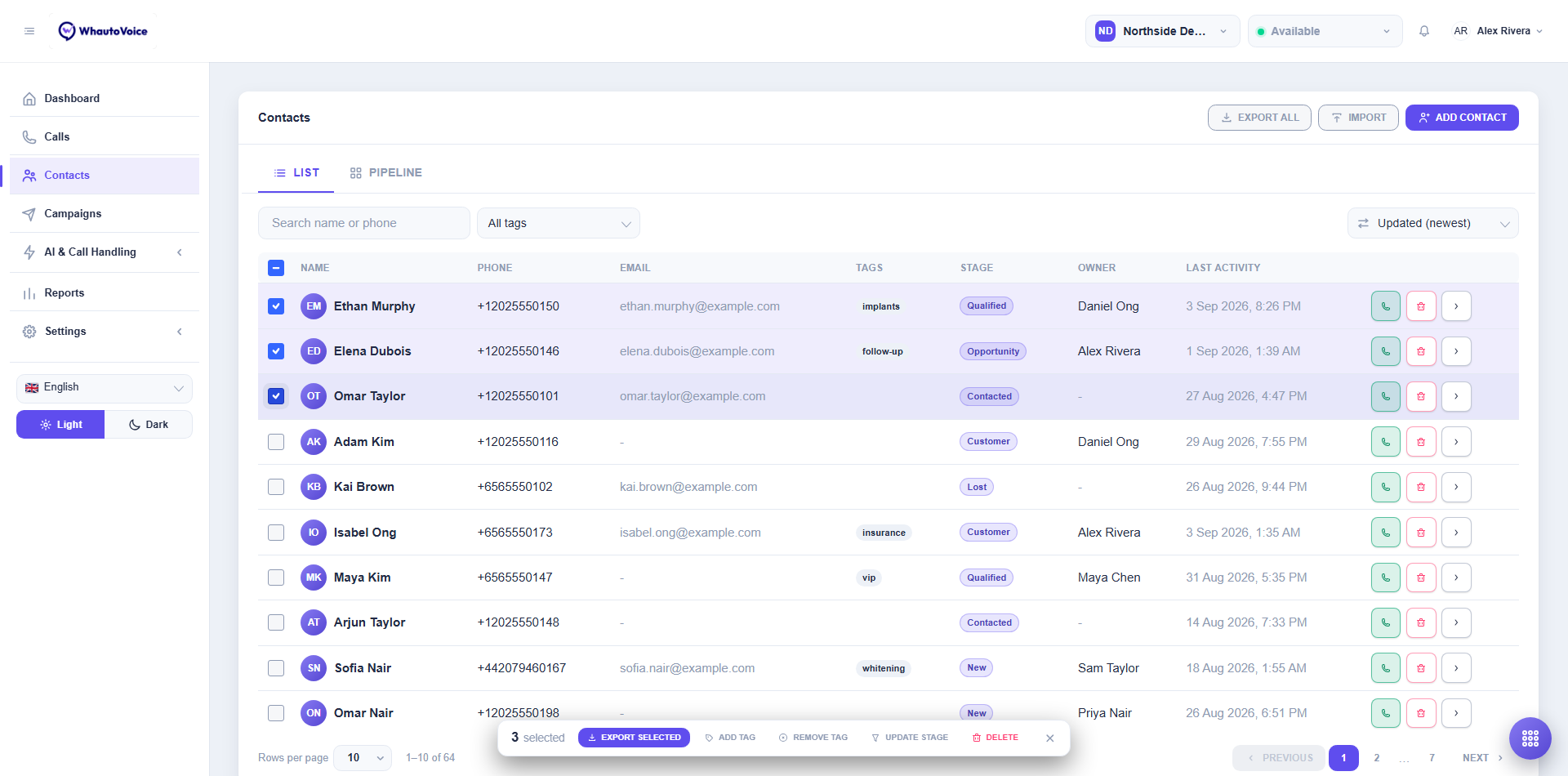
| Action | What it does |
|---|---|
| Export selected | Builds a CSV of just these contacts in the background. Collect it under Settings > Data exports. |
| Add tag | Adds one tag to every selected contact. |
| Remove tag | Removes one tag from every selected contact. |
| Update stage | Moves every selected contact to a stage, or takes them off the board. |
| Delete | Removes the contacts. Their call history stays. |
Only the first batch can be acted on at once; the bar tells you the cap if you select more.
Delete a contact
Click the red bin on a row, or Delete on the contact page, and confirm. The contact and its link to past calls are removed. The calls themselves stay in your call history.
Owners drive the Owner filter, the pipeline and the "Call routed to me" notification. Assigning an owner when a lead comes in is the cheapest way to make follow-ups happen.
Related
Email us at hello@whautovoice.com and we will get you sorted.