Build a call flow
This walkthrough builds a working switchboard from the Department menu template: a greeting, a menu with three departments, and voicemail for anyone who presses nothing. The same moves apply to every flow.
Before you start
- At least one call queue with members, or an AI voice agent, for the menu keys to point at.
- A phone number to route to the flow once it is active. See Phone numbers.
1. Create the flow from a template
- Open the Call flows page
- In the sidebar choose AI & Call Handling > Call Flows (IVR) and click New flow.
- Pick Department menu
- The flow opens in the builder as a draft named "Department menu". Rename it in the box at the top left.
2. Read the canvas
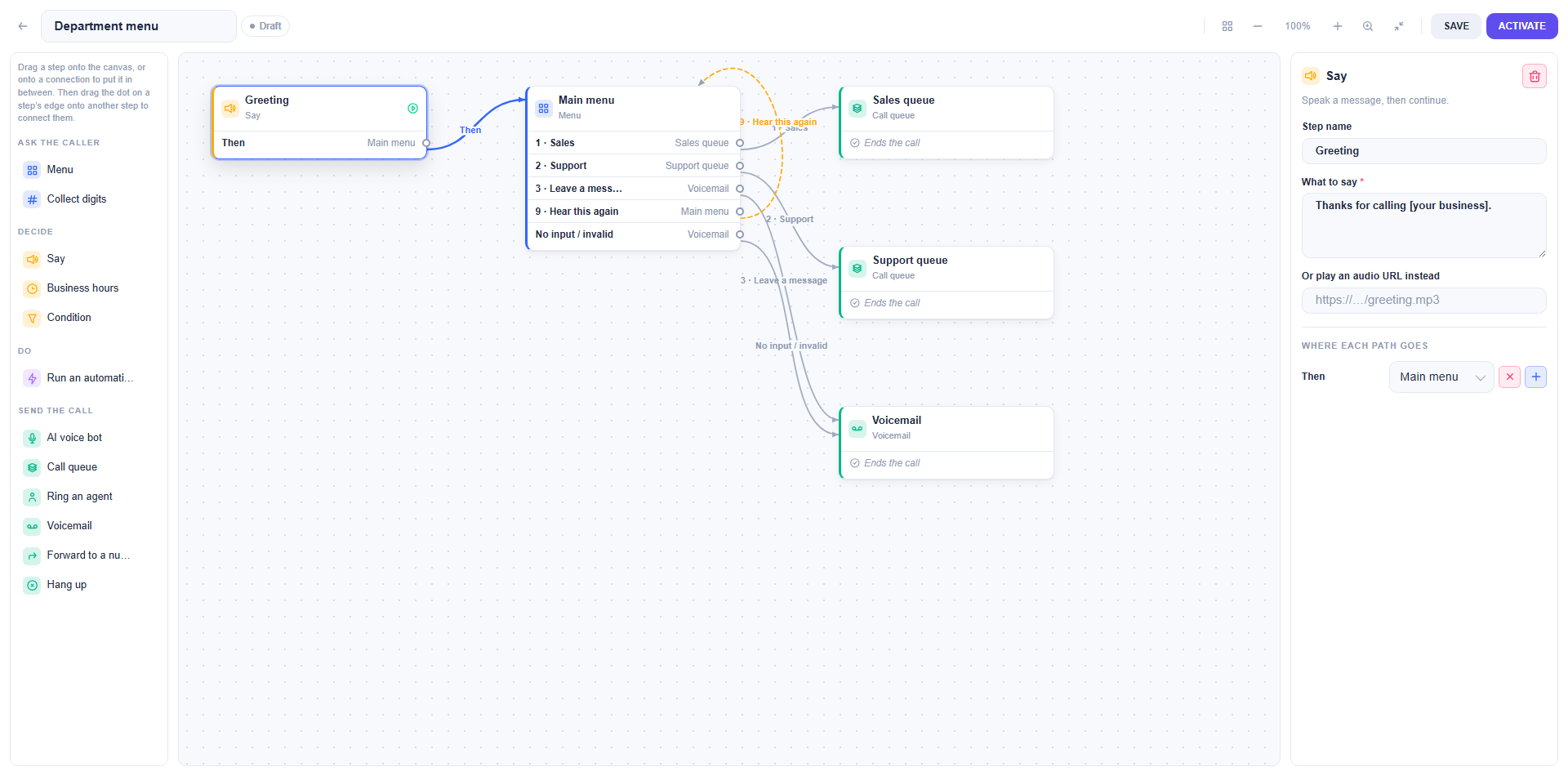
- Palette (left): every step type, grouped as Ask the caller, Decide, Do and Send the call. Drag one onto the canvas to add it.
- Canvas (middle): the steps and the connections between them. The first step has a green marker. Labels on the connections tell you which key or outcome takes that path.
- Properties panel (right): appears when you click a step. This is where you edit what the step says and where each path goes.
- Toolbar (top right): Tidy up the layout, zoom out, zoom in, Fit to screen, Fullscreen, Save, and Activate or Move to draft.
3. Edit the greeting
- Click the Greeting step
- The properties panel shows Step name, What to say and Or play a recording instead.
- Replace the placeholder
- Change "Thanks for calling [your business]." to your own words. Text inside square brackets is a blank the template left for you. Callers hear it read out in your carrier's synthesised voice unless you give the step a recording.
- Give it your own voice (optional)
- Under Or play a recording instead, choose Record to use your computer's microphone, Upload for an MP3 or WAV you already have, Use a voice to have the line read by an AI engine you have connected, or Use a link for a file hosted elsewhere.
- Use a voice is where accent and language are settled. It lists the voices on your own key, and where you have connected more than one engine you pick which one reads the line, so an Indian business can pick a Sarvam AI voice and everyone else can pick from the rest. Full details in Recordings on a speaking step.
- Leave What to say filled in either way. It is what callers hear if the recording cannot be fetched.
- Check where it goes
- Under Where each path goes, Then points at Main menu. Leave it.
4. Edit the menu
Click the Main menu step.
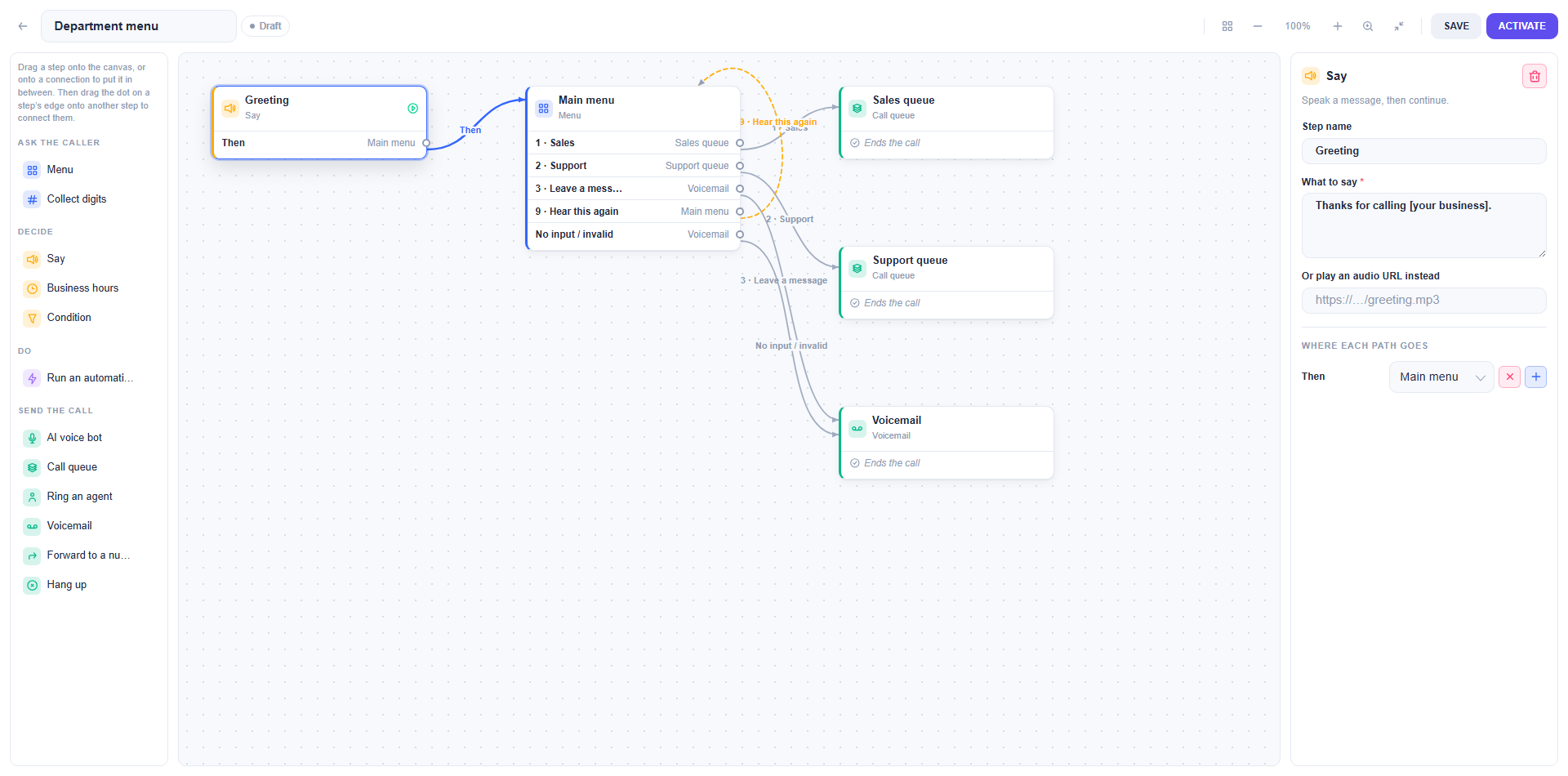
- What to say: the prompt callers hear. Keep every key you mention in sync with the list below it.
- Seconds to wait for a key: how long the flow waits after the prompt (default 5).
- Retries before giving up: how many times the menu repeats after silence or a wrong key (default 2).
- Said after an invalid key: the short apology before the menu plays again.
- Times a caller may come back to this menu: stops a "press 9 to hear this again" loop running forever (default 5).
- Keys the caller can press: one row per key with What this key is for and the step that key leads to. Click Add key for a new option, or Add a repeat key to add a key that plays the menu again, like "to hear these options again, press 9".
- No input / invalid: where callers go when the retries run out. The template sends them to voicemail.
Point 1 · Sales and 2 · Support at real queues: open each of the Sales queue and Support queue steps and choose a queue under Queue. Until you do, the builder marks them as needing attention.
5. Add, move and connect steps
- Add a step: drag it from the palette onto an empty spot, or drop it onto an existing connection to insert it in between.
- Connect steps: drag the dot on the edge of a step onto another step. Each path (a menu key, Then, Open, Closed, Matches) has its own dot.
- Create the next step in place: in the properties panel, the + button beside a path creates a new step already connected to it.
- Right-click a step for Edit this step, Duplicate, Make this the first step, Send somewhere else (repoint a connection), Disconnect and Add a step here.
- Tidy up the layout rearranges everything neatly. Fit to screen brings the whole flow into view. Use Fullscreen for large flows.
6. Save and activate
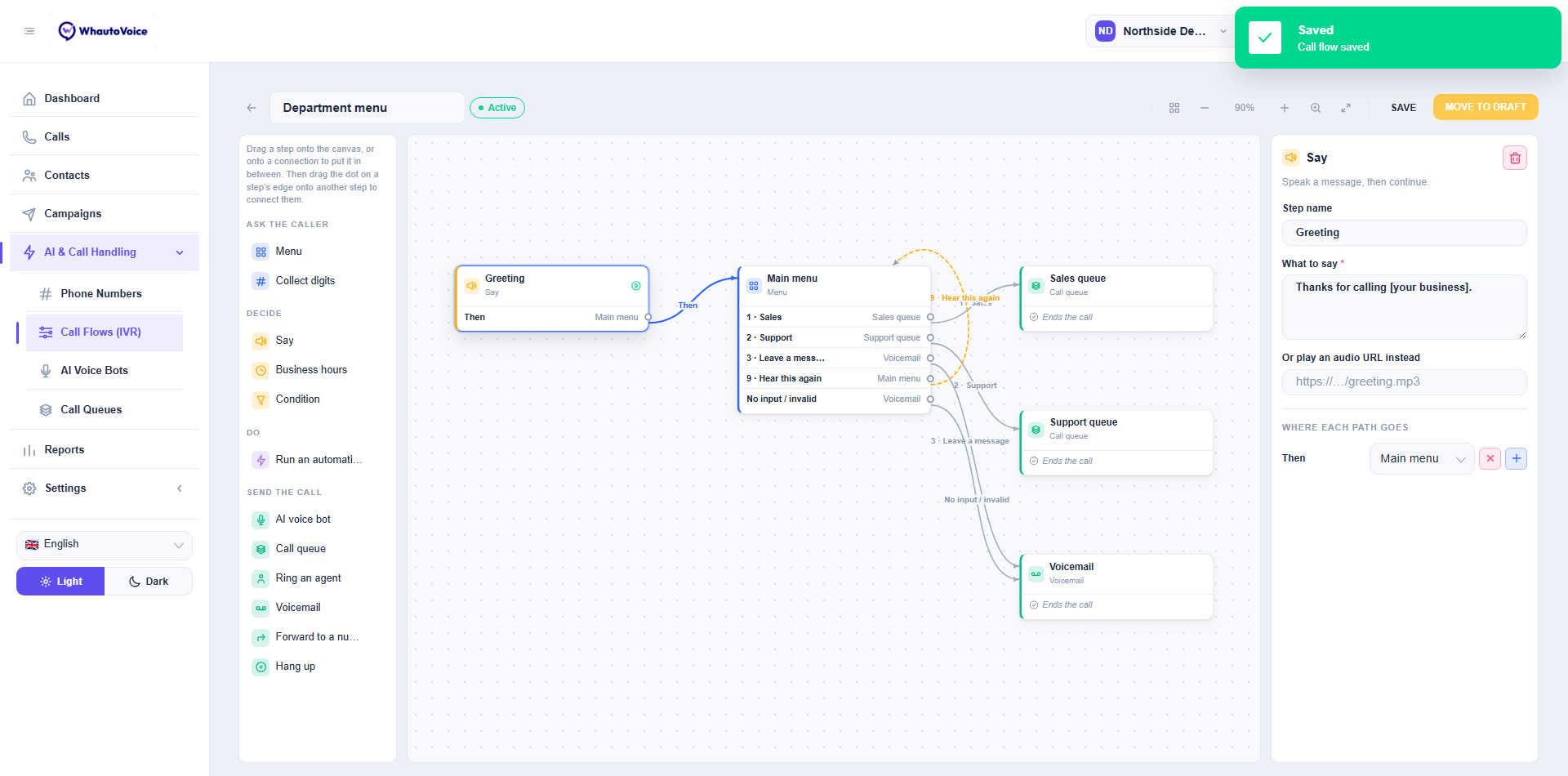
- Click Save
- Saving keeps the flow as a draft. Nothing changes for callers.
- Click Activate
- The builder checks the flow first. If anything is wrong you get a list under Fix these before activating.
Typical items on that list: a step with a required field still empty, a menu key that leads nowhere, a queue or AI agent not yet picked, or two keys with the same number. Fix each one, save, and activate again. The full list of messages is in the steps reference.
- Route a number to it
- Go to Phone Numbers, click Routing on the number, choose Call flow (IVR menu), pick your flow and save. See Call routing.
- Test it
- Call the number from your mobile. Press each key, let the menu time out, and press a wrong key, so you hear every path.
Edits to an active flow apply to the next call as soon as you save. If you want to work on it without callers noticing, click Move to draft, but remember the number then drops calls until the flow is active again. Duplicating steps and editing at quiet times is usually the better choice.
If any step hands the caller to an AI voice agent, the phone number must also be registered with that agent's AI engine under Phone Numbers > AI engines. Otherwise callers who pick that key reach voicemail. See Connect an AI engine.
Related
Email us at hello@whautovoice.com and we will get you sorted.