Connect an AI engine
An AI engine is the service that actually talks to your callers. WhautoVoice runs on your own key, so you connect the engine once under Settings > Integrations and every AI voice agent in the workspace can use it. Usage is billed by the engine to your own account.
Why you need one
An AI voice agent without an engine has nothing to speak with. Until an engine is connected, the AI Voice Agents page shows a No AI engine connected banner and every call routed to an AI agent lands in voicemail instead. Connect an engine first, then build your AI agents.
Before you start
- You need the Owner or Administrator role. Agents cannot see Integrations.
- Have an account with the engine you want to use, with billing enabled.
- Engines are connected per workspace. If you run several workspaces, connect the engine in each one.
The four engines side by side
| OpenAI | xAI Grok | ElevenLabs Agents | Sarvam AI | |
|---|---|---|---|---|
| Best for | General use | General use | Many languages, natural voices | Indian languages |
| What you paste | API key, Project id, Webhook signing secret | API key | API key per region | API key |
| Covers every number automatically | Yes | No. Register each number under Phone Numbers > AI engines | No. Register each number under Phone Numbers > AI engines | Yes, once the number is granted the engine |
| Where the AI agent is built | In WhautoVoice | In WhautoVoice | In WhautoVoice, pushed to ElevenLabs on save | In WhautoVoice |
| Voices | alloy, ash, ballad, coral, echo, sage, shimmer, verse, marin, cedar | eve, ara, leo, aurora, atlas, plus any others in your xAI catalogue | The voices in your ElevenLabs workspace, with a preview for each | 37 Bulbul voices, with a preview for each |
| Languages | English | English | 32, chosen on the AI agent | 11 Indian languages, or detect from the caller |
| Models | gpt-realtime, gpt-realtime-mini | grok-voice-latest, grok-voice-think-fast-2.0, grok-voice-think-fast-1.0 | An LLM of your choice, plus the voice model | Sarvam 105B, plus the speech and voice models |
| Transcript | Appears live during the call | Appears live during the call | Arrives after the call ends | Appears live during the call |
| Outbound campaigns | Yes, dialled by your carrier | Yes, dialled by your carrier | Yes, dialled by your carrier | Yes, dialled by your carrier |
| Regions | Global | Global | Global and India | India |
Connect OpenAI
OpenAI is the only engine that needs three values, because OpenAI tells WhautoVoice about each incoming call through a webhook you create in the OpenAI dashboard. One connection serves every phone number in the workspace.
- Open the OpenAI card
- In the sidebar choose Settings > Integrations, then click Connect on the OpenAI card. The page is titled OpenAI - AI voice agents (bring your own key).
- Create a project and an API key
- At platform.openai.com create a project (or open an existing one) and generate an API key for it. Paste the key into API key.
- Copy the Project id
- In OpenAI open Settings, then Project Settings. The General tab shows the Project ID, which starts with
proj_. Paste it into Project id.
- In OpenAI open Settings, then Project Settings. The General tab shows the Project ID, which starts with
- Create the webhook
- On the Webhooks tab of the same OpenAI page click Create. Copy the Webhook URL shown under Setup steps on the WhautoVoice page (use the copy icon) and paste it into the URL field in OpenAI.
- Pick the event type
- Under Event types choose realtime.call.incoming, listed under Realtime API, and nothing else. Then click Create in OpenAI.
- Copy the signing secret
- OpenAI shows the signing secret once, when the endpoint is created. It starts with
whsec_. Paste it into Webhook signing secret.
- OpenAI shows the signing secret once, when the endpoint is created. It starts with
- Save & verify
- Click Save & verify. WhautoVoice checks the key against OpenAI and shows OpenAI key verified. The card status changes to Connected.
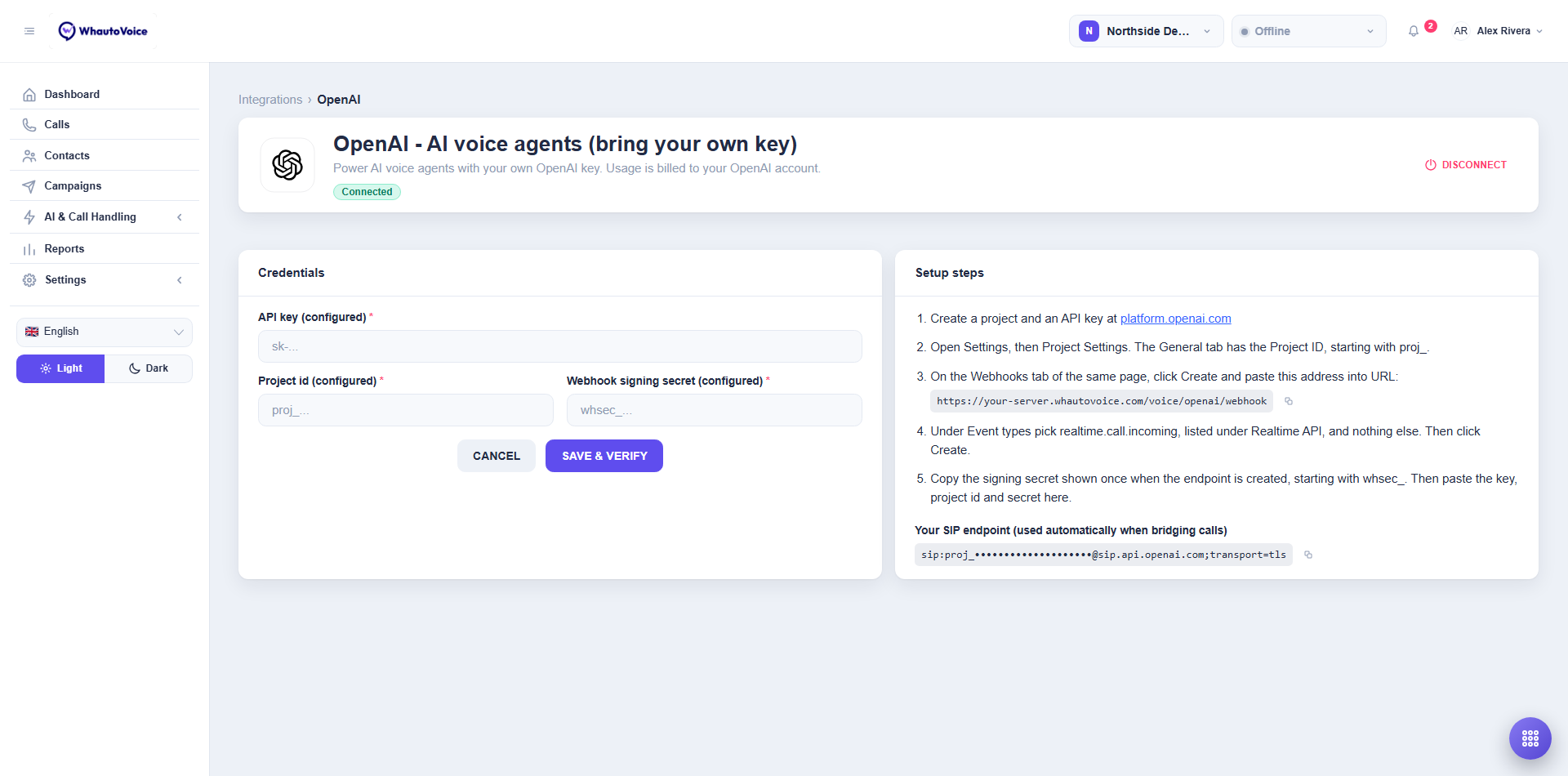
The Your SIP endpoint line at the bottom of Setup steps is shown for information only. It is the address calls are bridged to and is used automatically. You do not need to paste it anywhere.
OpenAI is addressed by project, not by phone number. Once the card says Connected, every number routed to an OpenAI agent answers straight away. There is nothing to register under Phone Numbers.
Connect xAI Grok
xAI needs one key, then a registration for each number that should reach a Grok AI agent.
- Open the xAI Grok card
- In the sidebar choose Settings > Integrations, then click Connect on the xAI Grok card.
- Create an API key
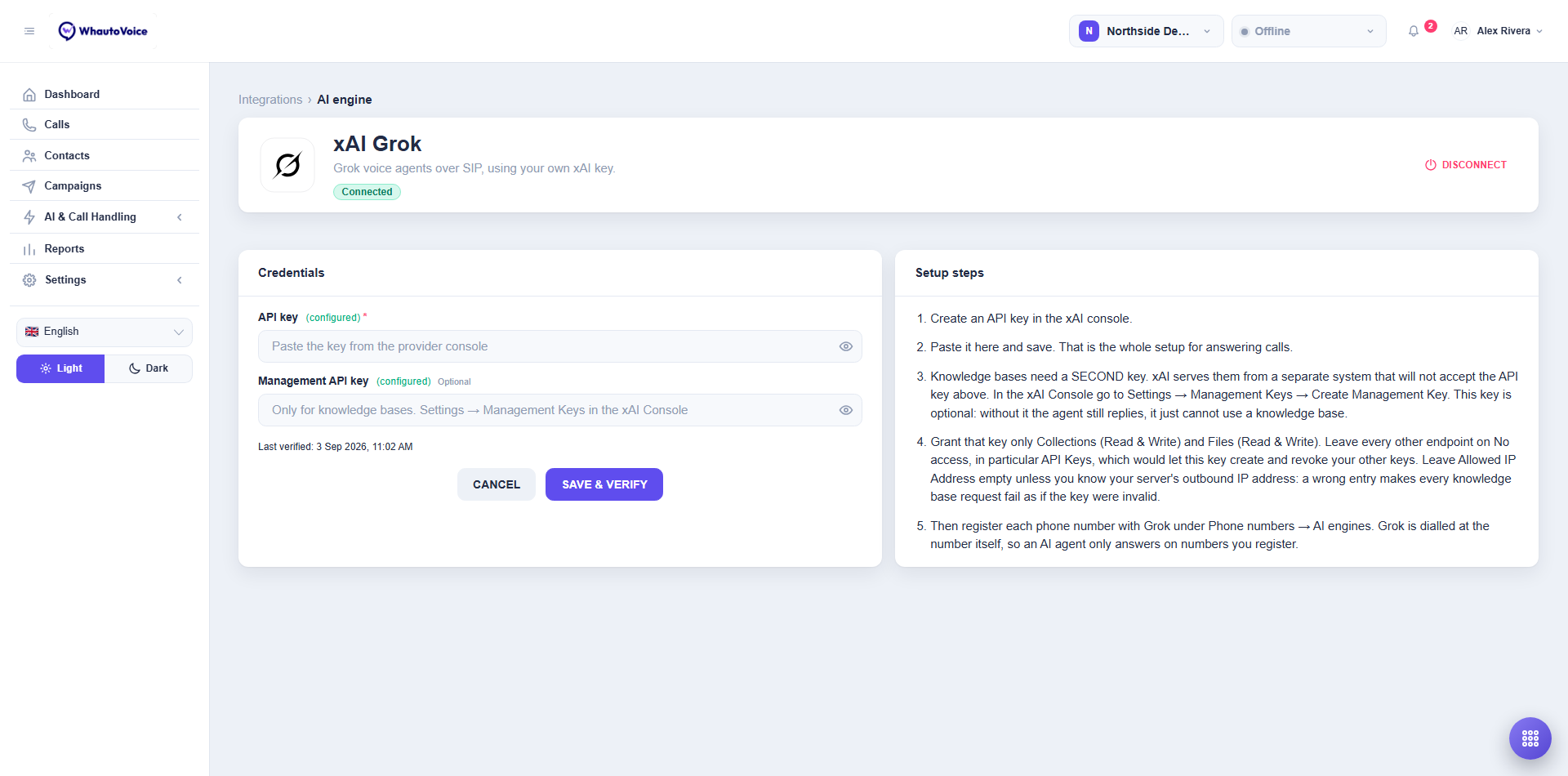
- In the xAI console create an API key and copy it.
- Paste and save
- Paste it into API key and click Save & verify. The page shows xAI Grok key verified and the Last verified time.
- Register each phone number
- Grok is dialled at the number itself, so an AI agent only answers on numbers you register. Go to AI & Call Handling > Phone Numbers, open AI engines on the number and click Register next to xAI Grok. Until you do, the number shows Not registered. AI agents on this engine cannot answer on this number yet. and callers reach voicemail.
Connect ElevenLabs Agents
ElevenLabs keeps a copy of each AI agent in your ElevenLabs workspace and updates it whenever you save the AI agent. Each region is a separate environment with its own key.
- Open the ElevenLabs Agents card
- In the sidebar choose Settings > Integrations, then click Connect on the ElevenLabs Agents card.
- Create a key from a workspace admin account
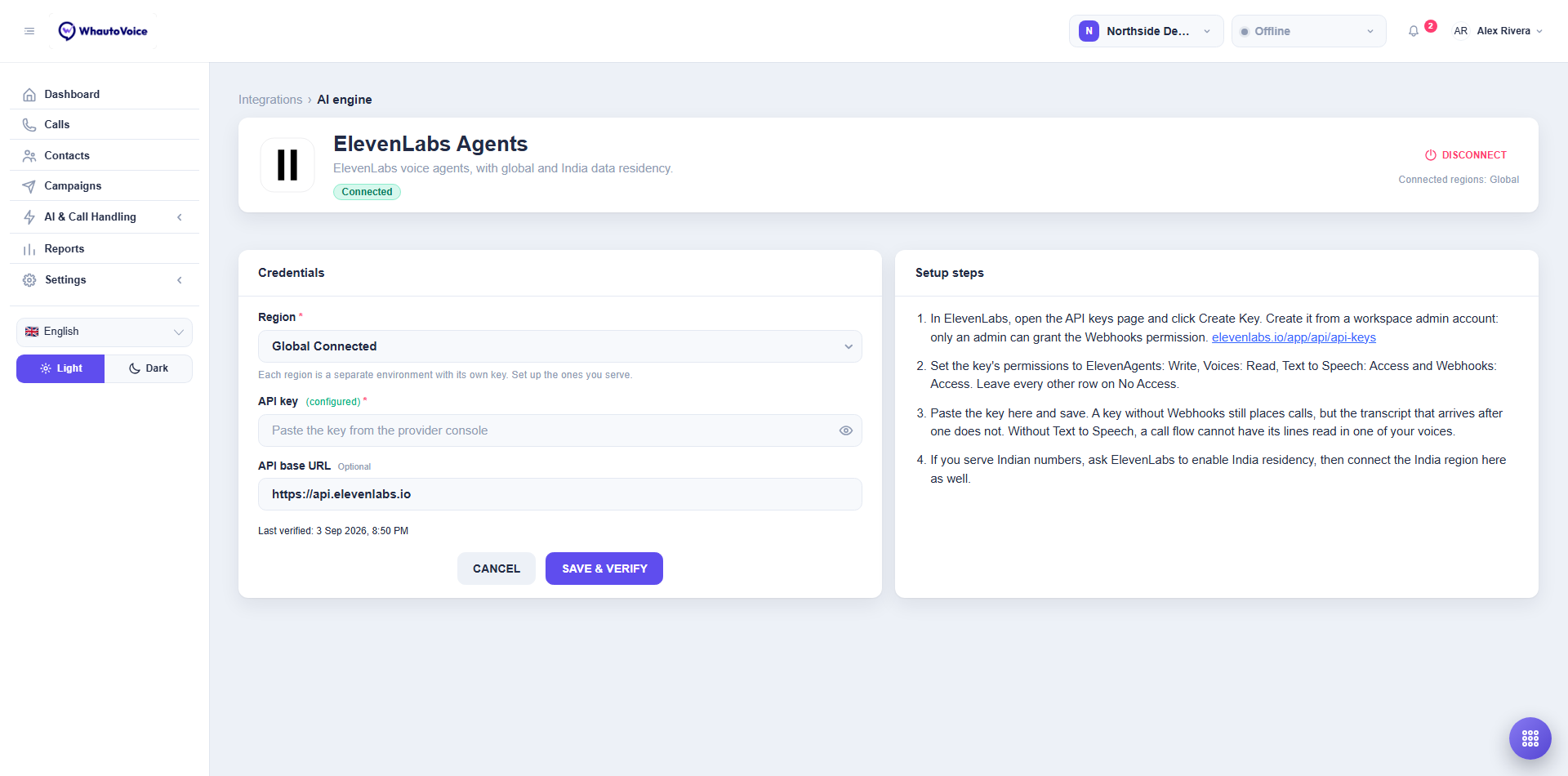
- In ElevenLabs open the API keys page and click Create Key. Do this from a workspace admin account, because only an admin can grant the Webhooks permission.
- Set the key permissions
- Give the key ElevenAgents: Write, Voices: Read, Text to Speech: Access and Webhooks: Access. Leave every other row on No Access.
- Text to Speech is what lets a call flow step have its line read in one of your voices. A key without it still runs agents and still lists your voices, so the gap only shows up the first time someone presses Generate on a call flow step.
- Pick the region and paste the key
- Leave Region on Global for your first connection. Paste the key into API key. API base URL is optional and is pre-filled for the Global region.
- Save & verify
- Click Save & verify. The header shows Connected regions: Global and the Last verified time.
- Add the India region if you serve Indian numbers
- Ask ElevenLabs to enable India data residency on your account. They give you an API base URL for that environment. Back on this page click Add region, choose India, paste the region's key and its API base URL, and click Save & verify. An Indian number routed to an ElevenLabs AI agent needs the India connection, otherwise the call is rejected.
- Register each phone number
- As with xAI, go to AI & Call Handling > Phone Numbers, open AI engines on the number and click Register next to ElevenLabs Agents.
A key without Webhooks: Access still places calls, but the transcript that arrives after each call does not. If you see The key works, but it could not register the post-call webhook, recreate the key from a workspace admin account with the Webhooks permission and save again.
Connect Sarvam AI
Sarvam is built for Indian languages. It needs one key and nothing else: no project, no workspace id, and nothing to set up on Sarvam's side.
- Open the Sarvam AI card
- In the sidebar choose Settings > Integrations, then click Connect on the Sarvam AI card.
- Create an API subscription key
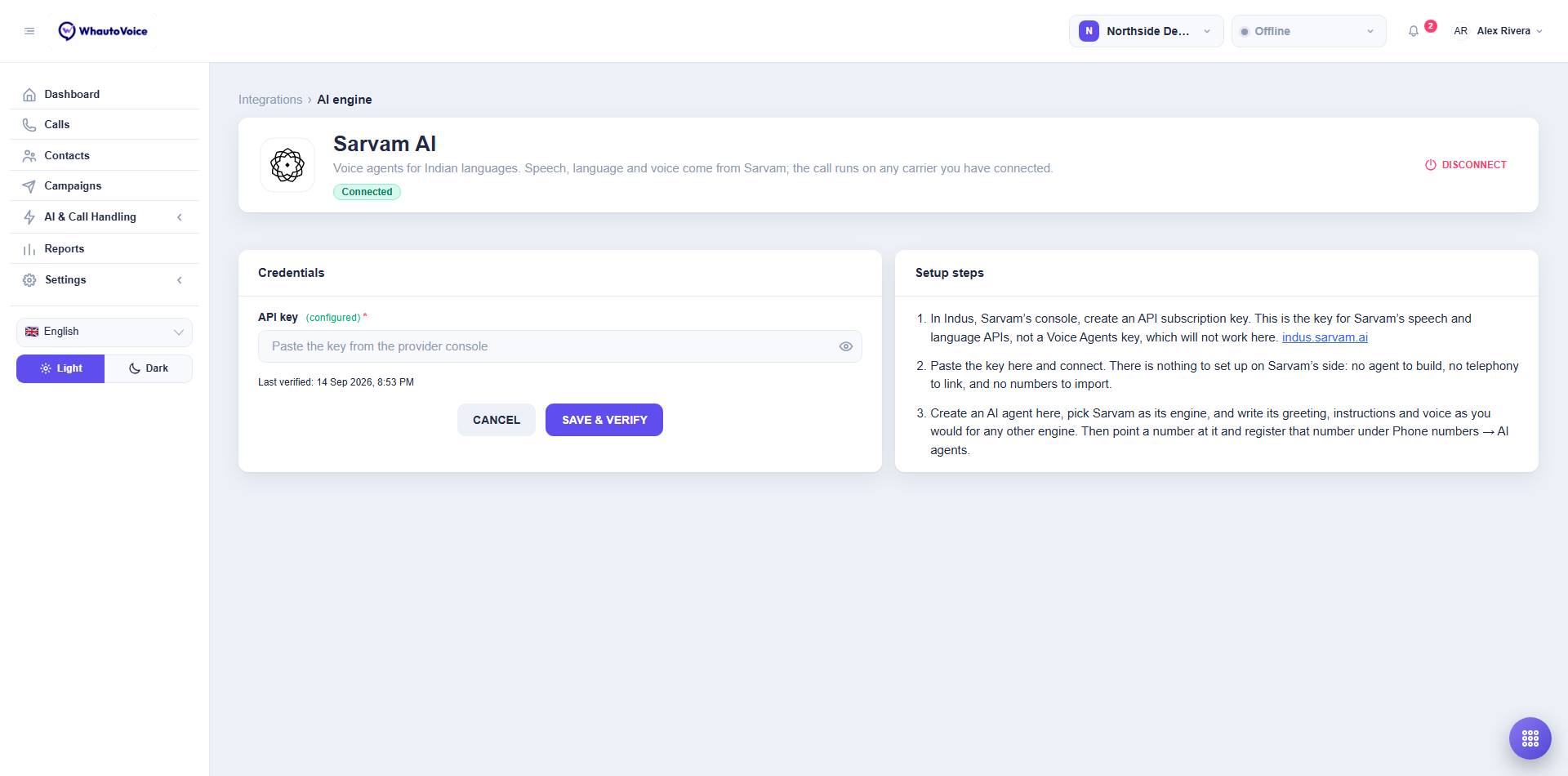
- In the Sarvam console create an API subscription key and copy it.
- Paste and save
- Paste it into API key and click Save & verify. The page shows the key verified and the Last verified time.
- Grant the numbers that should use it
- Go to AI & Call Handling > Phone Numbers, open AI engines on the number and click Register next to Sarvam AI. Nothing is sent to Sarvam by this: it only records that this number may use the engine.
Sarvam issues more than one kind of key. WhautoVoice needs the API subscription key that covers speech and language. A Voice Agents key looks similar and is refused with a message saying so.
Choosing the language
An AI agent on Sarvam can speak eleven Indian languages: English, Hindi, Bengali, Tamil, Telugu, Kannada, Malayalam, Marathi, Gujarati, Punjabi and Odia. Pick one on the AI agent under Language.
Leave it blank and the agent understands any of them and answers in Indian English. That suits a line where callers ring in whatever language they please. Pick a language and the agent both listens and answers in it.
Sarvam can recognise around two dozen Indian languages but has voices for eleven. Only the eleven it can answer in are offered, so an agent is never set up to understand a caller it cannot reply to.
Tuning how it listens
The AI agent page has a Speech and turn-taking section for Sarvam agents. Every field is optional and the value shown in an empty box is what is used.
- Pause before replying is the one worth touching. It is how long a caller may pause before the agent decides they have finished. Lower it and the agent answers sooner but may talk over someone who was only thinking; raise it and the agent feels slower. Try 300 if callers find it sluggish.
- Speaking rate, Voice sensitivity and Shortest utterance are finer adjustments. Leave them alone unless you have a reason.
- Recognition model and Voice model pin a specific Sarvam model version. The recommended ones are already selected.
Disconnecting an engine
Click Disconnect at the top right of the engine page and confirm. This removes the stored key (and the project id and signing secret for OpenAI) from the workspace. Your call history is kept.
- Every AI voice agent on that engine stops answering until a new key is added. The confirmation tells you how many AI agents are affected.
- Calls already routed to those AI agents go to voicemail from the next call onwards.
- For ElevenLabs you disconnect one region at a time.
Related
Email us at hello@whautovoice.com and we will get you sorted.