AI agent tools
Tools are the things an AI agent can do besides talk. The Tools tab of the AI agent editor has three sections: Internal tools built into the platform, MCP servers you connect, and Custom tools (HTTP) that call your own endpoints. An AI agent only does what its instructions ask, and only with the tools you tick.
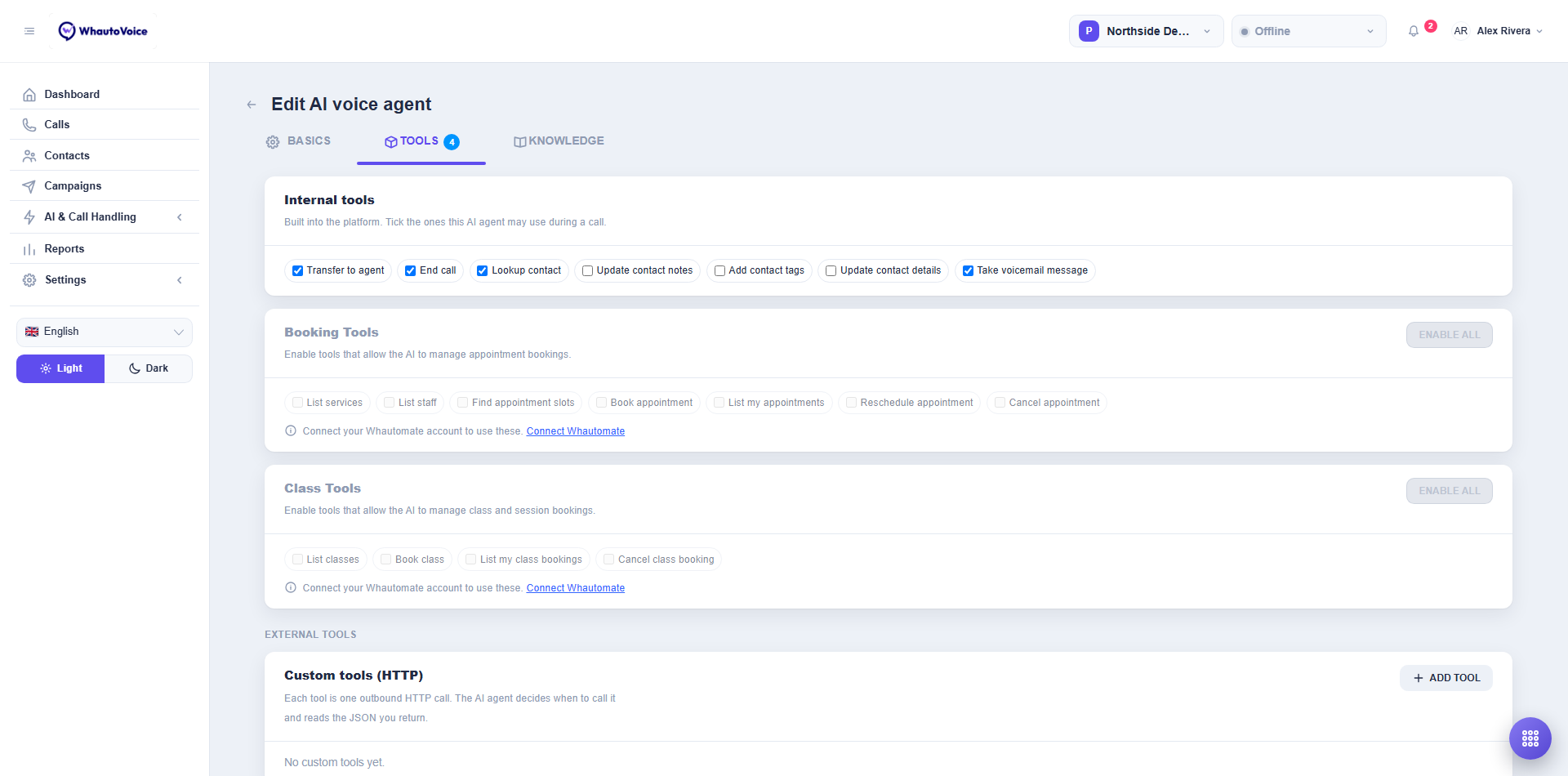
Internal tools
Tick the ones this AI agent may use during a call. The AI agent decides when to call each one based on its instructions and the conversation. The count on the Tools tab shows how many are on.
| Tool | What it does | When to enable it |
|---|---|---|
| Transfer to agent | Finds a free agent in the AI agent's handoff queue and, once the AI agent has said its handoff line, moves the caller across. If nobody is free the AI agent is told so and stays on the line. Logs the reason on the call as the AI handoff reason. | Any AI agent that should ever put a caller through to a person. Leave it off only for AI agents that run when nobody is there, such as after-hours. |
| End call | Ends the call politely after the AI agent has said goodbye, and files a one-line summary on the call record. | Every AI agent. Without it the AI agent cannot close a finished conversation cleanly. |
| Lookup contact | Fetches what you already know about the caller: name, tags, notes and custom attributes. | Every AI agent. It lets the AI agent greet a known caller by name and avoid asking for details you already have. |
| Update contact notes | Appends a note to the caller's contact record. | AI agents that should leave a record of what was discussed: support, bookings, outbound calls. |
| Add contact tags | Adds tags to the caller's contact record. | AI agents that classify calls (confirmed, cancelled, hot lead) or need to tag unsubscribe when someone asks to be left alone. |
| Update contact stage | Moves the caller's contact to a stage in your contact pipeline, using the stage name you give it in the instructions. | AI agents that qualify leads or confirm sales, for example "when the caller agrees to a demo, move them to Qualified". |
| Update contact details | Saves the caller's name and email on their contact, after reading them back and getting a yes. | AI agents that collect new details: bookings, lead qualification, cold calls. |
| Take voicemail message | Records the caller's message as text, with a callback number, and delivers it to the team. | AI agents that may end up with nobody to transfer to. Pair it with Transfer to agent so there is a fallback. |
Ticking a tool does not make the AI agent use it. Say in the Instructions when to transfer, when to take a message and what to write on the contact. The templates do this for you.
The Tools tab also has Caller screening, which lets the AI agent flag, restrict or block robocalls, sales calls and abusive callers. See Caller protection.
MCP servers
Connect a remote MCP server and the AI agent can use its tools during a call. The AI engine connects to the server directly, so nothing is proxied through the platform and there is no added delay on the line.
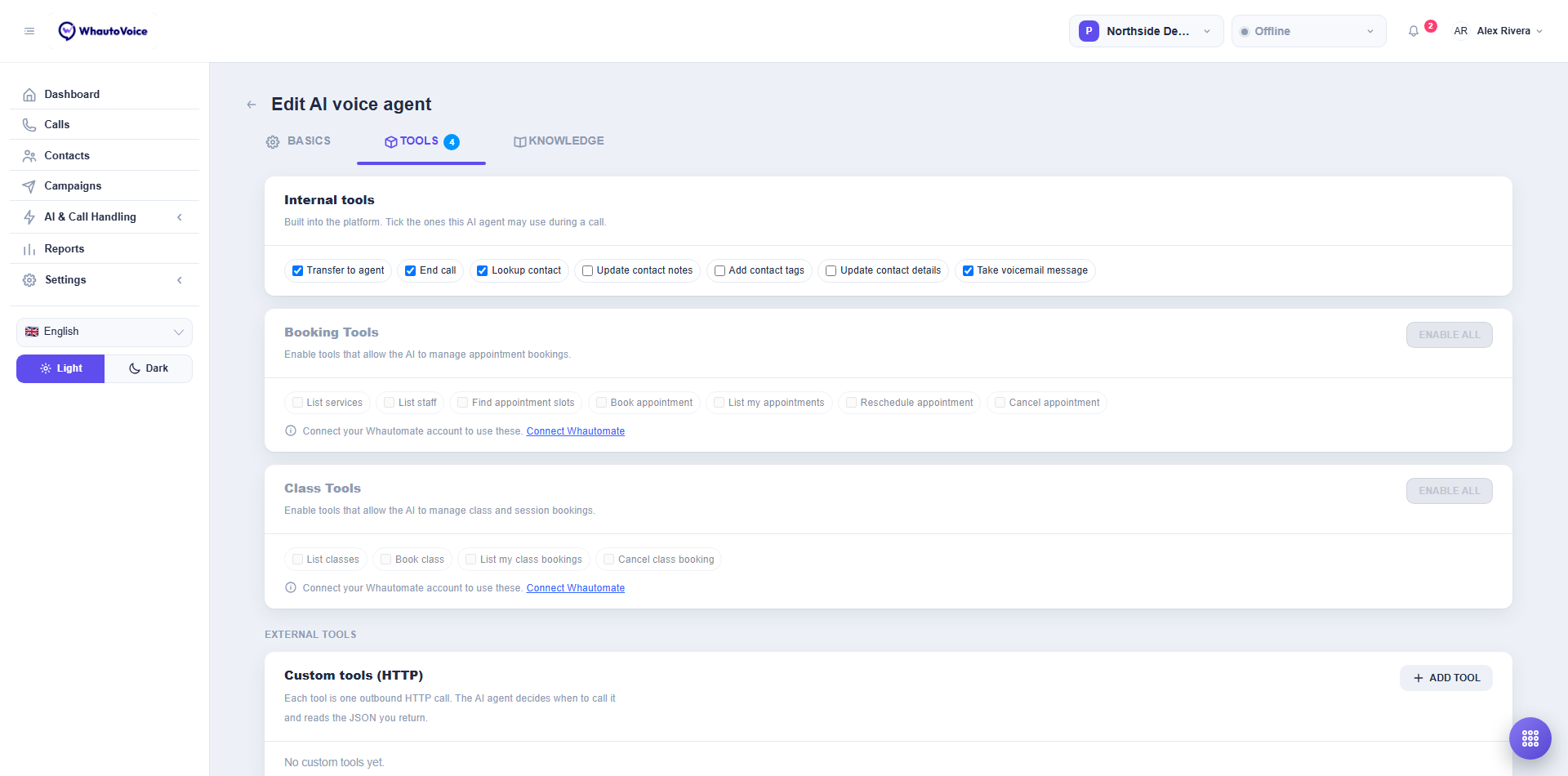
- Click Add server
- A new card appears in the MCP servers section.
- Short name
- A label the AI agent sees, such as
stripeorbookings. Letters, digits and underscores only, and no two servers on one AI agent may share a name.
- A label the AI agent sees, such as
- URL
- The server's address. It must start with
https://and be reachable from the public internet.http://addresses andlocalhostare rejected on save, because the engine has to reach the server itself.
- The server's address. It must start with
- Access token (optional)
- A bearer token if the server needs one. It is encrypted at rest and shown masked when you reopen the AI agent; saving without retyping it keeps the stored value.
- Test
- Click Test to connect. On success you see the server's name and how many tools available it reports; on failure you see the error the server returned.
- Choose the allow-list
- After a successful test the server's tools are listed with a checkbox each. "Tick the tools this AI agent may use. Leave all unticked to allow every tool." Because nobody can approve a tool call in the middle of a phone call, the allow-list is the control that matters.
- Save
- Click Save at the bottom of the page.
Custom tools (HTTP)
Each custom tool is one outbound HTTP call. The AI agent decides when to call it, sends the arguments it gathered from the caller, and reads the JSON you return.
- Click Add tool
- A new card appears in the Custom tools (HTTP) section.
- Tool name
- How the AI agent refers to it, for example
check_appointment_slots. Start with a letter or underscore, then letters, digits and underscores, up to 64 characters. No spaces.
- How the AI agent refers to it, for example
- URL and Method
- The endpoint to call.
https://is strongly recommended;http://is accepted. Method defaults to POST.
- The endpoint to call.
- When should the AI agent use this?
- One or two sentences the AI agent reads to decide when to call the tool and what it gets back: "Check which appointment slots are free on a given date. Call it before offering any time to the caller."
- Headers
- Click Add header for each header your endpoint needs, such as
AuthorizationorX-Api-Key. Header values are encrypted at rest and masked on screen, so an API key is safe here.
- Click Add header for each header your endpoint needs, such as
- Arguments as a JSON schema (optional)
- Describe the arguments the AI agent must collect before calling. Use a JSON Schema object; the description of each property tells the AI agent what to ask the caller for.
- Save
- Click Save. If a schema is not valid JSON you see The arguments schema for "name" is not valid JSON and the AI agent is not saved.
Worked example: check appointment slots
Tool name: check_appointment_slots
URL: https://api.riversidephysio.example/slots, Method POST
When should the AI agent use this?: "Look up free appointment slots for a date the caller asks about. Call it before offering any time."
Arguments as a JSON schema:
{
  "type": "object",
  "properties": {
    "date": {
      "type": "string",
      "description": "The day the caller wants, as YYYY-MM-DD"
    },
    "service": {
      "type": "string",
      "description": "The treatment they are booking, if they said"
    }
  },
  "required": ["date"]
}
When the AI agent calls it, your endpoint receives a JSON body like this:
{
  "tool": "check_appointment_slots",
  "arguments": { "date": "2026-09-08", "service": "sports injury" },
  "call": {
    "id": "abc123",
    "from": "+14155550123",
    "to": "+12025550169",
    "direction": "inbound",
    "contactId": "c9f2..."
  }
}
Return JSON and the AI agent reads it as the answer:
{ "slots": ["09:30", "11:15", "16:00"] }
The AI agent then says something like "I have half past nine, quarter past eleven or four o'clock on Tuesday. Which suits you?"
What to expect
- Your endpoint has 30 seconds to answer. After that the AI agent is told the tool failed and carries on with the conversation, so keep responses fast; the caller is listening to silence while they wait.
- If the response is not JSON, the first part of the text is passed to the AI agent as
raw. - A non-2xx status is reported to the AI agent as a failure with the status code. Return a clear JSON error such as
{ "error": "No slots on that date" }and the AI agent can explain it. - Keep responses short. The AI agent has to turn them into speech.
A tool the AI agent can call is a tool any caller can trigger by asking the right question. Do not connect endpoints that move money, delete records or send messages unless the endpoint itself checks who the caller is.
Booking tools
If your Whautomate account is connected, the Tools tab also offers Booking Tools and Class Tools. Those let an AI agent check what is free, book, reschedule and cancel while the caller is on the phone. They are off by default on every AI agent, including ones you already have. See Booking with Whautomate.
Looking things up in your documents
Tools are for doing. For answering questions from a price list, a services sheet or a policy, upload the document instead and let the agent read from it. See Knowledge bases.
Related
- Create an AI voice agent
- Writing AI agent instructions
- Knowledge bases
- Booking with Whautomate
- Human handoff
- Caller protection
Email us at hello@whautovoice.com and we will get you sorted.