Booking with Whautomate
Connect your Whautomate account and an AI voice agent can do the whole booking on the call: read out what you offer, find a genuinely free time, book it, and later move or cancel it. Nothing is written to your diary until the caller has said yes to a specific day and time.
Before you start
- A Whautomate account, and the Owner or Administrator role here.
- The booking tools are off by default on every AI agent. Connecting the integration does not switch them on, and it does not change any agent you already have.
Connect Whautomate
- Sign in to Whautomate as an owner or an administrator.
- Generate an API key
- In Whautomate, open Integrations, then the REST API, and generate a key. Copy it straight away: Whautomate shows it in full only once.
- Open the Whautomate card here
- Go to Settings > Integrations and click Connect on the Whautomate card.
- Paste the key and pick the API host
- Indian accounts use
api.in.whautomate.com. Everyone else usesapi.whautomate.com. If you run your own Whautomate, type its API address instead.
- Indian accounts use
- Save & verify
- The card changes to Connected. If your account has more than one location, they are pulled in at this point.
One key covers every location on the account. There is nothing to paste back into Whautomate.
Switch the tools on for an AI agent
Open the AI agent, go to the Tools tab and scroll past Internal tools. The booking tools sit in two groups, Booking Tools and Class Tools, so an agent that only takes class bookings never offers to book an appointment. Tick the ones this agent may use, or use Enable all on a group.
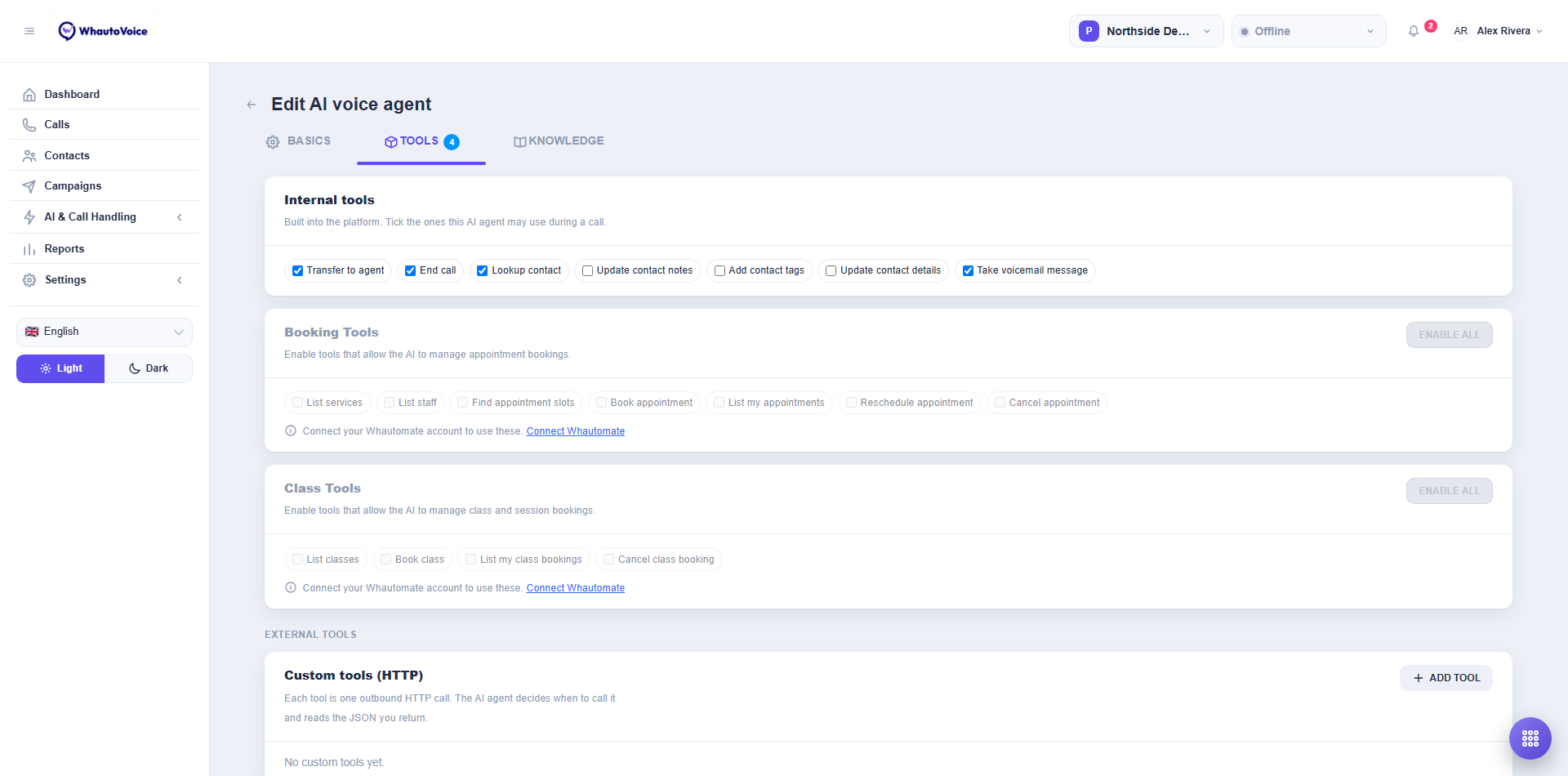
Until an account is connected the groups are greyed out with Connect your Whautomate account to use these.
Booking Tools
| Tool | What the agent can do |
|---|---|
| List services | Read out what can be booked, how long each takes and what it costs. |
| List staff | Name who can do a service, so a caller can ask for someone in particular. |
| Find appointment slots | Look up genuinely free times. The agent offers only times this returns. |
| Book appointment | Book one, after reading the service, day and time back and getting a yes. |
| Book appointment with payment | The same, but a service paid online is booked only once the caller pays. See Taking payment first. |
| List my appointments | Read back the caller's own upcoming bookings. |
| Reschedule appointment | Move one of the caller's bookings to a new day and time. |
| Cancel appointment | Cancel one of the caller's bookings. |
Class Tools
| Tool | What the agent can do |
|---|---|
| List classes | Read out upcoming classes with the day, the time and places left. |
| Book class | Put the caller on a class, after reading it back and getting a yes. |
| Book class with payment | The same, but a class paid online is booked only once the caller pays. |
| List my class bookings | Read back the classes the caller is on. |
| Cancel class booking | Take the caller off a class. |
A booking agent needs Find appointment slots as well as Book appointment, or it has no way to know what is free and will offer times that are already taken. The same goes for List my appointments before rescheduling or cancelling: the agent needs to know which booking the caller means.
Taking payment first
Book appointment and Book class always book straight away, even for a service you take payment for online. To have the caller pay first, tick Book appointment with payment or Book class with payment instead. They are off by default and Enable all leaves them off. Ticking one switches off the plain booking tool it replaces, so the agent has one way to book.
With a payment tool on:
- A service paid online is not booked yet. The agent tells the caller the price and that the place is held for 10 minutes, then sends the payment link with Send WhatsApp or Send email. The booking is confirmed by itself as soon as the caller pays. If they do not pay in time, the place is released and they need to book again.
- A free service, or one the caller's credits cover, is booked straight away, the same as before. A full class with a waiting list puts the caller on it, with nothing to pay.
The agent never reads a link out, so turn on at least one send tool and give it a message that can carry the link: an Email whose What to include says "the payment link from the call", or a WhatsApp message whose template has a value or button link set to AI fills in with "payment link". See Send the caller a WhatsApp message or an email.
Which location the agent books into
If you run one location there is nothing to decide, and the section does not appear. If you run several, a Location card appears once at least one booking tool is on:
- Book at one location. Pick the branch. Callers are never asked, and the agent cannot book anywhere else. Give each location its own agent and its own phone number to have one agent answer for one branch.
- Ask the caller which location. The agent reads out your locations and asks which one the caller wants before offering any time.
The choice is per AI agent, not per account, because both patterns are normal in the same business. A caller who has chosen a branch stays with it for the rest of the call.
When a caller asks about their own appointments, the agent looks across every location and says which branch each one is at. So somebody who booked at one branch can move or cancel it on a call to another, without being asked which branch they mean.
Send the caller a WhatsApp message or an email
Callers often ask for something in writing: the price list, directions, a form to fill in. The Send to the caller group lets the agent send it while they are still on the phone, using the WhatsApp templates and the email sending already set up in your Whautomate account.
- Tick the tools
- In the Send to the caller group, tick Send WhatsApp, Send email, or both.
- Add what the agent may send
- A What this agent can send card appears. Add a WhatsApp message or an Email for each thing callers ask for.
- Give each one a Name and say When to send it, for example "When the caller asks about prices". The agent uses this to pick the right one.
- For a WhatsApp message, choose the location, then a template
- If you have more than one location, choose which one the message comes from. Only that location's templates are listed, and the message is sent from that location's WhatsApp number. It starts at the location the agent books into.
- Only templates Meta has approved are listed. The template's text is shown so you can see each
{{1}},{{2}}in it. - Give every value a source. AI fills in is the default: say what goes there, such as "appointment date and time", and the agent writes it from the conversation, asking the caller only if it does not know. The other sources are Caller's first name (with a word to use when the name is unknown) and Fixed text (the same every time).
- WhatsApp allows 60 characters in a header, 1,024 in the message and 2,000 in a button link, counted once the values are filled in. Under each value the agent fills in, the editor shows how many characters it may use. The agent is told the same limit, and it is asked to shorten anything longer before the message is sent. Line breaks and long runs of spaces are removed, because WhatsApp rejects them.
- If the template shows an image, a video or a document, paste a link to it.
- For an email, say what it should include
- The agent writes the email itself, subject and message, from the conversation. In What to include, give it the facts and links to use, such as a form link or what to bring. It only uses facts and links from these notes or from the call, so it does not invent a price or a link.
- Copy the team, if you want to see what goes out
- Under Copy the team on these emails, enter up to 5 addresses. Choose BCC to keep them hidden from the caller, or CC to show them.
- Save the agent.
The agent only sends something the caller asked for or agreed to, and says what it will send and where before it sends it. It cannot send the same thing twice on one call, and it sends at most three things per call.
WhatsApp goes to the number the caller is ringing from. Email goes to the address on their Whautomate client record. If there is no email on file, the agent asks the caller to spell it, reads it back, and saves it on their client record. An email already on file is always used, so a caller cannot redirect somebody else's email by giving a different address.
WhatsApp messages are sent from the WhatsApp number of the location the template belongs to, and use your Whautomate WhatsApp account. Emails are sent from your Whautomate email setup and use your Whautomate email credits.
What the caller experiences
The agent is told never to invent a date. It asks what the caller wants, checks what is free, offers only real times, reads the choice back and waits for a clear yes before writing anything. Cancelling and rescheduling work the same way: it reads back which booking it is about to change first.
Bookings are always made for the number the caller is ringing from. A caller can only hear and change their own bookings. They cannot ask about anyone else's, and the agent cannot be talked into it.
If booking is not working
| What you see | What to check |
|---|---|
| The agent never offers to book | The tools are not ticked on that AI agent, or the instructions never mention booking. Ticking a tool does not make an agent use it. |
| This agent has booking tools switched on, but no Whautomate account is connected | The banner on the AI agent. It will tell callers booking is unavailable until you connect one under Settings > Integrations. |
| The agent offers times that turn out to be taken | Find appointment slots is not ticked, so it has nothing real to offer. |
| "I can't find a booking under this number" | Bookings are matched on the number the caller is ringing from. One made under a different number will not be found. |
| The agent asks which branch when it should not | The agent is set to Ask the caller which location. Change it to Book at one location. |
| No locations came back on the integration card | The key is no longer valid in Whautomate. Generate a new one. |
| No approved WhatsApp templates were found | Create a template in Whautomate and wait for Meta to approve it, then open the AI agent again. |
| The agent says the message is on its way but nothing arrives | Check the WhatsApp connection and the email credits in Whautomate. Sends are queued there, so a failure shows in Whautomate, not on the call. |
Related
Email us at hello@whautovoice.com and we will get you sorted.