Calls and call history
The Calls page is the floor and the log in one place. The top shows what is happening right now, and the bottom is a searchable record of every call in the last six months.
Agents see only the calls assigned to them plus live calls that nobody has picked up yet. Owners and Administrators see everything in the workspace.
The dialer bar
The bar at the top of the page places an outbound call: type a name or number, pick the From number and click Call. It is covered in Making outbound calls.
Live calls
The Live calls board lists every call in progress in the workspace and updates on its own as calls arrive, connect and end. When nothing is happening it reads No active calls.
| Column | Meaning |
|---|---|
| Contact | The matched contact, or the phone number if there is no match. |
| Direction | Inbound or Outbound. |
| Status | A coloured pill such as Ringing or In Progress. |
| Handled by | Who has the caller: Ai, Agent or Queue while it hunts for someone. |
| Agent | The teammate on the call, or a dash while an AI agent or queue has it. |
| View | Opens the call's detail page while it is still live, so you can follow the transcript as it is written. |
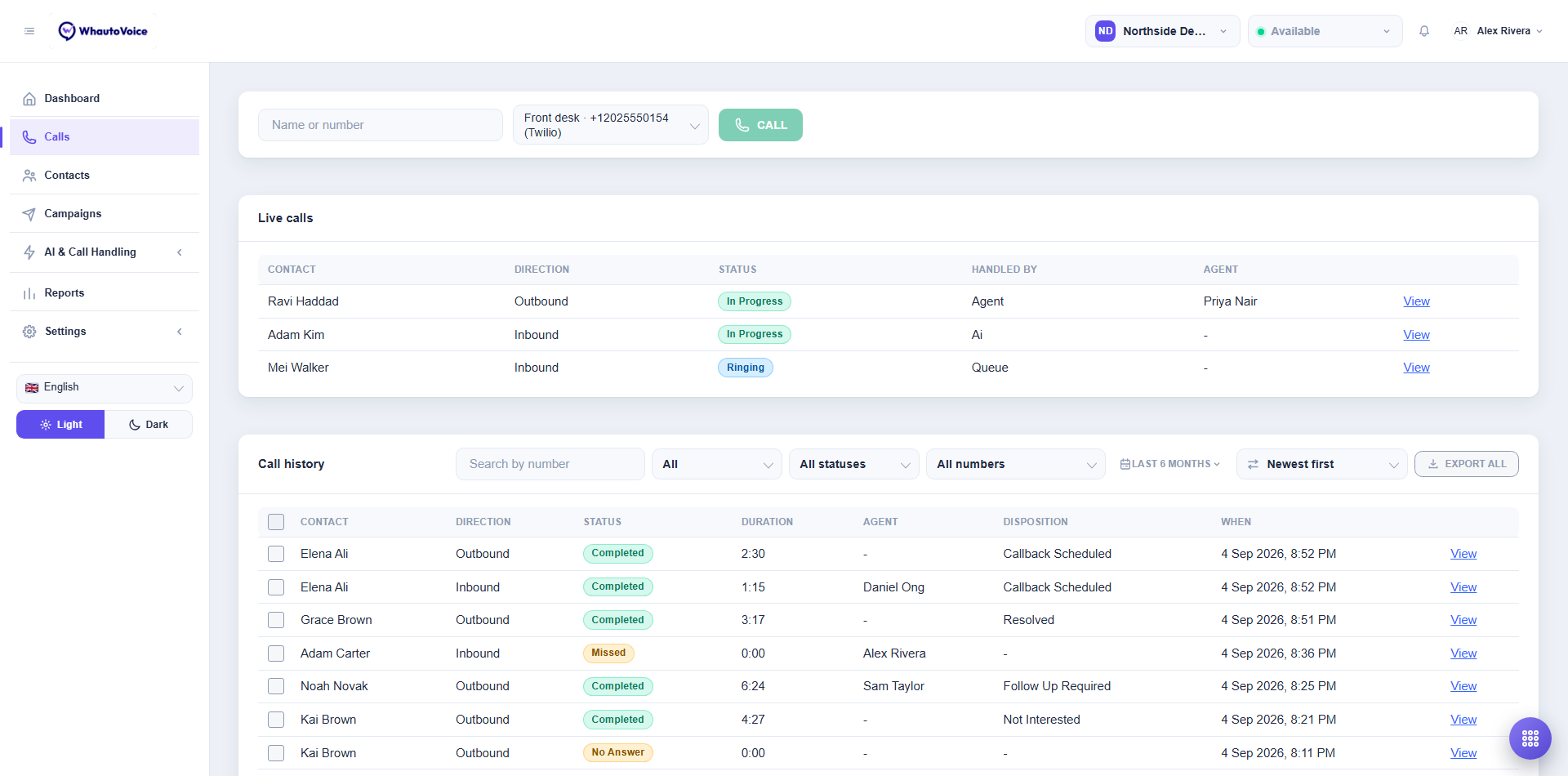
Northside Dental has three calls live: Priya Nair on an outbound call, an AI agent talking to Adam Kim, and Mei Walker ringing in a queue.
Call history
The Call history card holds the log. The header carries the filters and the export button.
Filters
- Search by number. Type part of a phone number and press Enter. The list narrows to calls from or to a matching number.
- Direction. All, Inbound or Outbound.
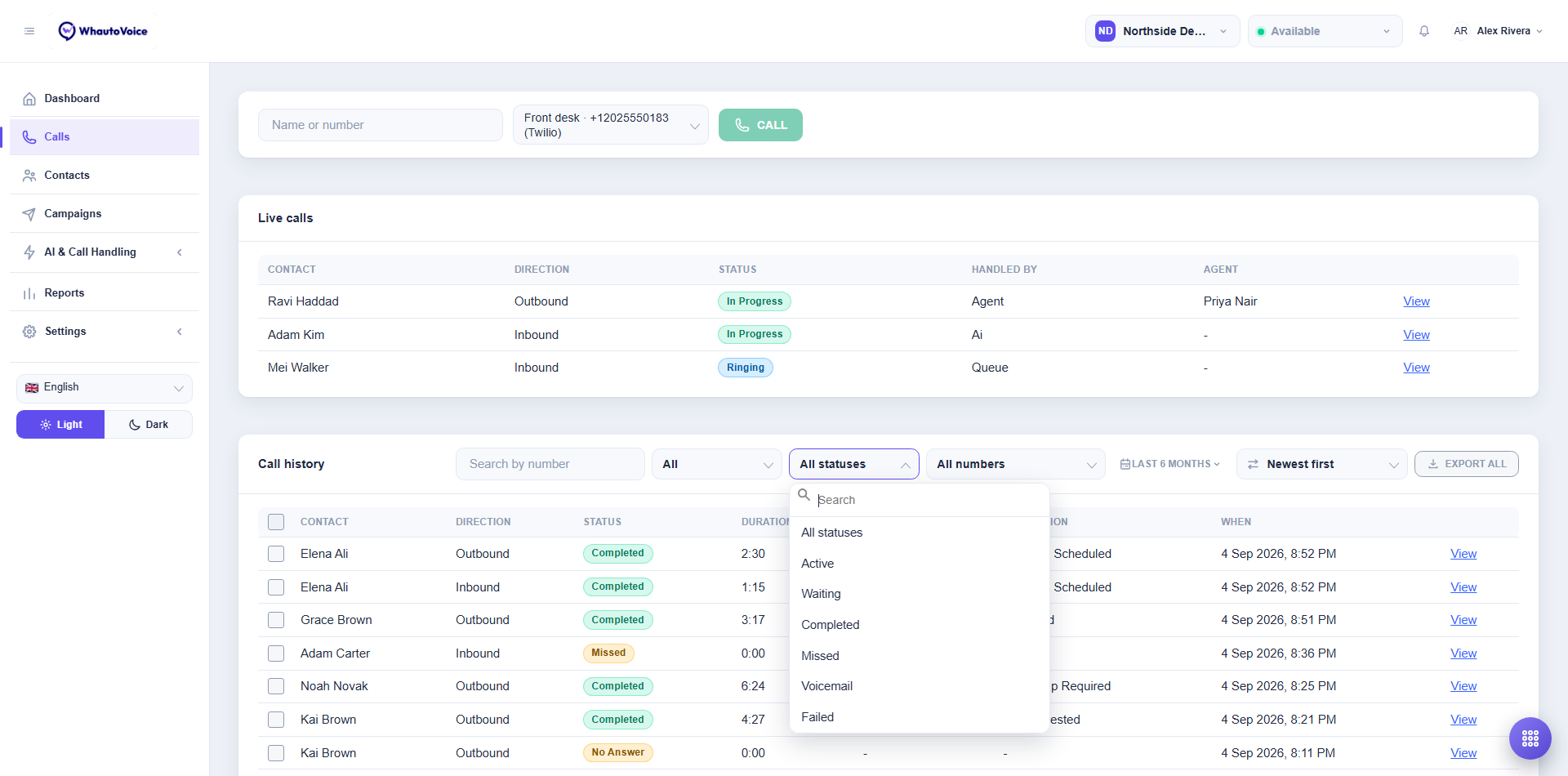
- Status. All statuses, or one of Active, Waiting, Completed, Missed, Voicemail and Failed. Use the search box inside the menu to jump to one.
- Number. All numbers or one of your workspace numbers. This filter only appears when the workspace has more than one number.
- Screened by AI. Only calls where an AI voice agent screened the caller. See Caller protection.
- Date range. A button showing the current window, Last 6 months by default.
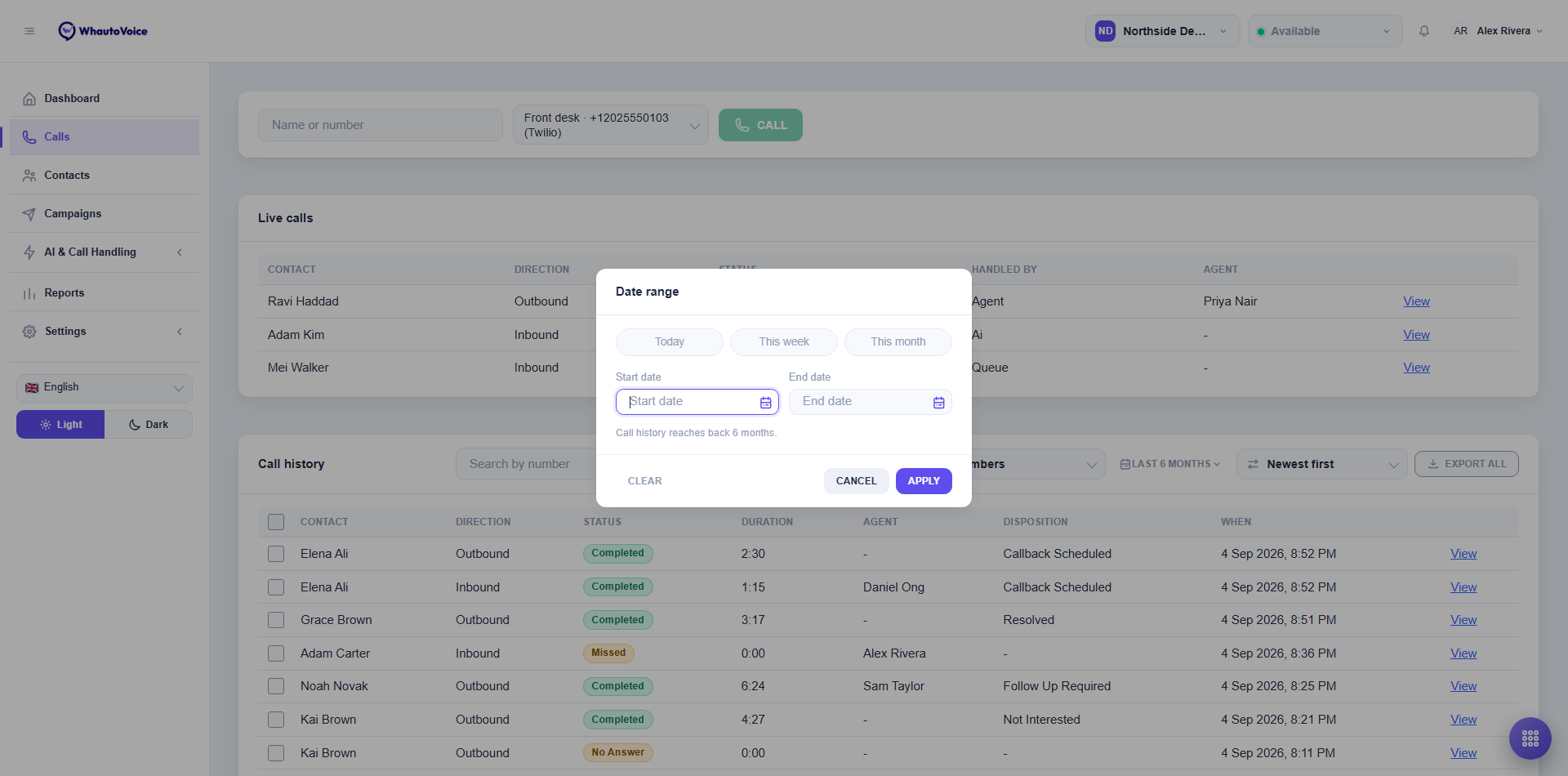
The date range dialog
Click the date button to open Date range.
-
Pick a preset or your own dates
- Today, This week and This month fill both dates for you. This week starts on Sunday and every preset ends today.
- Or choose a Start date and an End date with the calendar pickers. Picking a date by hand drops the preset highlight.
-
Click Apply
- Clear goes back to the full six-month window. Cancel leaves the filter as it was.
The hint Call history reaches back 6 months. tells you how far the calendars go; earlier dates cannot be selected. If the end date is before the start date the dialog shows The end date is before the start date. and Apply stays disabled.
How far back history reaches depends on your plan: 60 days on Starter, 6 months on Growth and 12 months on Scale. The calls page always shows at most the last 6 months; use an export for anything older that your plan still holds.
Sorting
Sort by offers Newest first, Oldest first, Longest first, Shortest first and Status. Your choice is remembered on this browser.
The table
| Column | Meaning |
|---|---|
| Contact | The matched contact or the phone number. |
| Direction | Inbound or Outbound. |
| Status | Completed, Missed, No Answer, Voicemail, Failed and so on. |
| Duration | Talk time as minutes and seconds. Missed calls show 0:00. |
| Agent | Who handled it, or a dash for AI agent-only calls. |
| Disposition | The outcome recorded on the call, such as Resolved or Callback Scheduled. |
| When | The date and time the call started, in your time format. |
| View | Opens Call details. |
The paginator under the table shows the range you are looking at, for example 1 to 10 of 240, with Previous and Next. Rows per page offers 10, 25, 50 or 100 and is remembered on this browser.
Exporting calls
Export selected
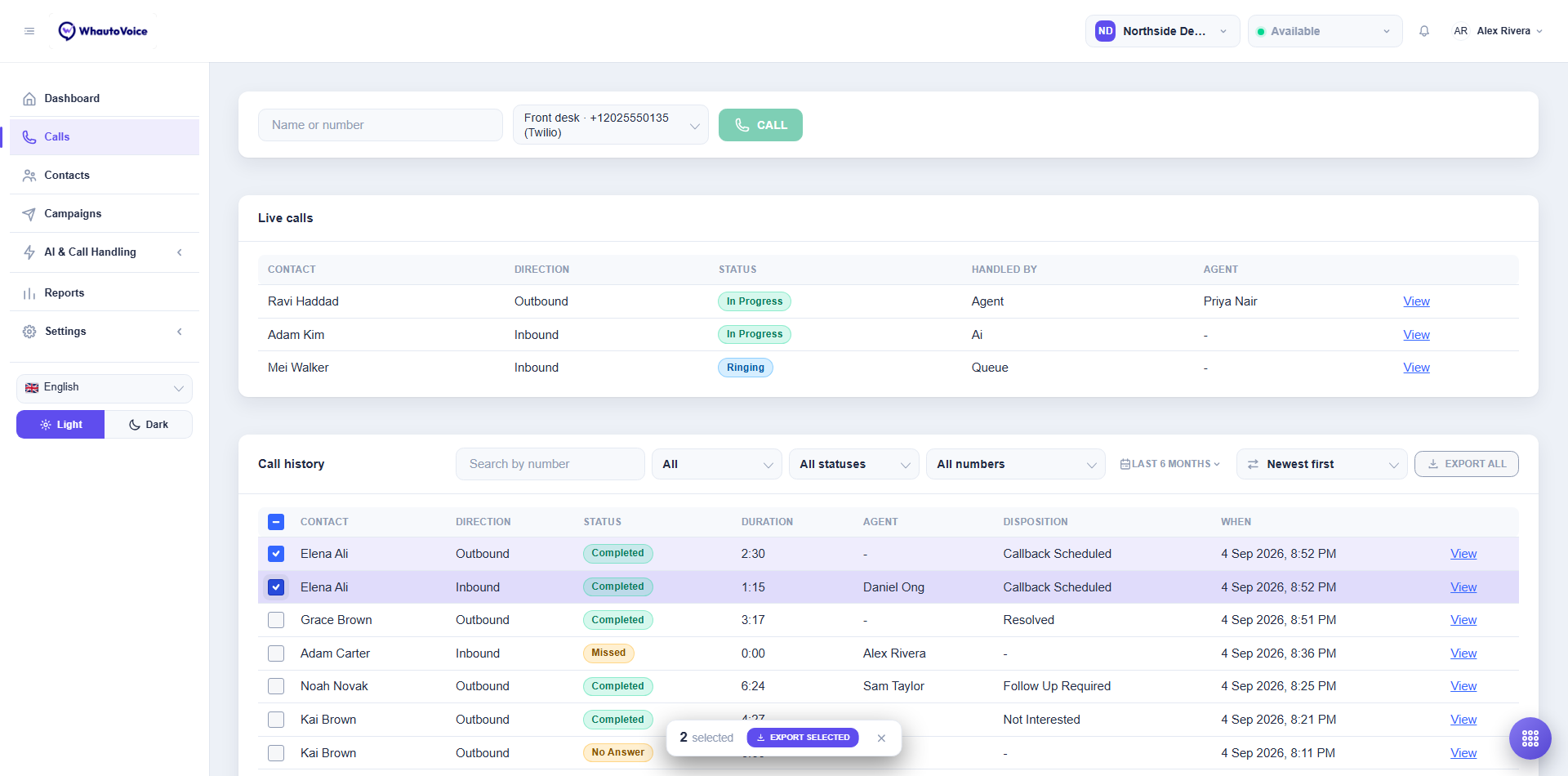
Tick the boxes on the rows you want, or tick the box in the header to select every row on the page. A floating bar appears reading, for example, 2 selected with an Export selected button and a cross to clear the selection. You can select up to 100 rows at once; beyond that the bar warns that only the first 100 can be acted on.
Click Export selected. The toast Exporting 2 selected row(s) in the background. confirms it and a status line under the header shows the job's progress with a Go to Data exports link.
Export all and Export filtered
The button at the far right of the header exports the list as the filters describe it.
- With no filters set it reads Export all and produces the entire dataset. A full export can only be run once every 7 days; until then the button is greyed out and the line under the header reads Next full export available 11 September 2026. Filter the list to export a subset now.
- With any filter set it reads Export filtered and can be run at any time.
- If an export of this data is already running the button is disabled with An export of this data is already running.
Where exports land
Every export is built in the background and appears under Settings > Data exports with a status of Queued, Processing, Ready or Ready (capped). Click Download to get the CSV. Files are capped at 20,000 rows and deleted 7 days after they are created, so download what you need. Agents can only export their own calls.
The calls CSV includes fields the table does not show, such as the platform number, billed seconds, hangup cause, AI handoff reason and the AI agent's summary. Filter first, then export, when you need those for a report.
Related
Email us at hello@whautovoice.com and we will get you sorted.